
Multi Column Classes
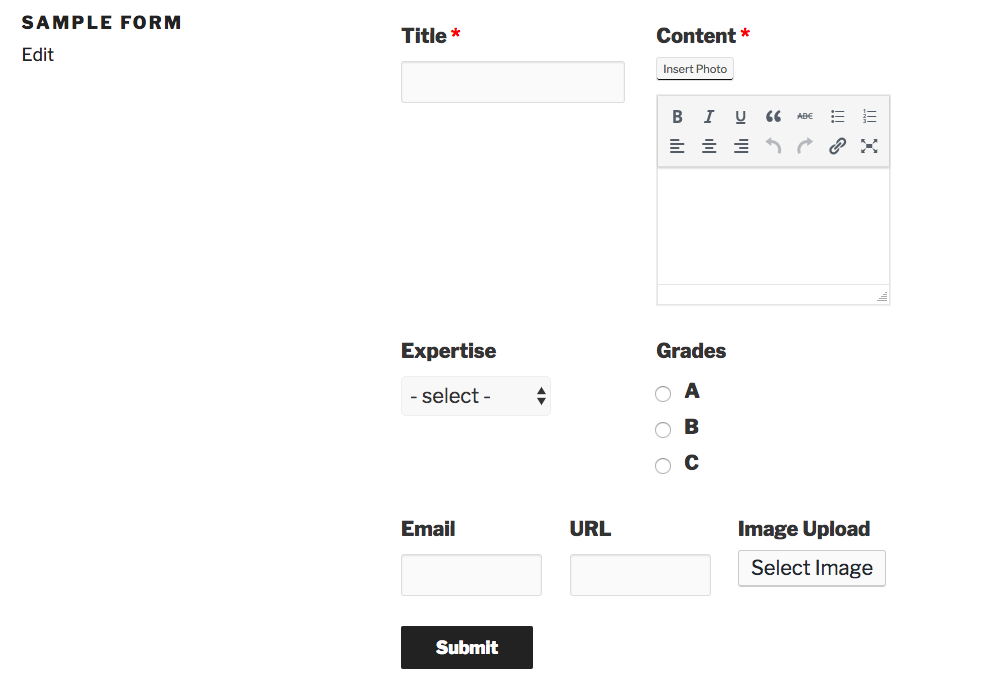
With WPUF Free 2.9.0, users can rearrange form fields column-wise for better appearance and user experience. This applies to both Post Forms and Registration Forms.
To do this, open an existing Post Form or create a new one.
For 2 columns
Section titled “For 2 columns”Click the Edit option on the first field that you want to put side by side in 2 columns.
In this case we want to put Title and Content fields together in 2 columns.
Click on Advanced Options.
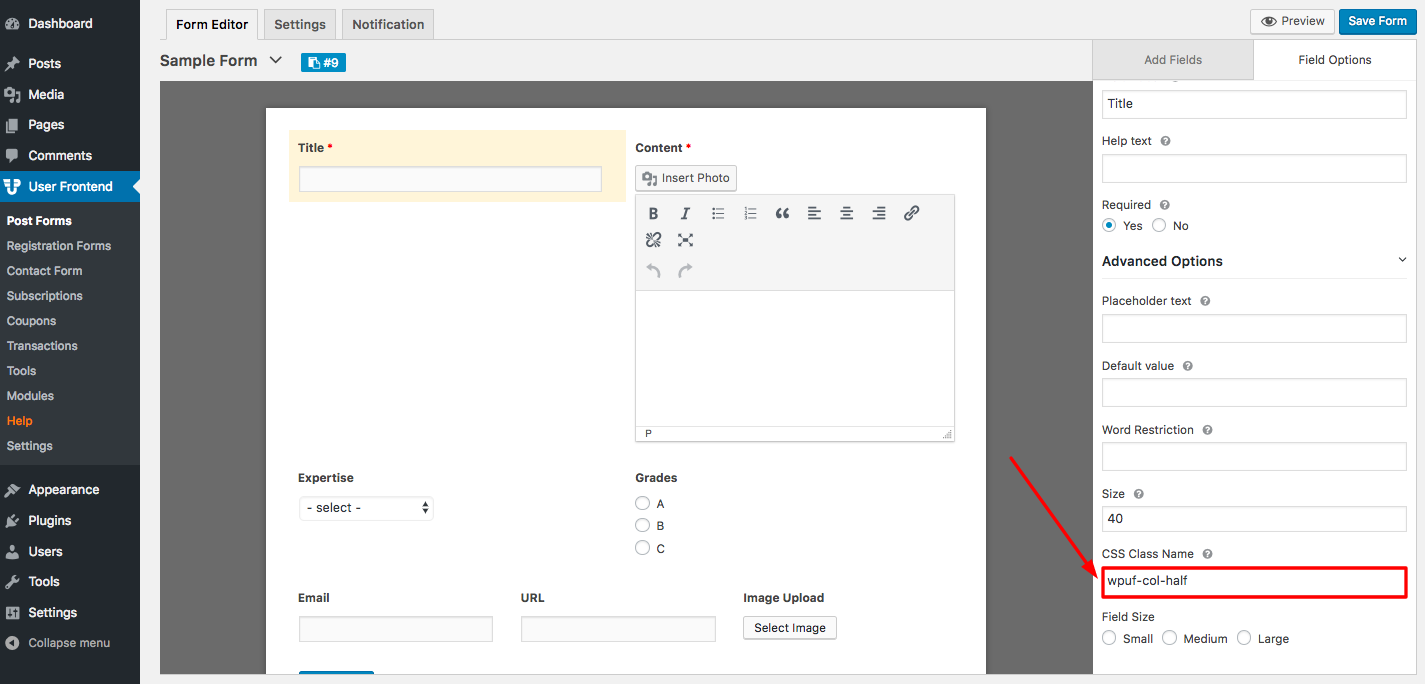
Then under first fields' CSS Class Name (like Title) type the following container class name: wpuf-col-half
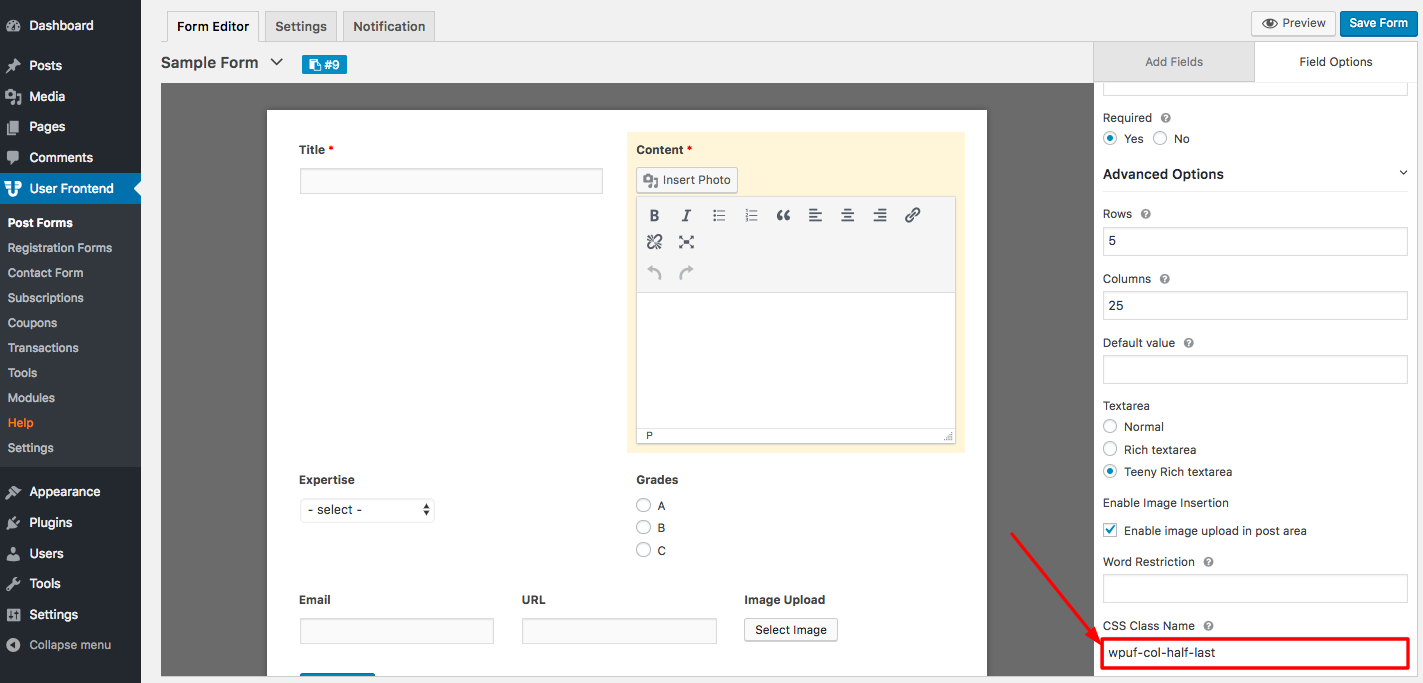
In the second field's CSS Class Name (like Content), type the following: wpuf-col-half-last
For 3 columns
Section titled “For 3 columns”Click on Advanced Options>CSS Class Name for the fields you want to put side by side in 3 columns.
In this case, we're putting Email, URL and Image Upload fields together side by side.
For the first 2 fields (like Email and URL), type the following CSS Class Name: wpuf-col-one-third
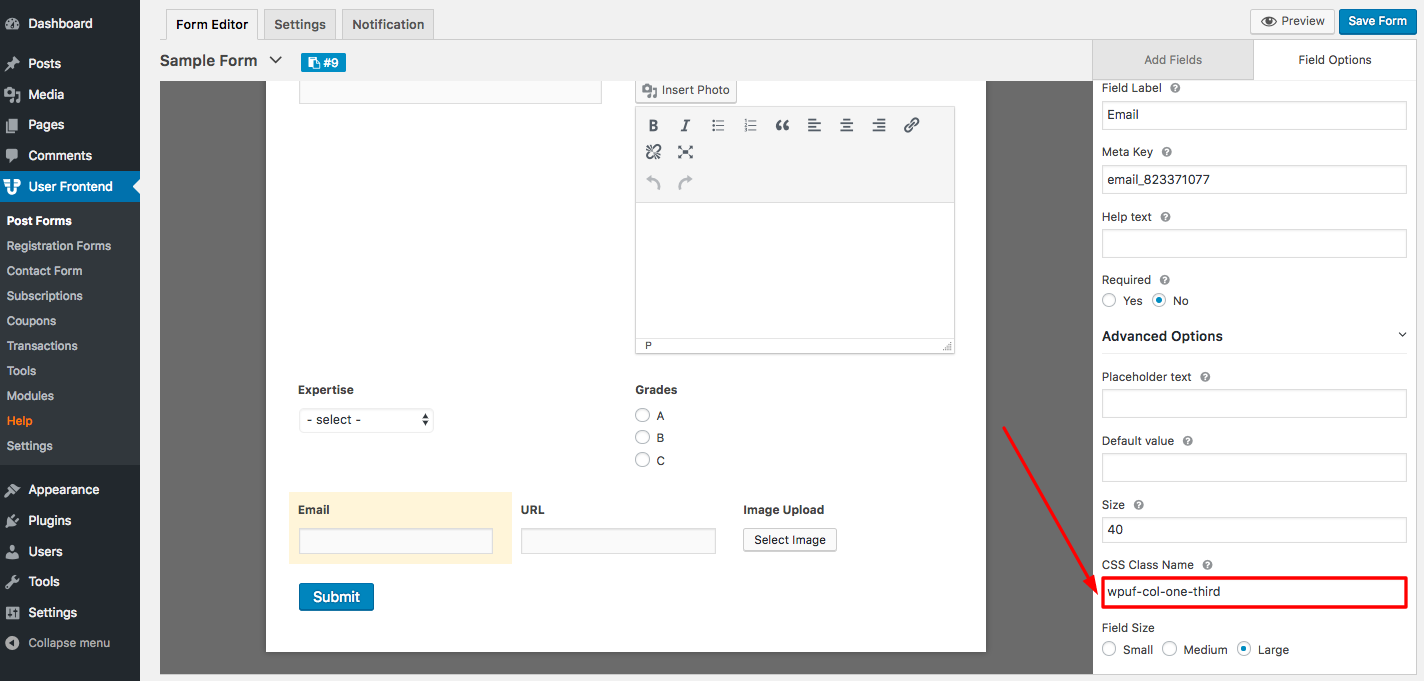
For the last field (like Image Upload), type the following: wpuf-col-one-third-last
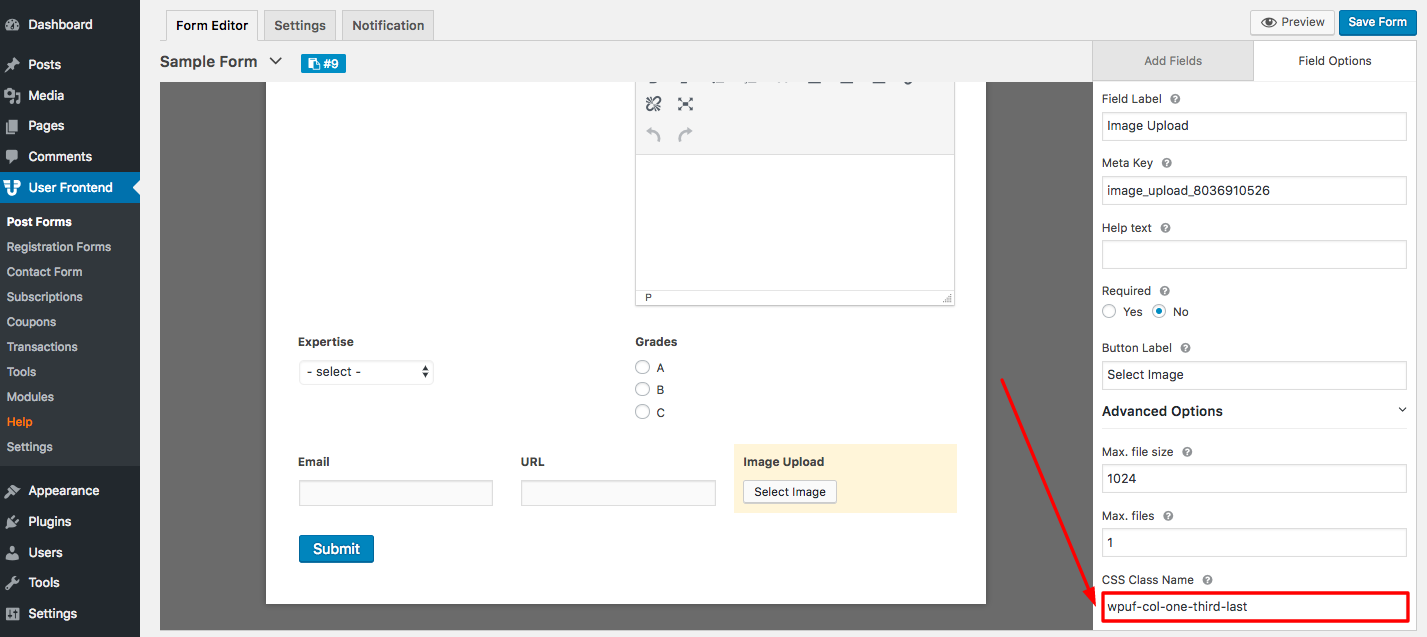
The combination of fields could be different types, like Text, Text Area, Names, Email Address, URL, Radio, Drop-downs, and any other.
As you type these class names you'll view the changes real-time in the form builder. You can also view the published version using the Preview option located on the top-right of the form.
Frontend View
Section titled “Frontend View”Publish your form in the normal way you do. Then view it from frontend. You will now see the fields of your form arranged in this manner.