Planning a new project used to eat up most of an hour. You open an empty board, think through every phase, type each task one by one, and still worry that you forgot something important, like approvals or a final report.
AI changes that routine. You describe the project in a few sentences, and it drafts the task lists and tasks for you. Your job moves from typing everything from scratch to reviewing, trimming, and assigning work. Our own team now starts campaign plans and client website projects this way, and "how do I do this?" is one of the most common questions our users ask.
In this blog post, we'll show you how to create a full project plan with AI in under 5 minutes using the AI Project Generator in WP Project Manager. We'll go from a short brief to a ready project with task lists, tasks, dates, and a team, one timed step at a time. Let's get started!
What Is the AI Project Generator in WP Project Manager?
The AI Project Generator is a built-in WP Project Manager feature that turns a short project description into a structured plan. You write what you want to achieve, and it suggests a project name, a few starter tasks, and task lists with tasks inside them.
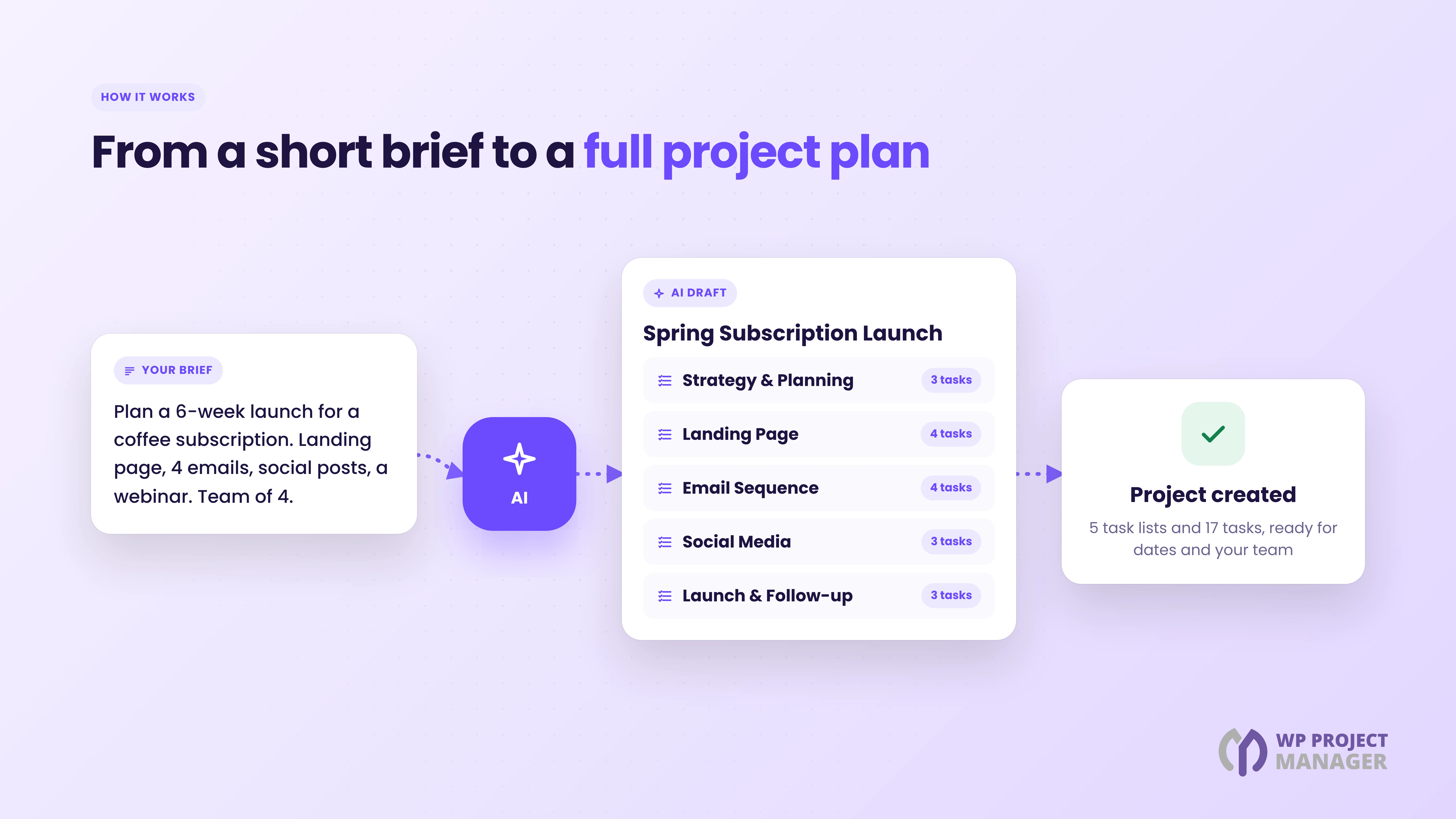
Nothing is saved until you approve it. You can rename items, reorder tasks, delete what you don't need, or ask for a fresh draft. When the plan looks right, one click creates the whole project inside your WordPress dashboard, where your team already works.
The generator works with the AI provider you choose: OpenAI, Anthropic, or Google. We use Anthropic's Claude models on our end. Each plan can include up to 8 task lists with up to 8 tasks each, plus up to 8 starter tasks, which is plenty for most real projects.
Read more on how to plan projects with AI in WordPress.
Why Plan Projects with AI Instead of by Hand?
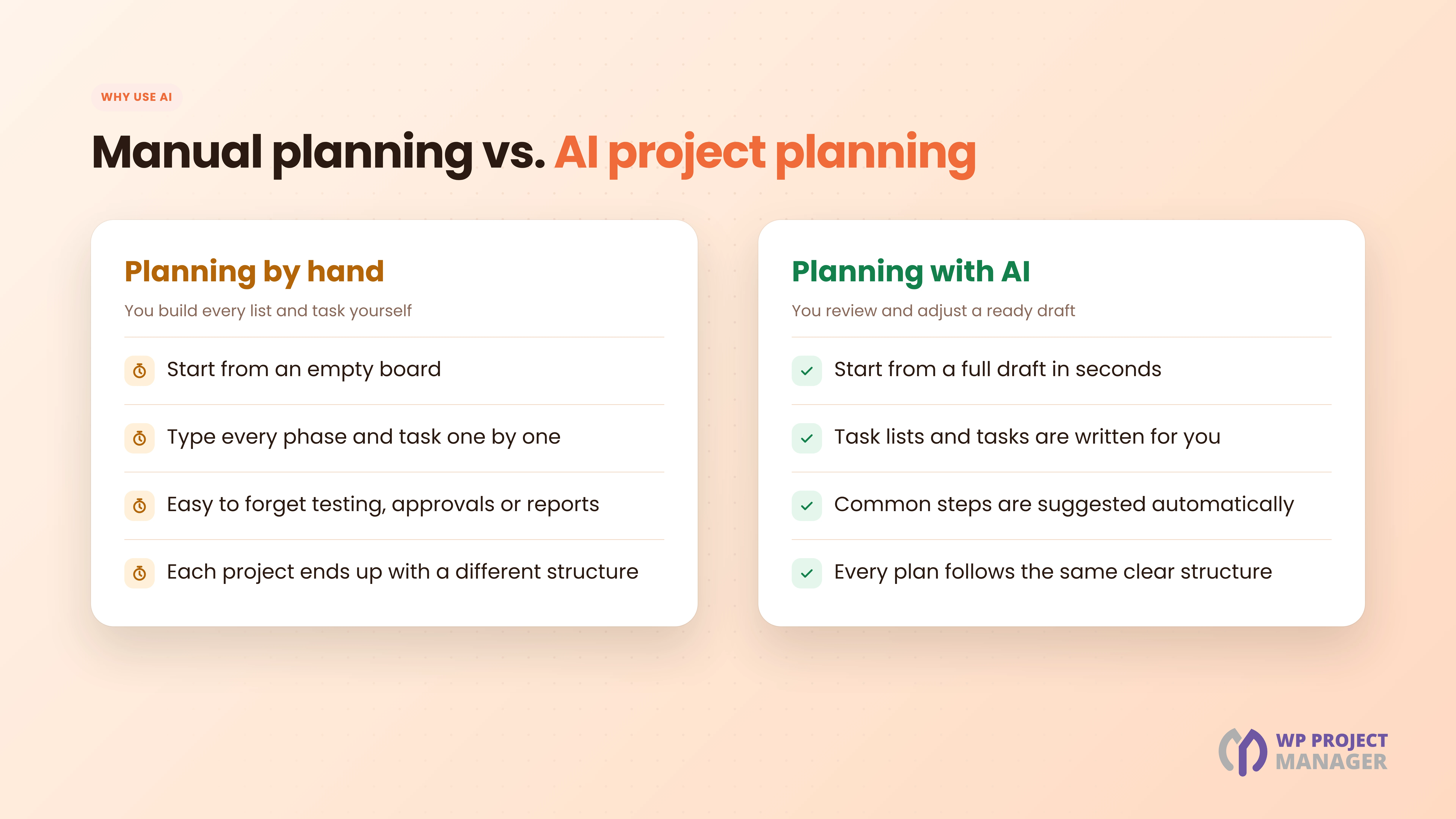
Manual planning still works, but it is slow and depends heavily on memory. Here's how the two approaches compare, and the five biggest reasons we now start almost every new plan with AI.
A. You Skip the Blank Page
The hardest part of planning is getting started. AI gives you a complete first draft in seconds, so you begin by editing a real structure instead of staring at an empty board and wondering where to start.
B. You Catch Steps That Are Easy to Forget
AI suggests the steps most projects of that type need, such as testing, client approvals, or a post-launch report. These are exactly the tasks that slip through when you plan in a hurry, and you still decide what stays.
C. Every Plan Follows the Same Structure
Plans come out in a clear and consistent shape, with phases as task lists and actions as tasks. When every project is organized the same way, your team always knows where to look and new members settle in faster.
D. You Spend Your Time on Decisions, Not Typing
Writing out dozens of tasks is busywork. Once the AI handles the first draft, your time goes into the parts that need human judgment: setting priorities, choosing deadlines, and matching each task with the right person.
E. Your Project Data Stays in WordPress
The project, tasks, files, and team all live on your own WordPress site. Only your short brief is sent to the AI provider to draft the plan, so you keep full control of the work that follows.
What You Need Before You Start
The setup is simple, and most WordPress sites already have everything ready. Make sure you have these three things in place before you follow the steps below.
- A WordPress website where you have administrator access.
- WP Project Manager (free), installed and activated.
- An API key from Anthropic, OpenAI, or Google AI Studio.
Note: AI project creation is part of the free plugin. WP Project Manager Pro adds extras on top, such as AI subtask generation, the Gantt chart, the Kanban board, and the time tracker.
How to Create a Full Project Plan with AI in Under 5 Minutes (Step by Step)
Each step below shows roughly how long it takes. Step 01 is a one-time setup, so it doesn't count toward the five minutes. After that, the whole flow fits comfortably inside the time limit, as you can see in the overview.
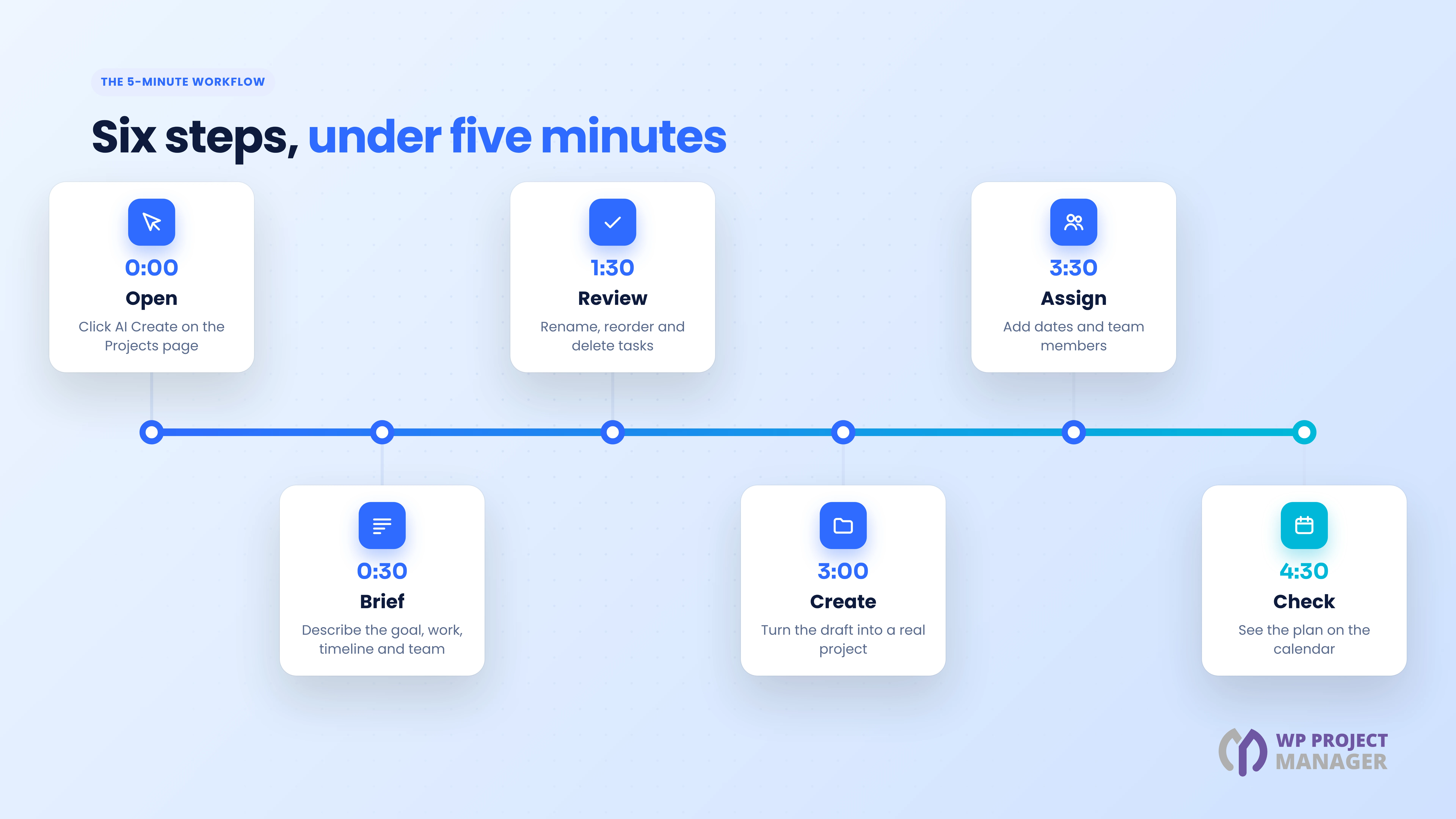
For the tutorial, we'll plan a product launch for Kiln Coffee, a demo coffee brand that is starting a monthly subscription. It is the same kind of campaign plan our team builds with the generator.
Step 01: Connect Your AI Provider (One-Time Setup)
Navigate to Project Manager > Settings from your WordPress dashboard and open AI Settings. Select your AI Provider from the dropdown. We selected Anthropic. Then paste your API Key and click the Save Changes button.
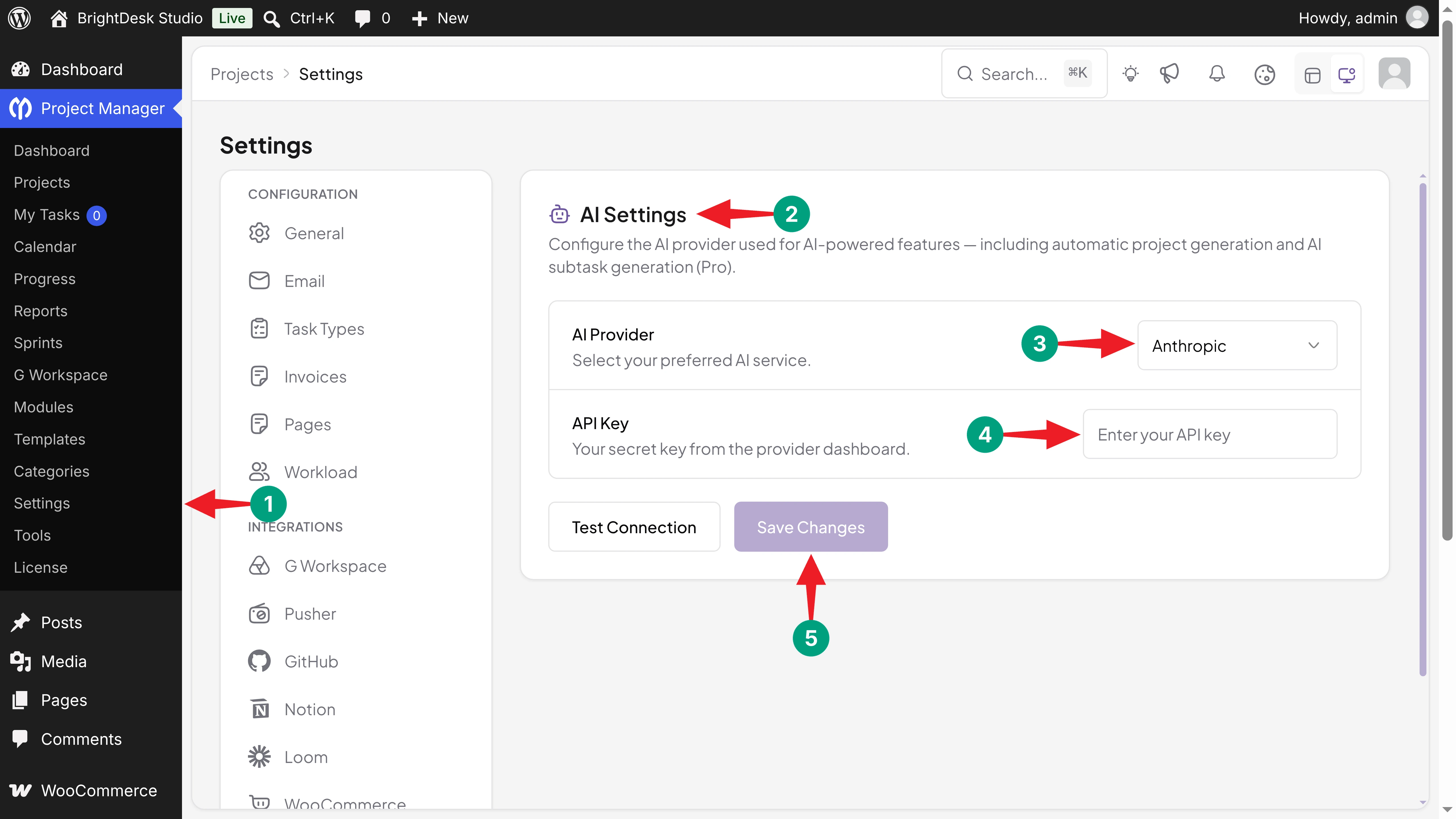
You can click Test Connection first to make sure the key works. This setup is done only once. After that, anyone on your team with permission to create projects can use AI planning without touching the settings again.
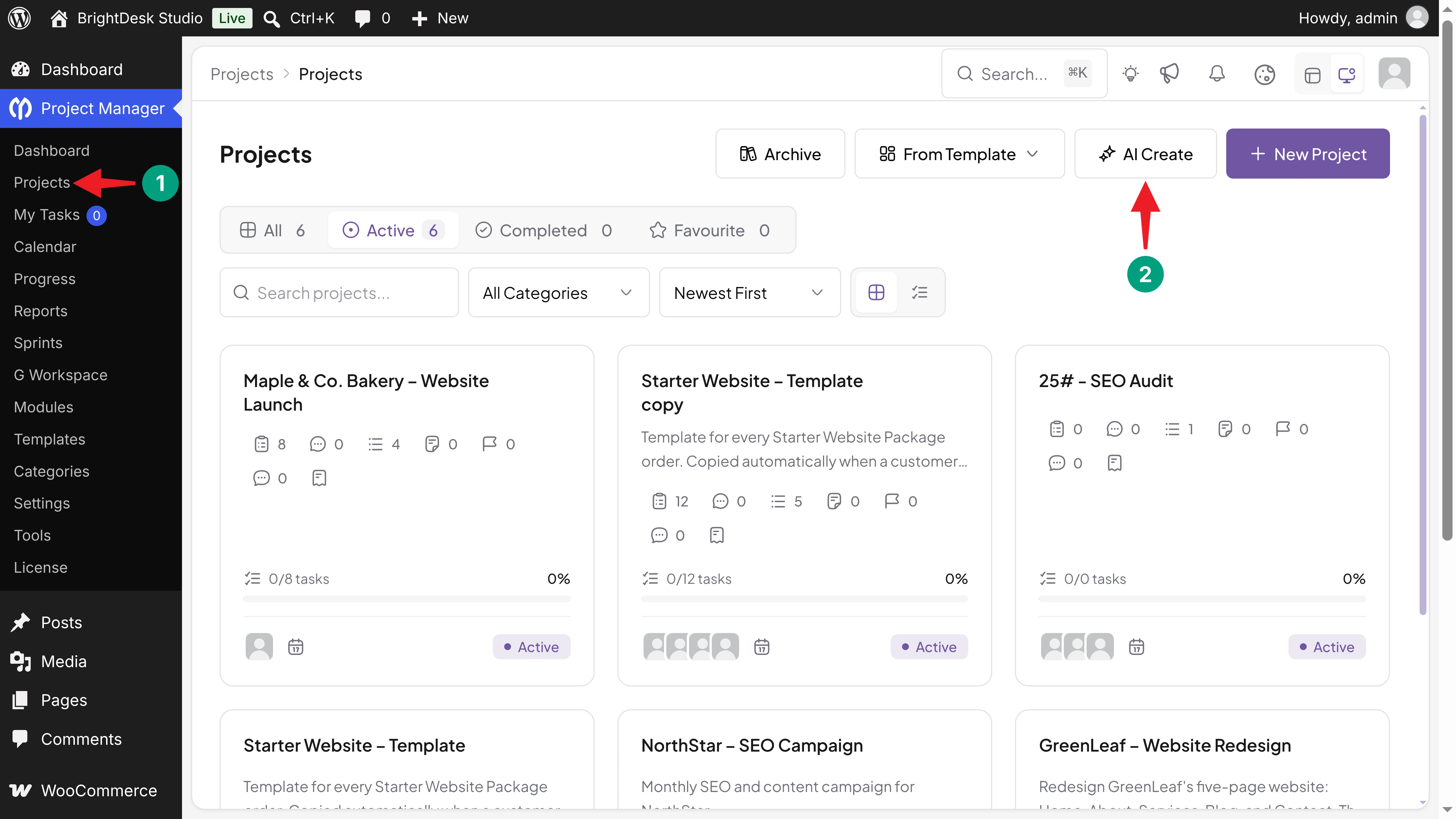
Step 02: Open the AI Project Generator (0:00 – 0:30)
Go to Project Manager > Projects and click the AI Create button at the top of the page. The AI Project Generator panel slides in from the right, with a message box at the bottom where you describe your project.
Step 03: Write a Short Project Brief (0:30 – 1:30)
Type your project description in the message box and click the send button, or press Enter. Our brief asks for a six-week Kiln Coffee launch with a landing page, an email sequence, social content, and a launch-day webinar.
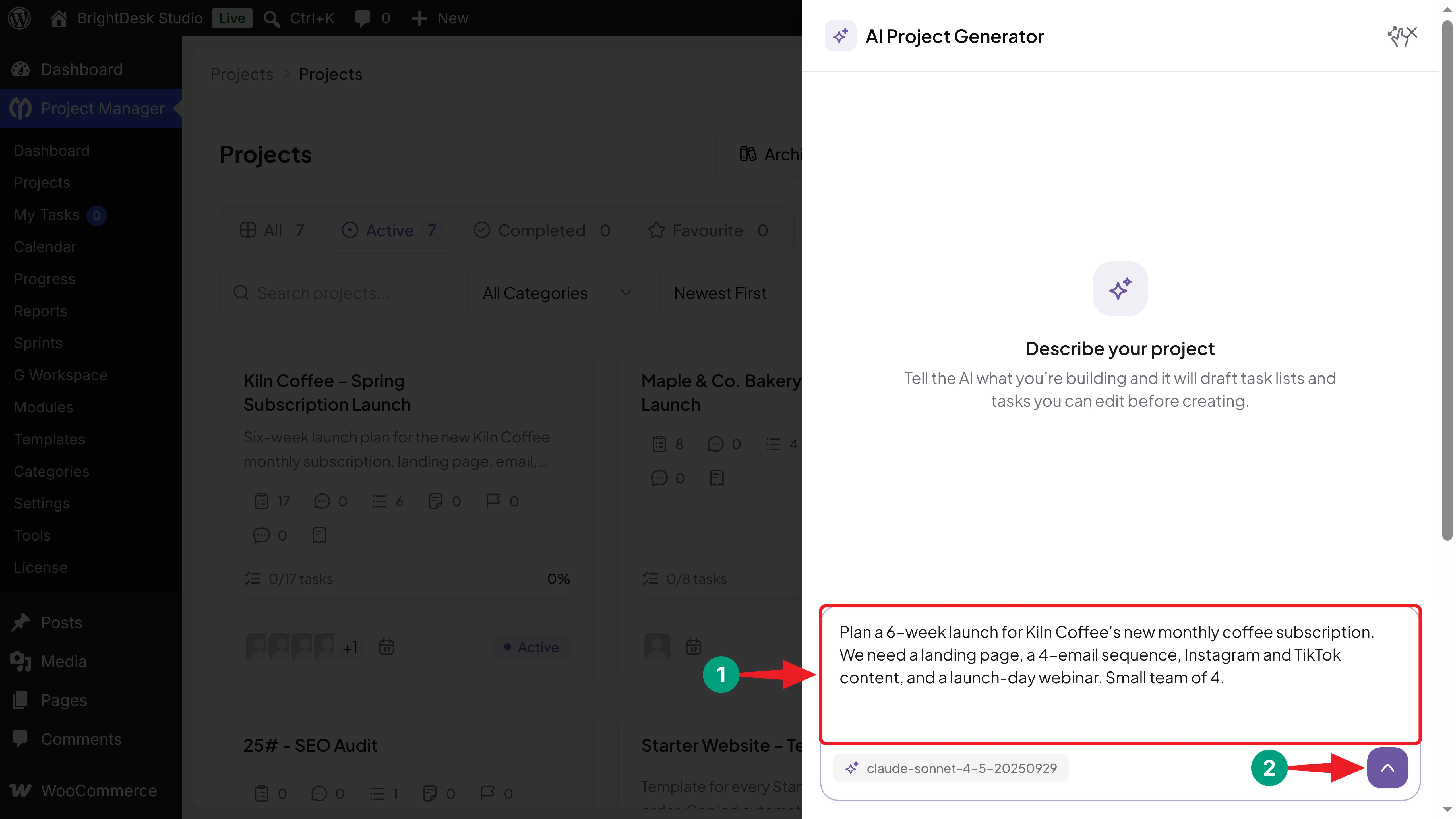
The better your brief, the better your plan. The model you chose in AI Settings appears at the bottom of the panel, so you always know which one is drafting. A strong brief always covers these four things.
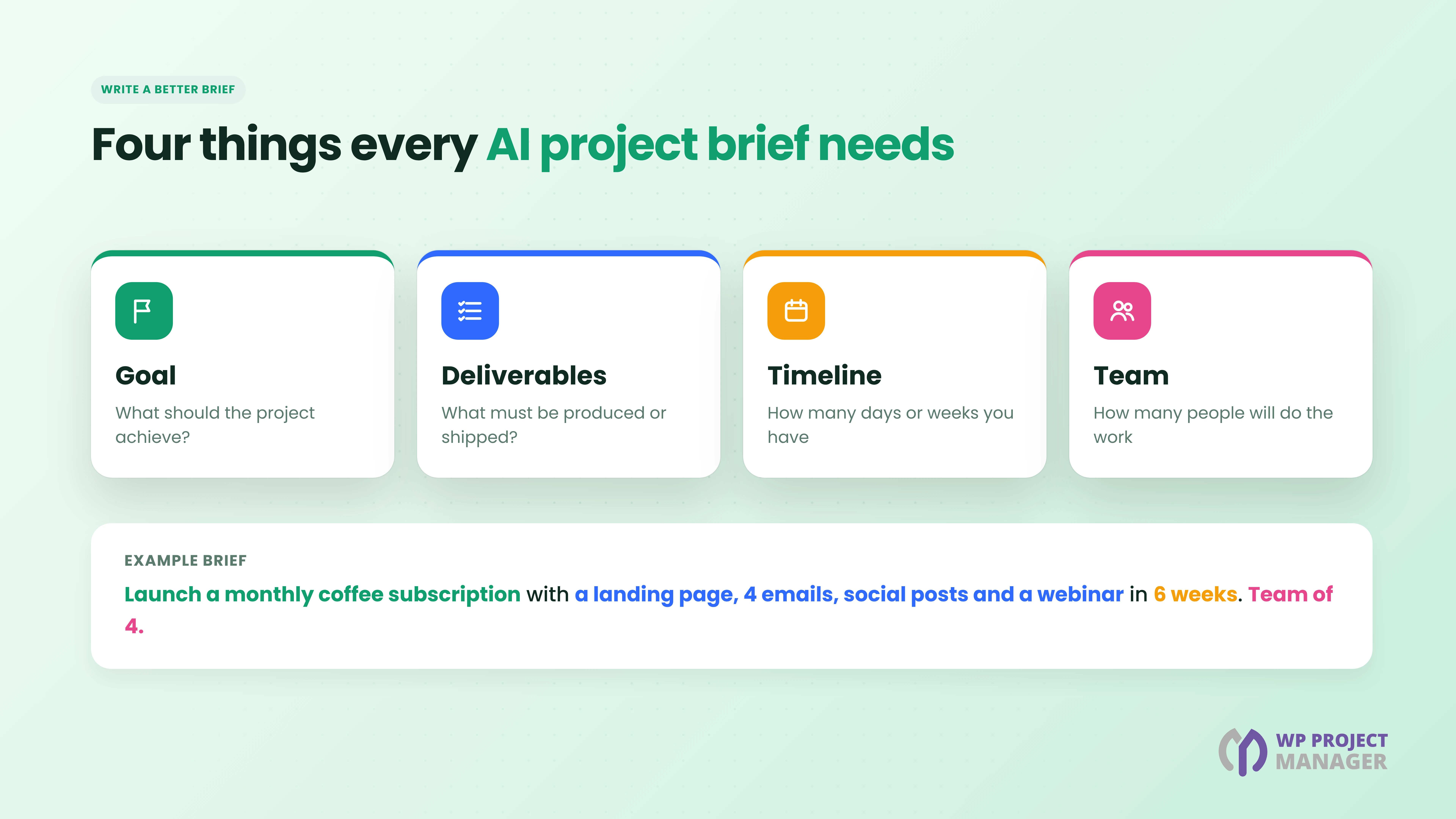
- Goal: What you want to achieve, such as "launch a monthly coffee subscription".
- Deliverables: What must be produced, such as "a landing page, 4 emails, social posts, and a webinar".
- Timeline: How long you have, such as "6 weeks".
- Team: Who is doing the work, such as "a small team of 4".
Step 04: Review the AI-Generated Plan (1:30 – 3:00)
Within a few seconds, the AI shows its proposed structure along with a count of lists and tasks. You'll see the Project Name at the top, a few starter tasks below it, and then each task list with its tasks.
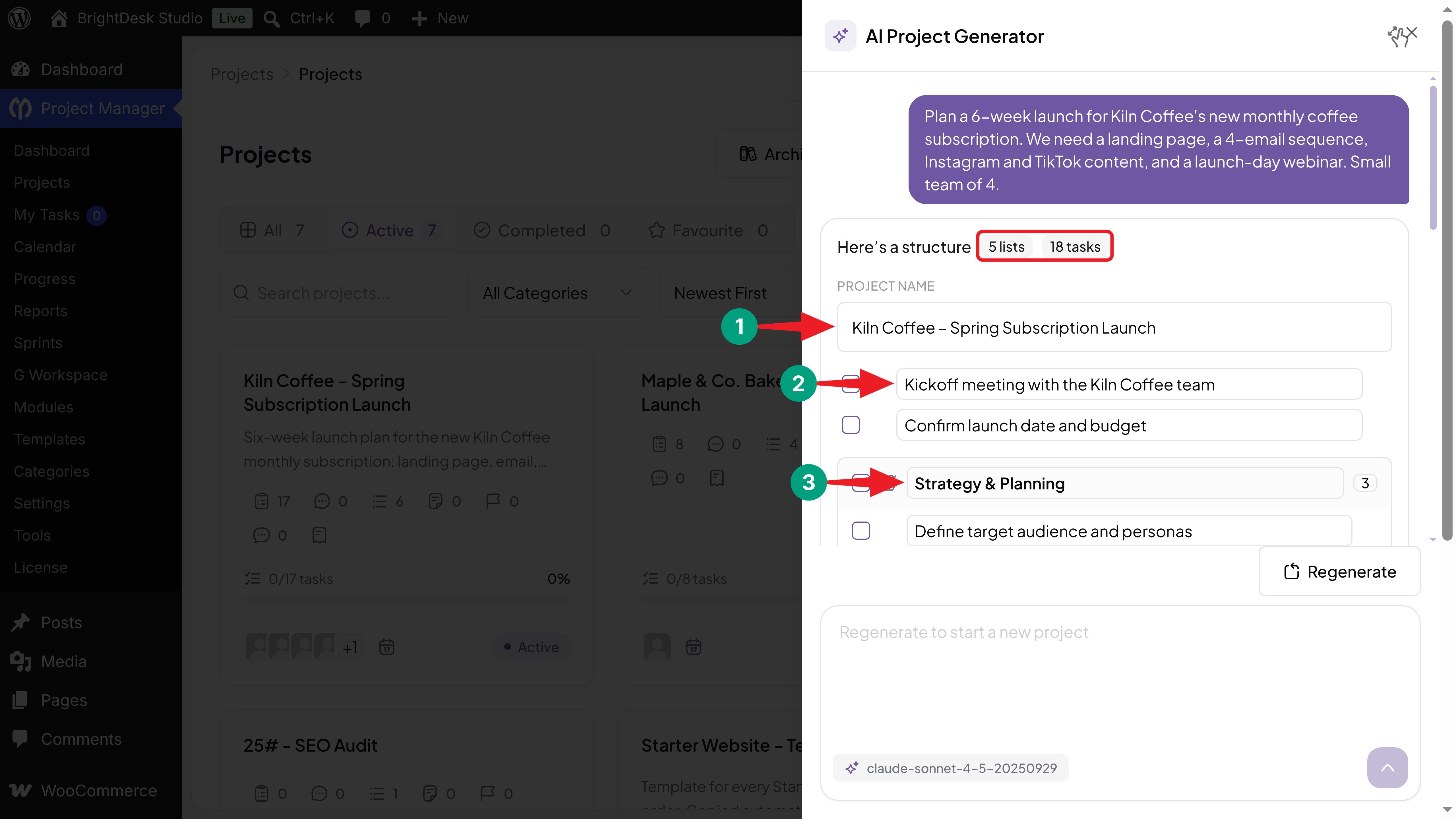
Every name is an editable field. Click the project name, any task, or any task list title to rename it, and drag tasks to reorder them. We usually adjust the project name and a few task titles to match the client's own words.
Next, tick the checkbox next to any task or task list you don't want. A Delete selected button appears at the top, and one click removes them all at once.
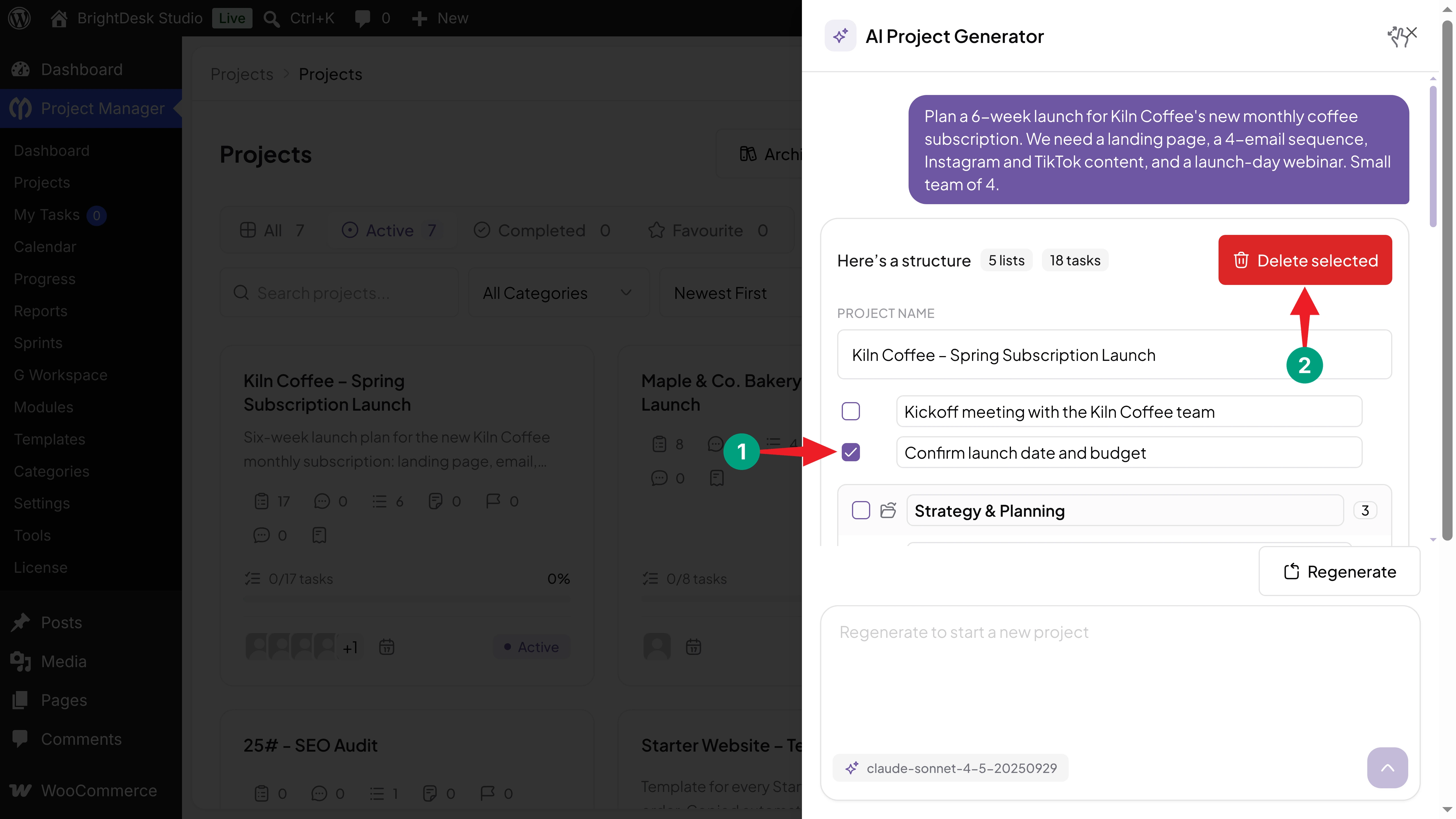
Not happy with the whole draft? Click Regenerate to get a fresh plan from the same brief, or edit your brief and send it again for a different direction.
Step 05: Create the Project (3:00)
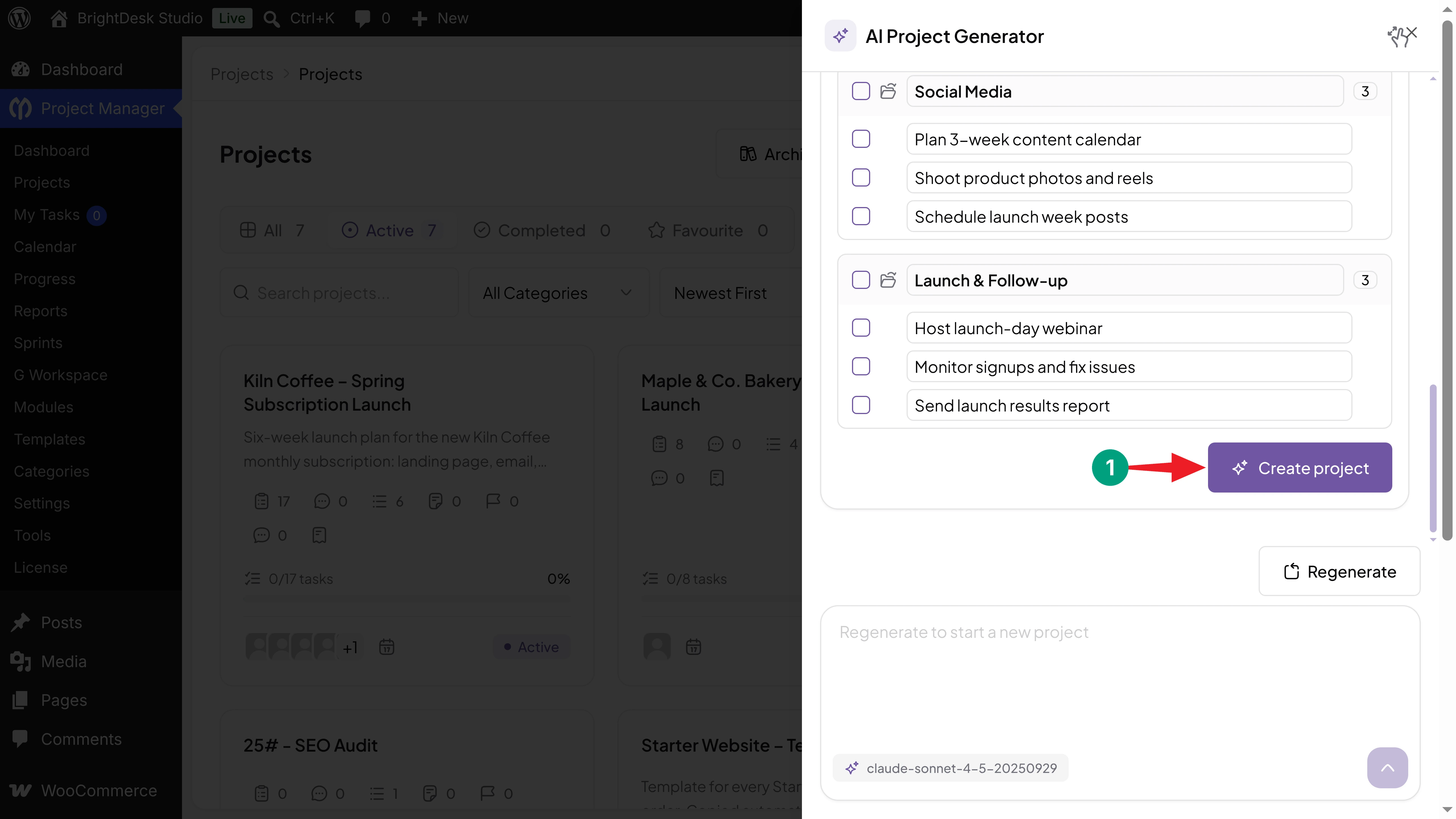
When the plan looks right, scroll down to the end of the panel and click the Create project button. WP Project Manager now builds the project with every list and task you kept.
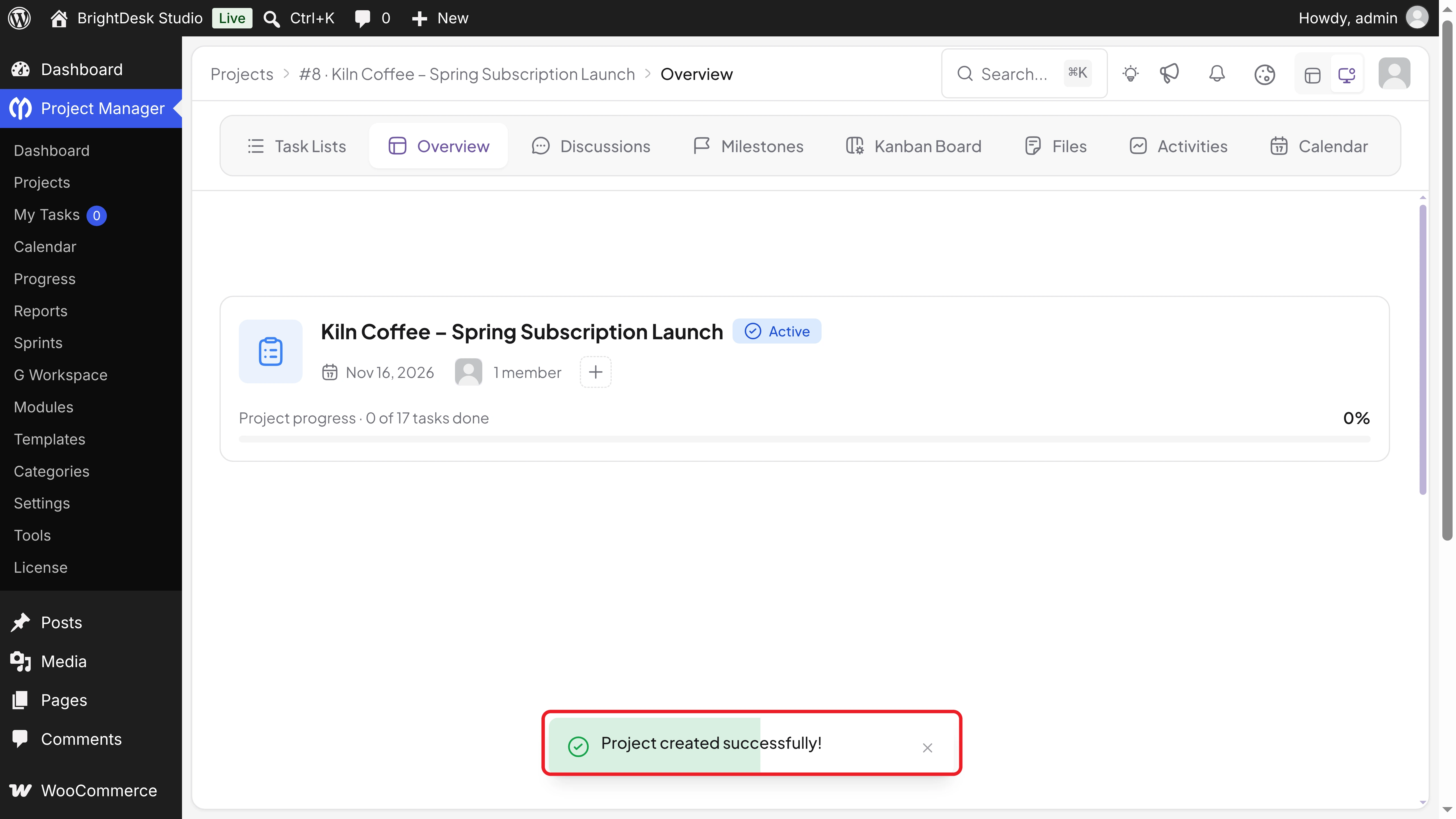
You'll see a Project created successfully! message, and the new project opens right away. The AI also writes a short project description, so anyone who joins later can see what the project is about.
Step 06: Check the Task Lists (3:00 – 3:30)
Open the Task Lists tab. Every task list from the AI plan is here, with its tasks in the order you set. The starter tasks from the top of the plan are placed in the Inbox list, so they are easy to find.
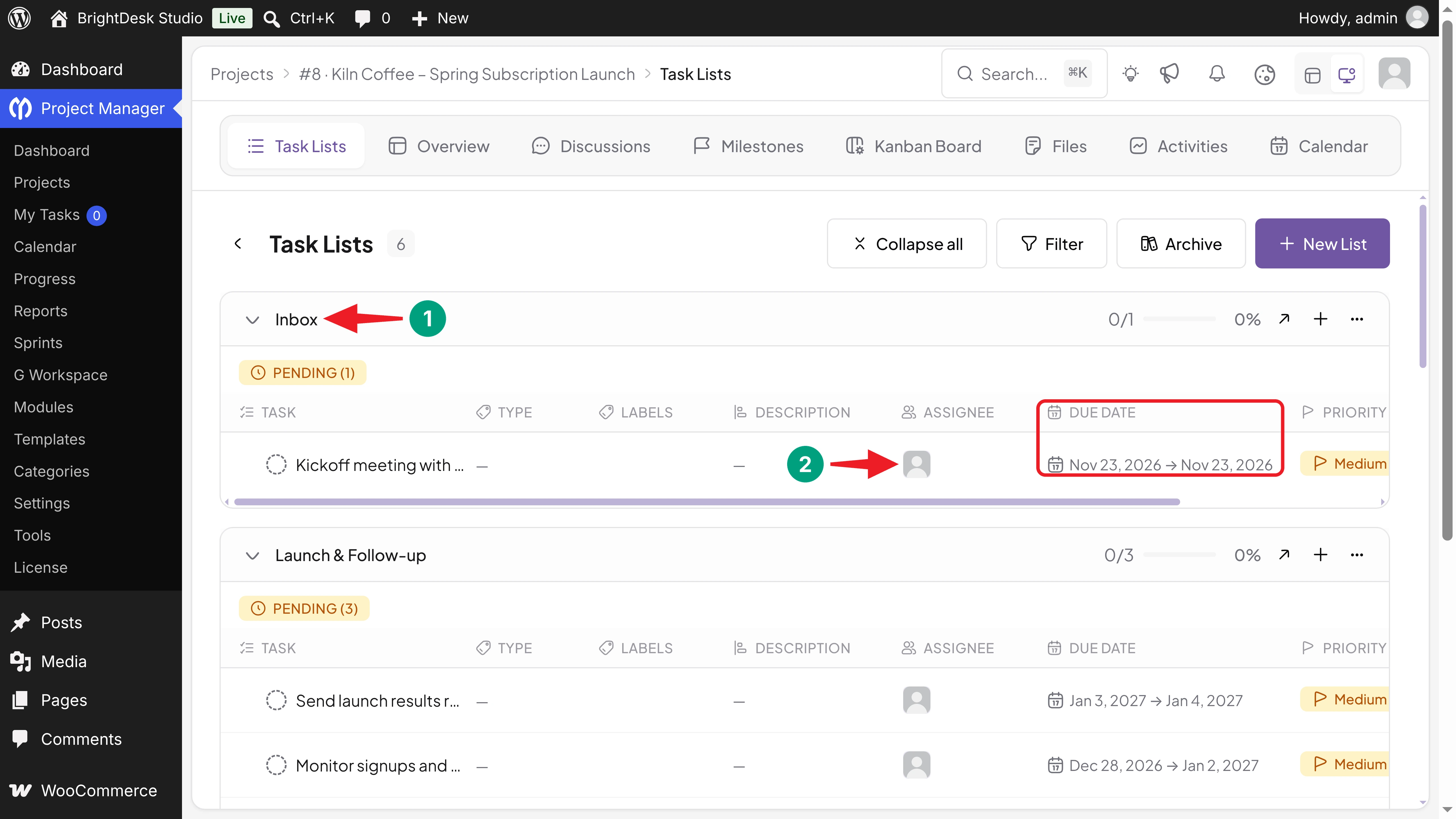
This is a good moment for a quick scan. If a task belongs to a different phase, you can move it now, before you start adding dates and people.
Step 07: Add Dates and Assign Team Members (3:30 – 4:30)
AI drafts the work, but you decide who does it and when. Click a task to open it, set its Dates, then click Add assignee and choose a team member from the list.
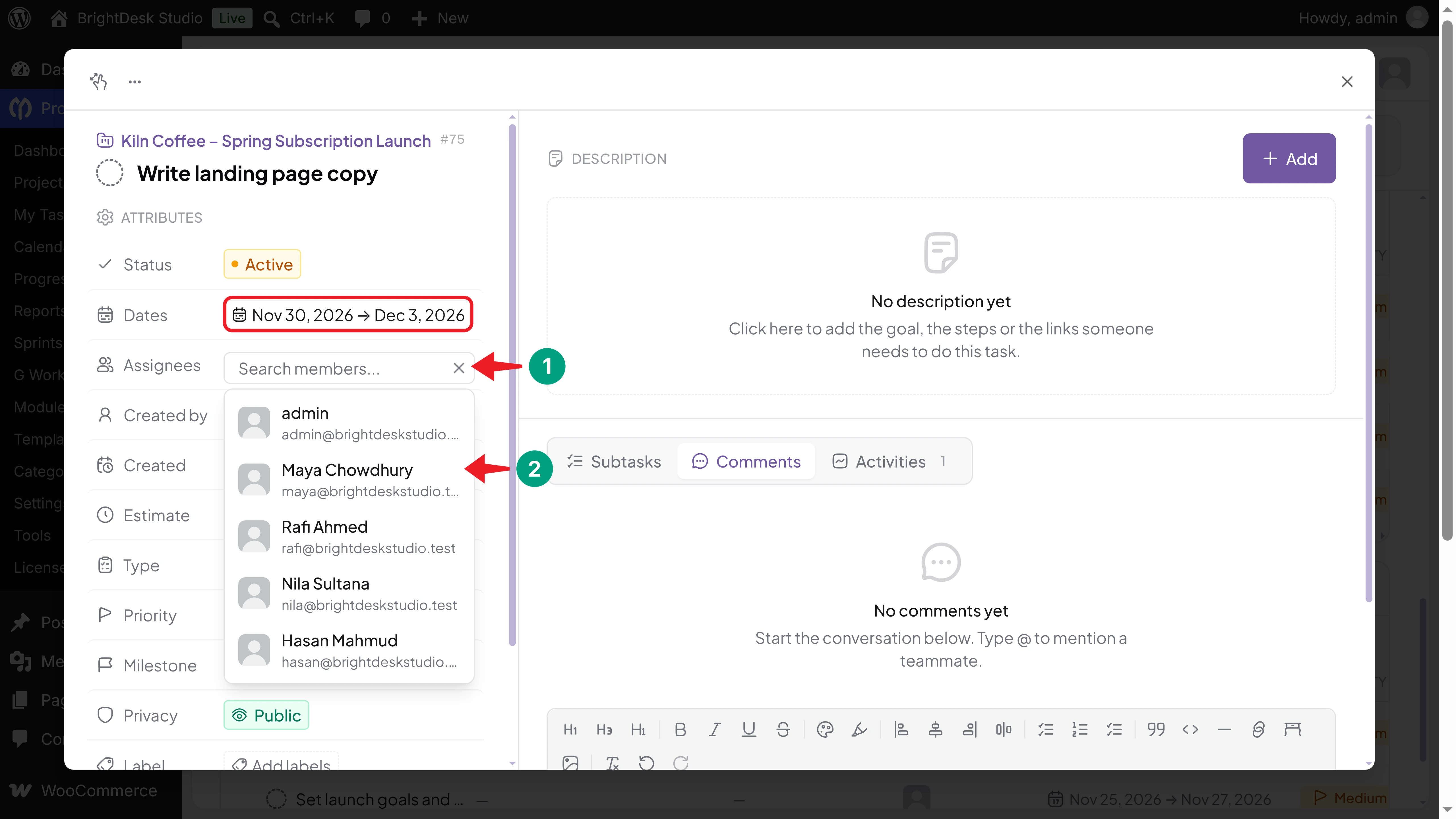
Note: Add your team to the project first, so their names show up in the assignee list. We start with the first week's tasks and fill in later phases as the project moves, which keeps this step quick.
Here's a guide on how to set up WP Project Manager for a WordPress agency.
Step 08: See the Plan on the Calendar (4:30 – 5:00)
Open the Calendar tab to see your tasks laid out by day. Switch between Month, Week, and Day views to check that the workload looks realistic and that no single day is overloaded.
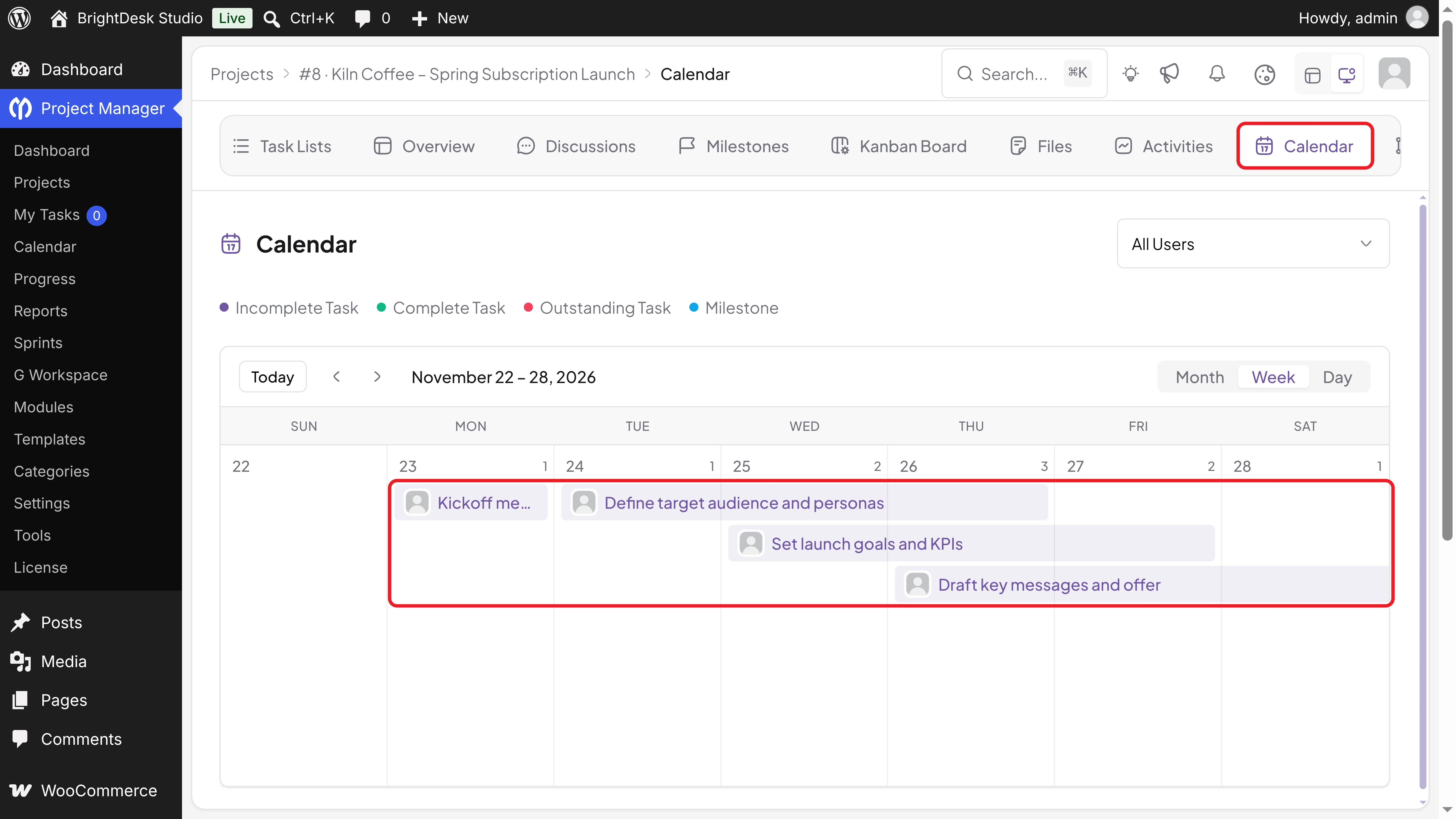
Thus, you can create a full project plan with AI in under 5 minutes with WP Project Manager. With Pro, you can also see the same plan on a Gantt chart to spot overlapping tasks at a glance.
Bonus: Create a Project with AI from Your Phone
Project ideas don't always come at your desk. The free WP Project Manager mobile app has the same AI feature, so you can plan from anywhere. Tap Create with AI, describe the project, untick anything you don't need, and create it.
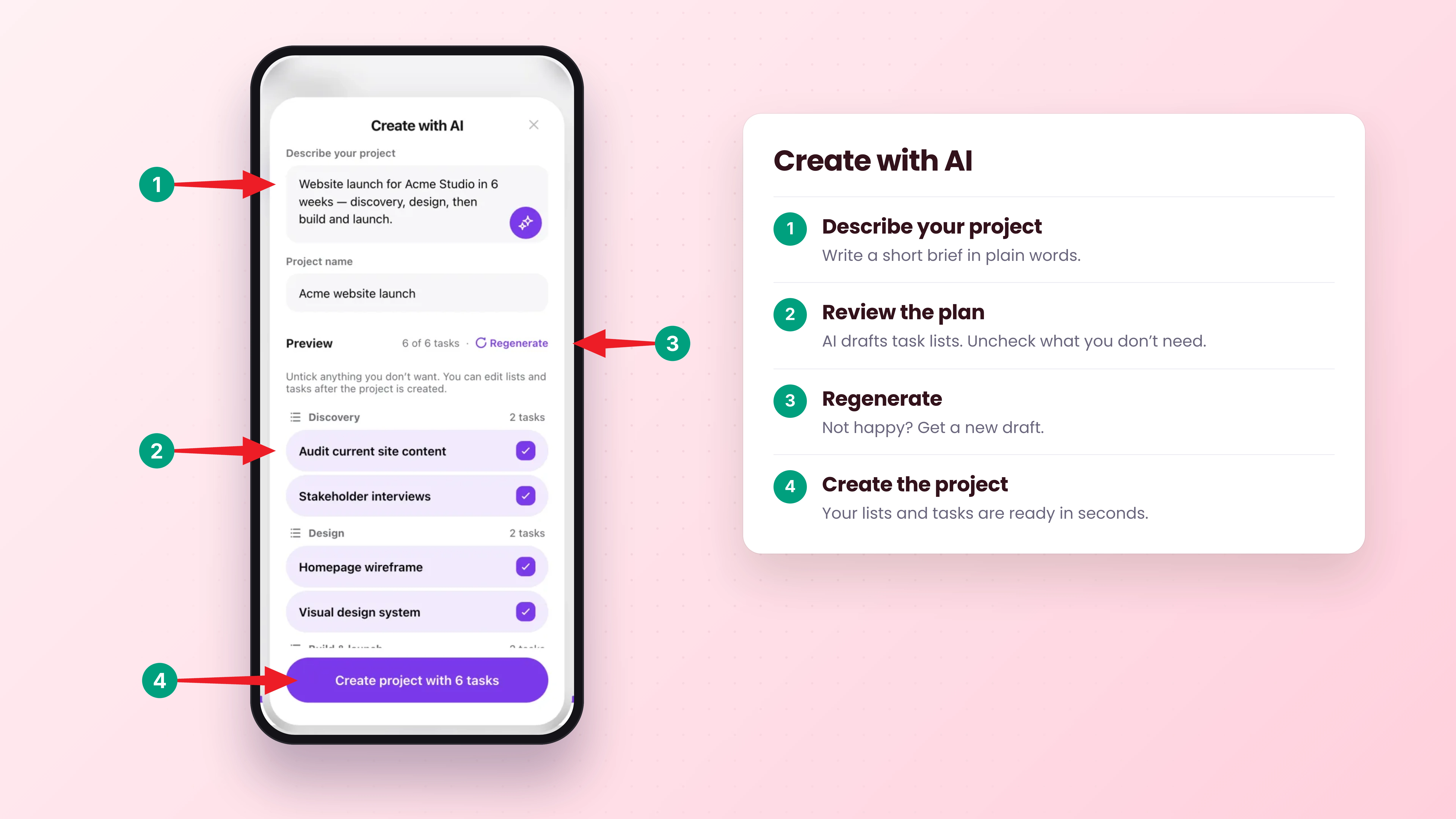
The project is saved straight to your WordPress site, so it is waiting on your dashboard when you get back to your computer. You can add dates and assignees from either place.
Ready-to-Use AI Project Brief Examples
Need a starting point? These briefs follow the goal, deliverables, timeline, and team formula. Copy one, change the details to fit your project, and paste it into the AI Project Generator.
| Project type | Example brief |
|---|---|
| Website build | Build a 5-page website for a local dental clinic in 4 weeks: discovery, design, content, development, SEO basics, and launch. Team of 3. |
| Marketing campaign | Plan a 3-week Black Friday campaign for an online shoe store: email sequence, social ads, landing page, and a post-sale report. Team of 2. |
| Event | Organize a 1-day product meetup for 80 people in 6 weeks: venue, speakers, registration page, promotion, and follow-up. Team of 4. |
| Client onboarding | Onboard a new SEO retainer client in 2 weeks: kickoff call, access requests, site audit, keyword research, and first monthly plan. Team of 2. |
| Product launch | Launch a new mobile app feature in 5 weeks: specs, design, development, QA, release notes, and announcement emails. Team of 6. |
Tips for Better AI Project Plans
A few small habits make a big difference in what the AI gives you. These are the tips we share most often when users ask why their plan came out too generic or too long.
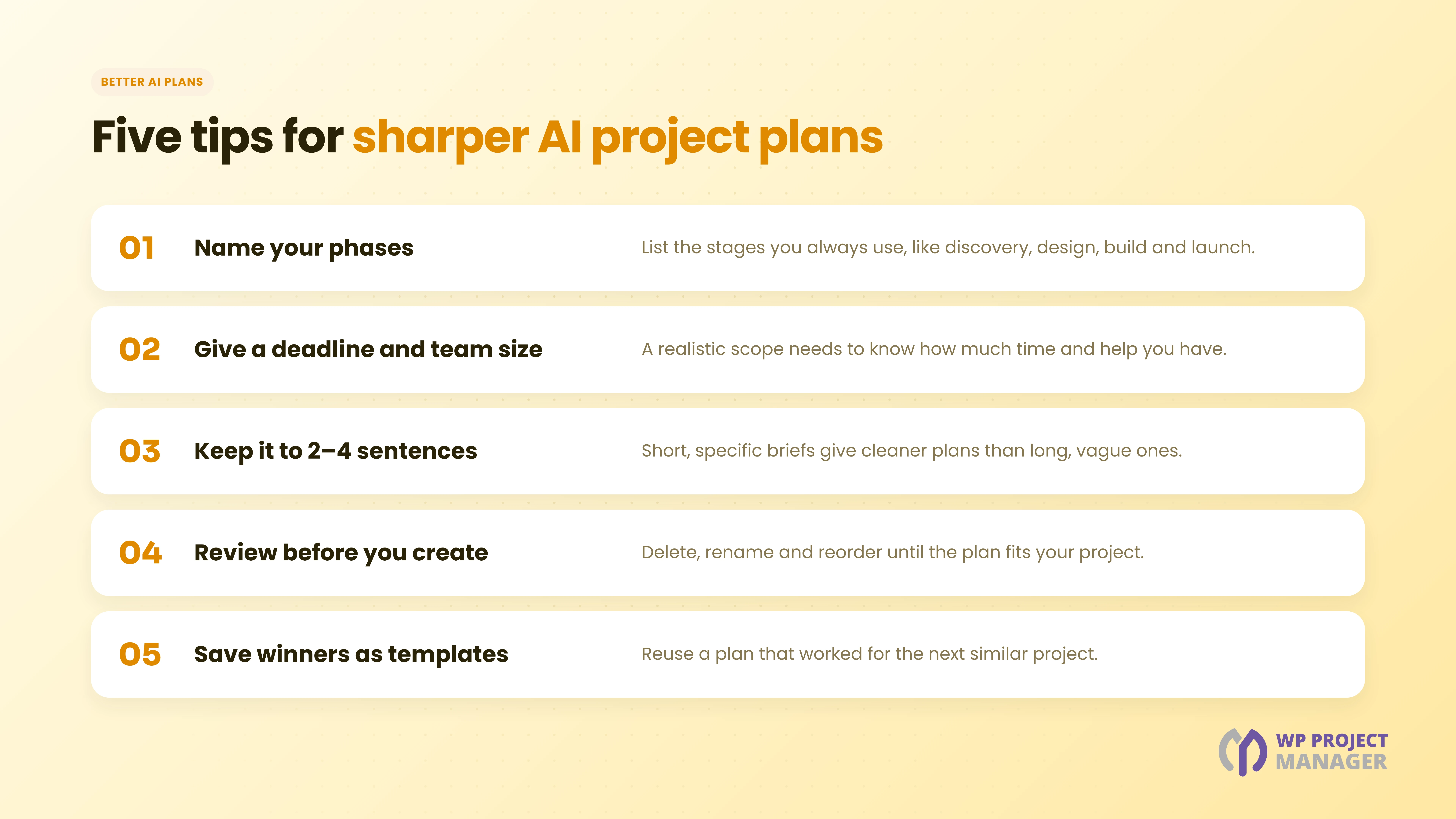
A. Name the Phases You Want
If your team always works in the same stages, list them in the brief, such as "discovery, design, build, and launch". The AI then uses those exact phases as task lists, so the plan matches your process.
B. Mention Your Deadline and Team Size
A two-person team and a ten-person team need very different plans. Including the timeline and the number of people helps the AI keep the scope realistic instead of suggesting work you can't deliver.
C. Keep the Brief to Two to Four Sentences
Short and specific briefs work best. Long briefs often add noise rather than better tasks, so focus on the goal, the main deliverables, the time you have, and who is involved.
D. Always Review Before You Create
AI is a fast assistant, not your project manager. Read every task, delete what doesn't fit, and add anything specific to your client or product before you click Create project.
E. Break Big Tasks into Subtasks
Some AI tasks are large, like "build the landing page". With Pro, you can split them with subtasks, including AI subtask generation, so each step has a clear owner and due date.
Check how to create reusable project templates in WP Project Manager.
Troubleshooting Common AI Project Generator Problems
Most issues come down to the API key or the brief itself. Here are the problems our users report most often, along with the quickest fix for each one.
| Problem | Fix |
|---|---|
| "AI API key is not configured" | Go to Settings > AI Settings, add your API key, and click Save Changes. |
| "AI API key is invalid" | Copy the key again from your provider's dashboard, paste it, and click Test Connection. |
| The plan is too generic | Add the goal, deliverables, timeline, and team size to your brief, then click Regenerate. |
| Too many tasks | Tick the extra tasks and click Delete selected, or ask for fewer tasks in the brief. |
| The AI Create button is missing | Update WP Project Manager to the latest version and make sure your role can create projects. |
Still stuck? Our WP Project Manager documentation covers every setting in detail.
FAQ on Creating Project Plans with AI
In this section, we have answered the questions we hear most often from our users in support chats, forums, and social media.
Is the AI Project Generator free?
Yes. AI project creation is part of the free WP Project Manager plugin. You only need an API key from your AI provider, which may charge for usage.
Which AI providers does WP Project Manager support?
You can use OpenAI, Anthropic, or Google. Choose one in Settings > AI Settings. We use Anthropic's Claude models.
Can I edit the plan before the project is created?
Yes. You can rename the project, tasks, and task lists, reorder tasks, delete items, or regenerate the whole plan before you click Create project.
How big can an AI plan be?
Each plan can include up to 8 task lists with up to 8 tasks each, plus up to 8 starter tasks.
Does the AI set due dates and assignees?
No. The AI drafts the structure. You add dates and assign team members in the project, which takes only a minute or two.
Can I create projects with AI from my phone?
Yes. The free WP Project Manager mobile app has a Create with AI option that works the same way.
Final Thoughts!
Project planning doesn't need to start with a blank page anymore. With WP Project Manager's AI Project Generator, a few sentences turn into a full plan with task lists and tasks, and you stay in control of every item before anything is saved.
Write a clear brief, review the draft carefully, trim what you don't need, then add dates and your team. That's a complete, ready-to-run project plan in under five minutes, whether it's a campaign, a client website, or an event.
If you have any questions, mention them in the comment box below. Thanks for being with us till the end.
Before moving away, have a few more minutes to explore how to attach Google Drive files to WP Project Manager tasks.