Starting a project often means turning a rough idea into a long list of tasks. Before your team can begin, you need to decide what to do, how to organize the work, and who will handle each responsibility.
WP Project Manager helps you get past the blank page. Its AI Project Generator turns a written project description into a structure you can review and create inside WordPress.
In this tutorial, we’ll create a website-launch plan with AI, refine its task lists, and explain how to turn the generated structure into a practical plan for your team.
What Is an AI Project Plan?
An AI project plan is a suggested structure generated from your description of a project. It breaks your goal into smaller pieces of work, helping you identify tasks and organize them into logical groups.
In WP Project Manager, the AI generator creates a project structure with task lists and tasks. You review that structure before creating the project, then add the responsibilities, dates, and details needed to manage it.
Quick answer: Configure an AI provider under Project Manager → Settings → AI Settings.
Then open Projects → AI Create, describe your project, and click Send. Review the suggested structure, edit its names, remove unnecessary items, and click Create project. Afterward, review the saved tasks and organize your team’s assignments and deadlines.
What You Need Before You Start
You need a working WordPress website, WP Project Manager, and access to a supported AI provider.
| Requirement | Why you need it |
|---|---|
| A WordPress website | Provides the environment where you create and manage projects. |
| WP Project Manager Free | Includes AI project creation in the current version. |
| Permission to manage the relevant settings and create projects | Lets you configure the connection and create the resulting project. |
| An API key for a supported AI provider | Connects the plugin to the service that generates the structure. |
| A clear project description | Gives the AI enough context to suggest useful tasks. |
The current version supports OpenAI, Anthropic, and Google as AI providers. You only need to configure the provider you intend to use.
WP Project Manager Pro is optional for the main walkthrough. AI project creation is available in the free plugin. AI subtask generation is a separate Pro capability. The current product comparison also lists AI Project Creation under the free plan. If you need more, you can choose the right package later.
Provider usage limits and charges depend on the AI service and account you connect. Check those details before generating plans.
Note: Your project description is sent to the selected AI provider for processing. Use a fictional example while learning, and leave passwords, API keys, and unnecessary confidential information out of your prompts.
How to Create a Project Plan with AI in WordPress: Step by Step
For this tutorial, we’ll use a fictional project called BrightPath Website Launch.
The goal is to launch a five-page WordPress website for a small consulting business. We’ll ask AI to organize the work into five phases, then review the structure before creating the project.
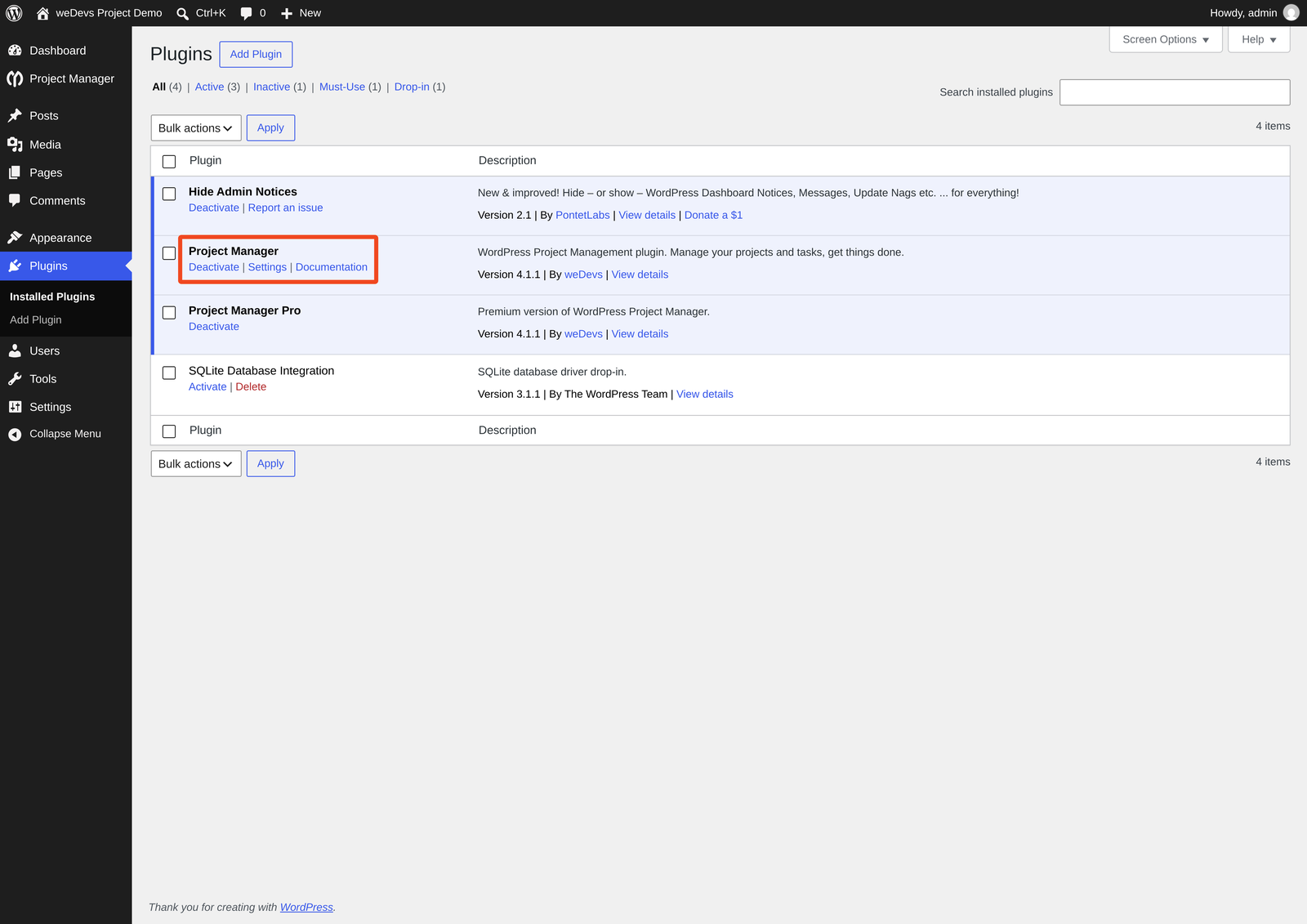
Step 01: Install and Activate WP Project Manager
Log in to your WordPress dashboard. Navigate to Plugins → Add New Plugin and search for WP Project Manager.
Find the plugin by weDevs, click Install Now, and then click Activate.
If you already have the plugin ZIP file, select Upload Plugin, choose the file, and complete the installation. Once activated, you’ll find Project Manager in your WordPress admin menu.
For this tutorial, the free plugin is enough to generate the project structure. If you also use Pro features, keep the free plugin active alongside the Pro plugin.
Step 02: Open the AI Settings
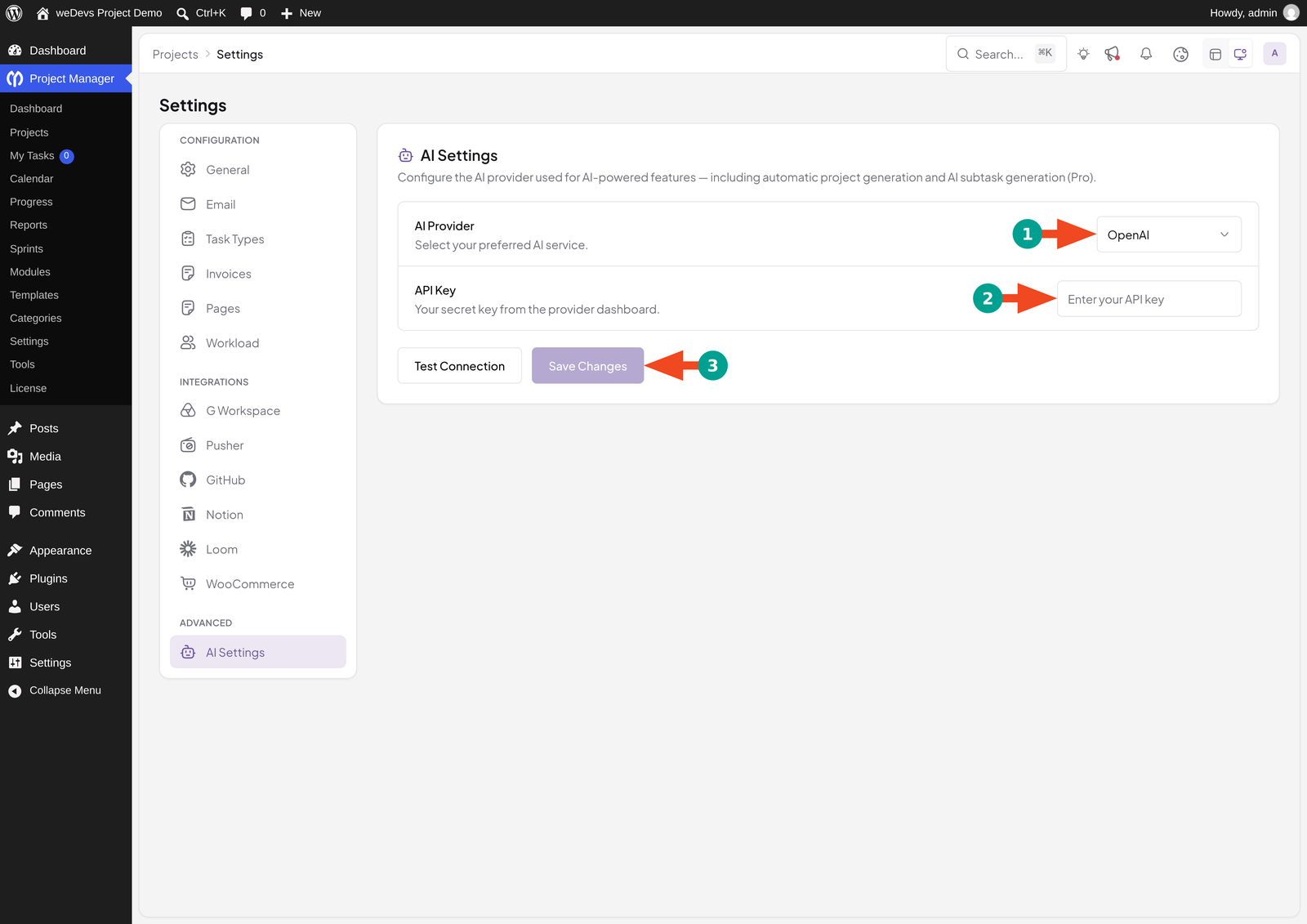
Navigate to Project Manager → Settings.
Inside the settings interface, find AI Settings under the Advanced section. This panel controls the AI provider used for project generation and, when available, AI subtask generation.
You’ll find controls for the provider, API key, model, response length, and temperature.
Select Your AI Provider
Open AI Provider and choose the service you want to connect.
For example, select OpenAI if you have an API key for that provider. If your team uses Anthropic or Google instead, select the matching provider.
Use a key issued by the selected service. A key from one provider will not authenticate requests to another.
Enter and Save Your API Key
Enter your key in the API Key field.
Click Save Changes to store the configuration. Saving the key also allows the plugin to refresh the available model information where supported.
If the model list was previously empty, check it again after saving.
Important: Keep the API key hidden when taking screenshots or recording tutorials. Readers need to see where the field is, not the credential entered into it.
Step 03: Choose a Model and Test the Connection
Select a model from the Model dropdown.
Choose an available text-generation model that your provider account can use. Model availability can change, so use the options shown in your installation rather than relying on a model name from an older screenshot.
Next, review Max Tokens and Temperature.
Set the Response Length
Max Tokens limits the length of the generated response. A larger allowance gives the AI more room to return a detailed structure.
For our small website project, 2,000 is a reasonable starting value to try. This is an example setting, not a guarantee that every response will fit.
If you request a much larger project, consider breaking it into smaller projects rather than immediately increasing the response limit.
Adjust the Temperature
Temperature affects how varied the suggestions can be, when the selected model supports the setting.
For a structured planning task, start with a lower value such as 0.3. You can experiment with a higher value if you want more varied suggestions.
A lower temperature does not guarantee that every task will be accurate. You still need to review the output.
| Setting | What it does | Suggested starting point |
|---|---|---|
| AI Provider | Selects the service that processes your request. | The provider for which you have API access. |
| API Key | Authenticates the connection. | A valid key from that provider. |
| Model | Selects the AI model used for generation. | An available model supported by your account. |
| Max Tokens | Limits the response length. | Try 2,000 for the small example. |
| Temperature | Adjusts output variation where supported. | Try 0.3 for a focused task structure. |
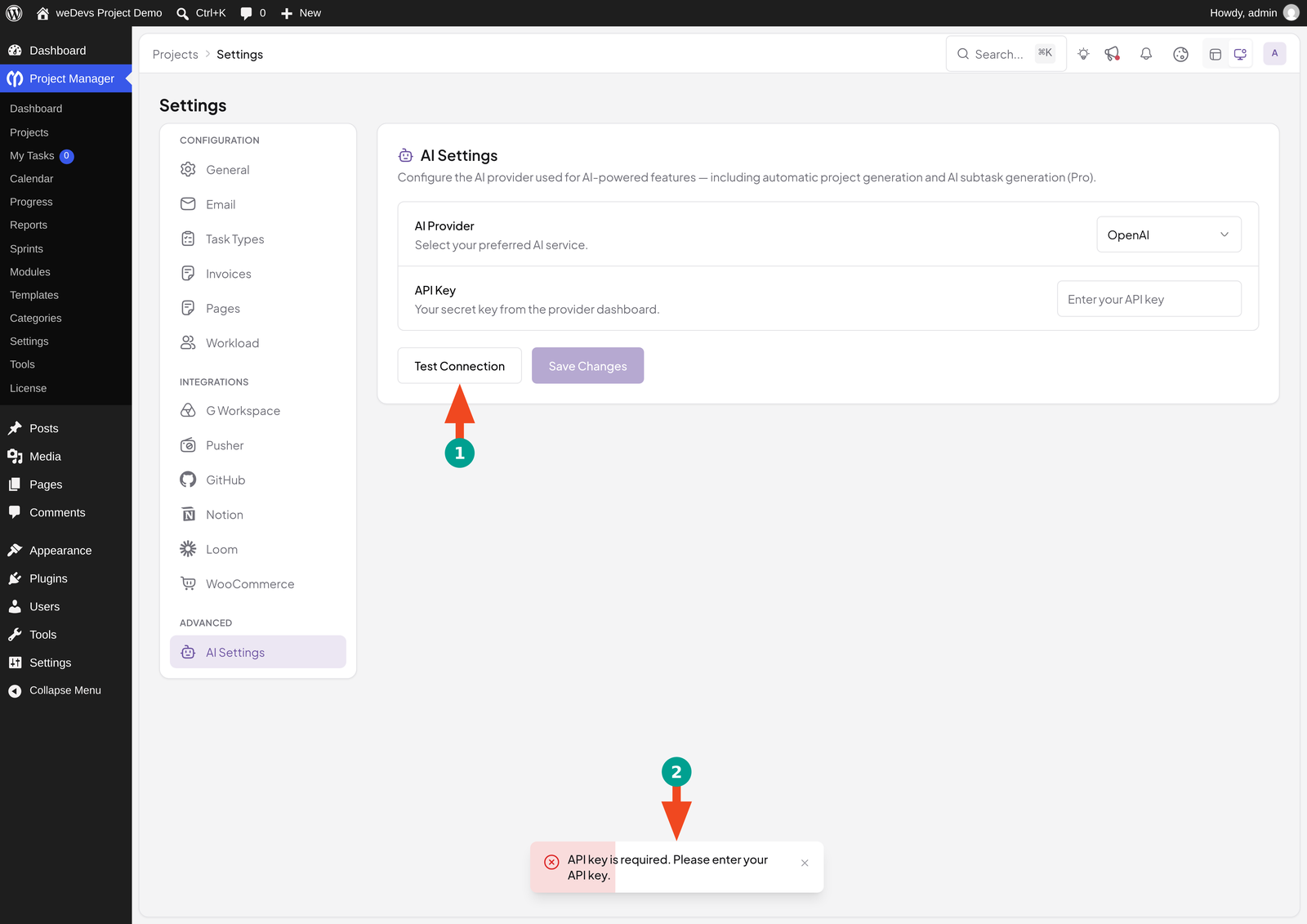
Click Save Changes after adjusting the settings. Then click Test Connection.
If the connection succeeds, continue to the Projects screen. If it fails, check the provider, key, and account access before attempting to generate the plan.
A successful connection test confirms connectivity; generating a project is still a separate step.
Step 04: Open the AI Project Generator
Go to Project Manager → Projects.
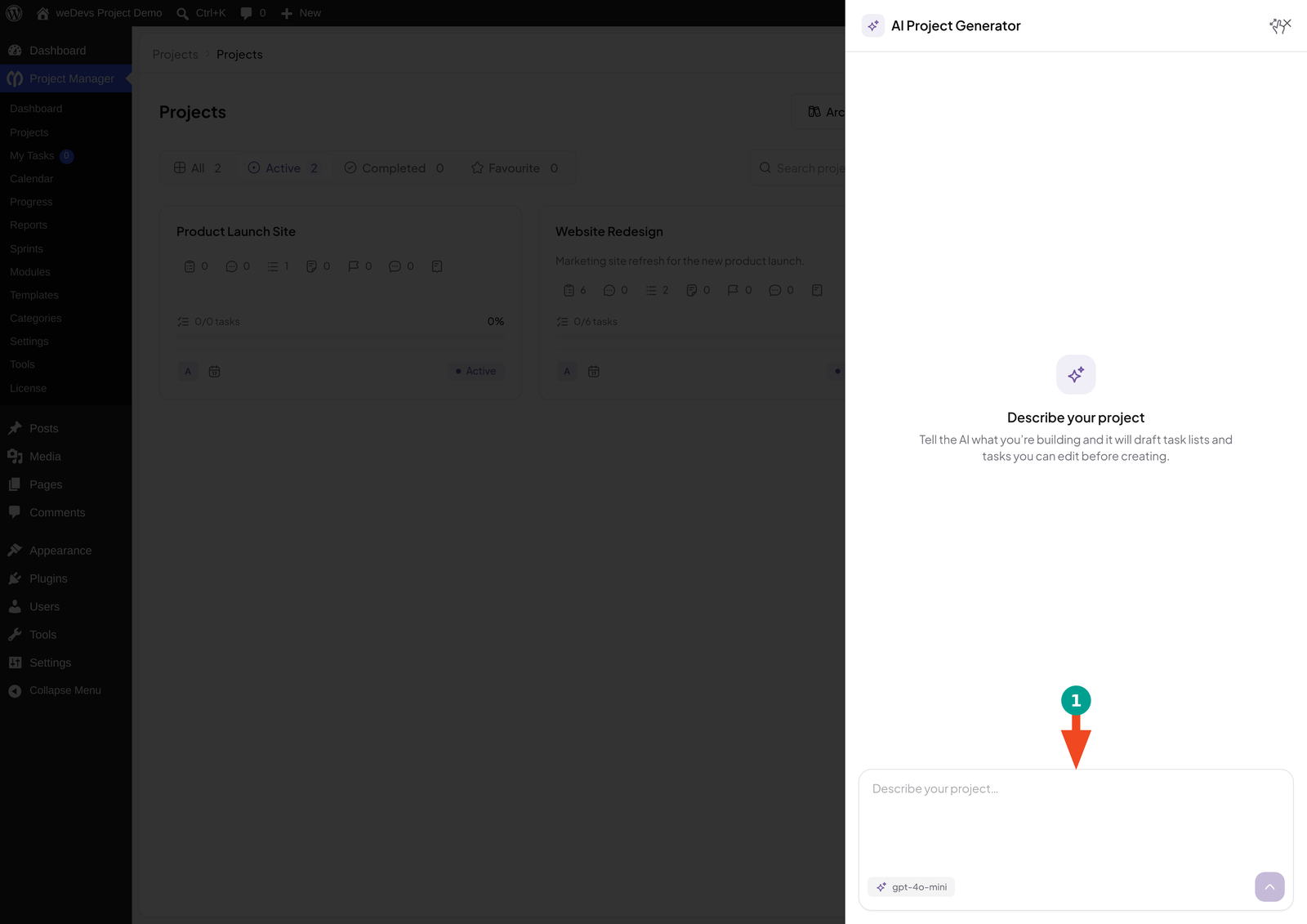
Click AI Create to open the AI Project Generator. The interface asks you to Describe your project.
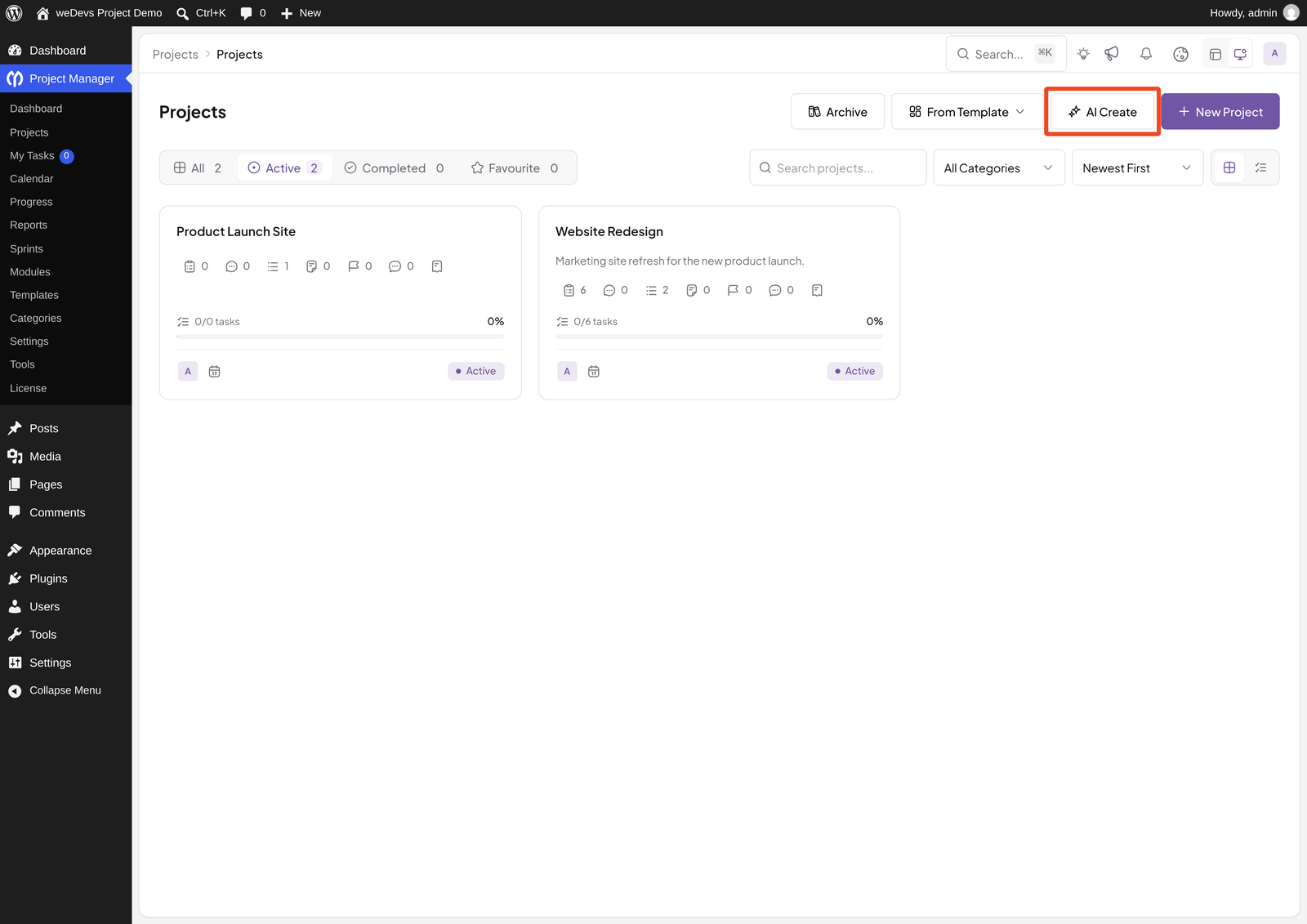
This is where you explain what you want to accomplish. The generator uses that description to draft task lists and tasks for review.
You can use Full screen if you want more space to write the prompt and inspect the resulting structure.
Step 05: Write a Clear Project Description
A useful prompt explains the outcome, deliverables, boundaries, and level of detail you want.
For example, “Create a website project” leaves many decisions open. The AI does not know whether you need a blog, an online store, or a small business website.
Use a more specific description for our demonstration:
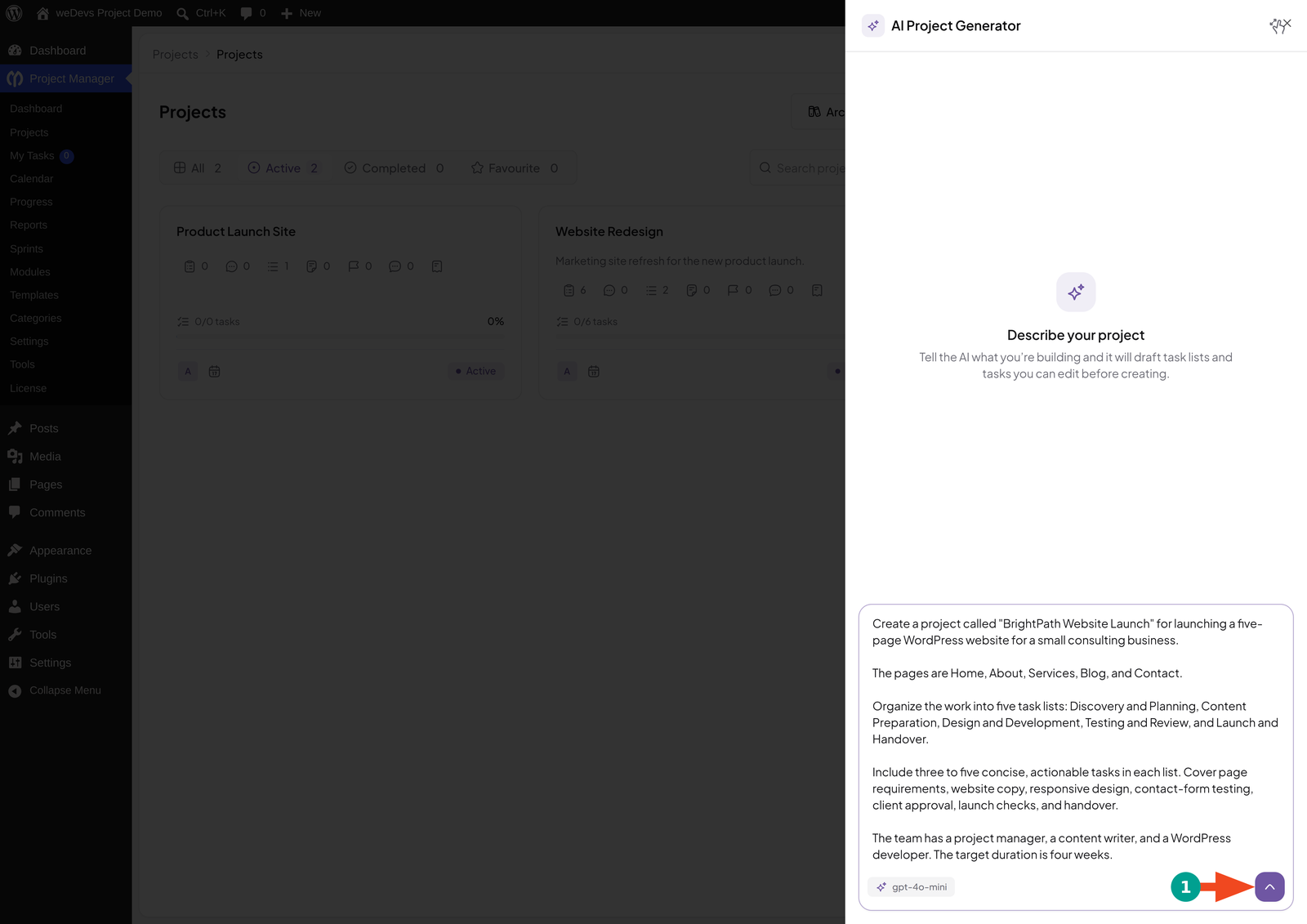
Create a project called “BrightPath Website Launch” for launching a five-page WordPress website for a small consulting business.
The pages are Home, About, Services, Blog, and Contact.
Organize the work into five task lists: Discovery and Planning, Content Preparation, Design and Development, Testing and Review, and Launch and Handover.
Include three to five concise, actionable tasks in each list. Cover page requirements, website copy, responsive design, contact-form testing, client approval, launch checks, and handover.
The team has a project manager, a content writer, and a WordPress developer. The target duration is four weeks.
Do not include ecommerce, a membership system, or custom application development. Avoid duplicate tasks and keep the plan suitable for a small team.
Paste this into Describe your project…, then click Send.
The generator will process the request and prepare a suggested structure.
What Makes This Prompt Useful?
The prompt gives the AI several practical boundaries:
| Prompt detail | How it improves the plan |
|---|---|
| A named project | Makes the resulting project easier to recognize. |
| Five specific pages | Defines the main deliverables. |
| Five requested phases | Guides the task-list structure. |
| Three to five tasks per phase | Keeps the first version manageable. |
| Team composition | Gives context about the available roles. |
| A four-week target | Communicates the intended scale and timeframe. |
| Explicit exclusions | Reduces suggestions outside the project’s scope. |
The timeframe and team details provide context. They do not mean the generator will automatically create a complete schedule or assign real WordPress users.
Step 06: Review and Edit the Generated Structure
When generation finishes, the preview displays Here’s a structure, together with the number of lists and tasks.
Treat this as the first draft of your plan. Check whether the proposed work matches your project before creating anything.
The exact output can vary. For our website example, a sensible structure could look like this:
| Task list | Example tasks to look for |
|---|---|
| Discovery and Planning | Confirm requirements, agree on the sitemap, collect brand assets. |
| Content Preparation | Draft page copy, review service descriptions, prepare images. |
| Design and Development | Design page layouts, build the pages, configure the contact form. |
| Testing and Review | Check mobile layouts, test form delivery, fix issues, obtain approval. |
| Launch and Handover | Complete launch checks, verify the live site, prepare handover notes. |
This table is an illustrative review guide, not a claim about a particular AI response.
Edit the Project and Task Names
Review the Project name field. Change it to BrightPath Website Launch if the AI chose a different name.
Next, edit any task-list or task names that are vague.
For example:
- Change Content to Draft and approve the five website pages.
- Change Check website to Test navigation and links on all five pages.
- Change Forms to Submit a test inquiry and verify email delivery.
Use names that describe a clear action. Someone should understand the expected work without asking what the task title means.
Remove Unnecessary Items
Select unwanted tasks or lists and click Delete selected.
Check the selected items carefully before removing them. Selecting a whole list removes that group from the proposed structure.
For our example, remove suggestions such as setting up a product catalog or configuring membership subscriptions. Those features are outside the brief.
The checkboxes in this preview select items for removal. They are not a way to mark project tasks complete.
Start Again When the Structure Misses the Goal
If most of the structure is unsuitable, use Regenerate to reset the generator and submit a clearer description.
This resets the current generator conversation. Keep a copy of your prompt before using it.
Tip: Correct the scope before polishing individual task titles. It is more useful to remove an unnecessary workstream than to rename every task inside it.
Step 07: Create the Project
Once you are satisfied with the structure, click Create project.
WP Project Manager creates the project, task lists, and tasks. The interface shows progress while these items are being added.
Wait for the process to finish. After successful creation, the plugin opens the project.
Open Task Lists and compare the saved content with the structure you reviewed. Confirm that the expected lists and tasks are present.
If you see a message that the project was created but some lists or tasks could not be added, inspect the existing project first. Creating it again immediately could leave you with duplicate projects.
Step 08: Turn the Structure into a Working Project Plan
The generated task structure is a starting point. Now add the details that help your team carry out the work.
Add the Right Team Members
Open the project’s Overview and use Add member to add the people who will work on it.
Choose the appropriate role for each person. For a demonstration, use test accounts rather than inviting colleagues unnecessarily.
Then open the individual tasks and assign the people responsible for completing them.
Mentioning “a content writer” in the AI prompt does not assign a WordPress user to a task. Review the actual assignees in the saved project.
Review Dates and Work Order
Set realistic due dates for the tasks.
For our four-week example, you might organize the work like this:
| Period | Main focus | Expected result |
|---|---|---|
| Week 1 | Requirements and content preparation | Approved sitemap and initial copy. |
| Week 2 | Design and page development | Core page layouts ready for review. |
| Week 3 | Remaining development and testing | A functioning website with issues recorded. |
| Week 4 | Revisions, approval, and launch | Approved website and completed handover. |
This is a planning example, not an automatically generated schedule.
Check the order carefully. A developer needs approved content before finalizing some layouts, and launch should follow testing and approval.
Use the scheduling controls available in your edition. If you need additional scheduling features, check the relevant Pro options separately.
Add Clear Completion Requirements
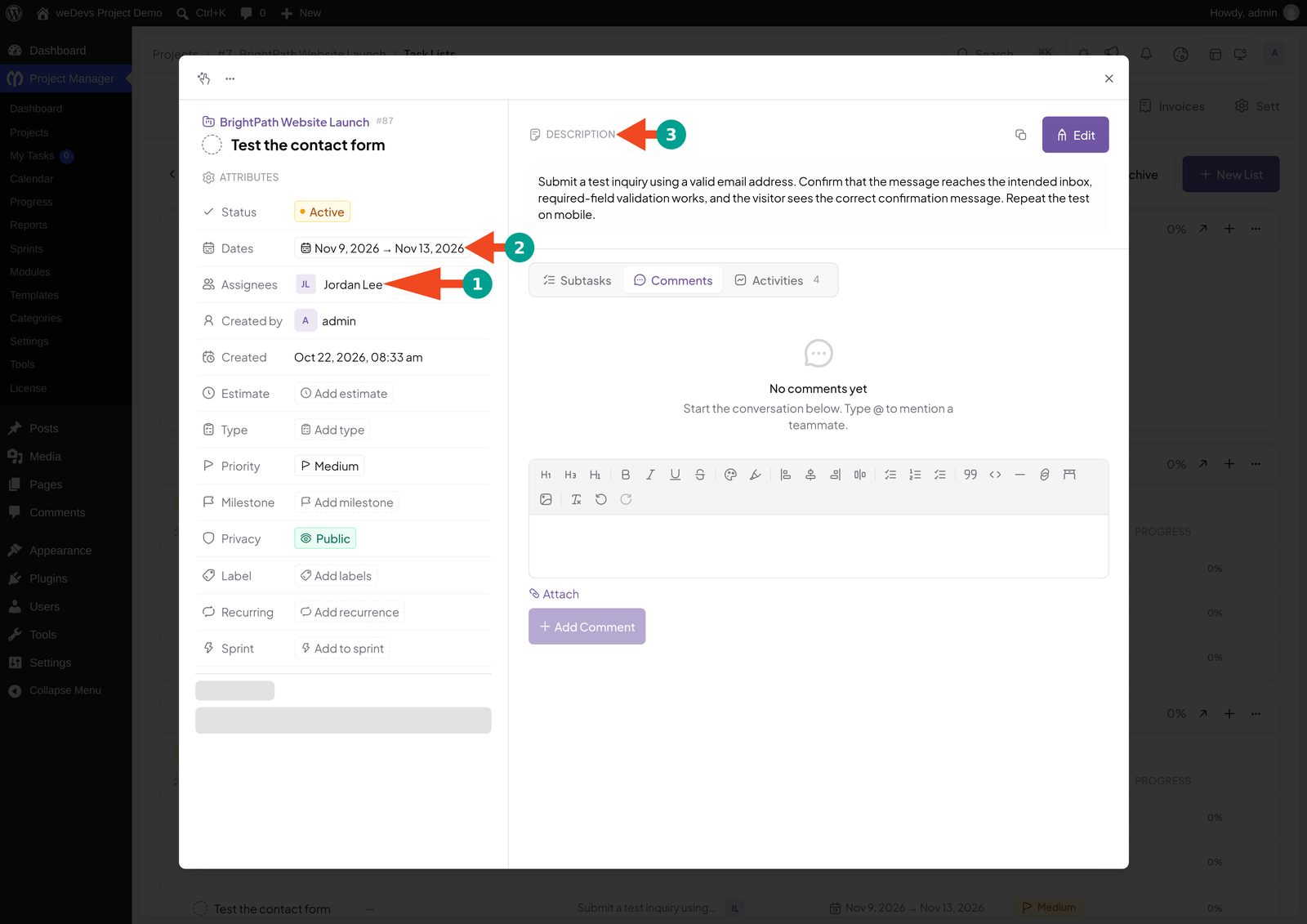
Open important tasks and add enough detail to explain when they are finished.
For Test the contact form, the description could be:
Submit a test inquiry using a valid email address. Confirm that the message reaches the intended inbox, required-field validation works, and the visitor sees the correct confirmation message. Repeat the test on mobile.
For Obtain client approval, specify which pages must be approved and where the approval should be recorded.
These details turn short AI-generated titles into instructions people can act on.
Step 09: Check the Plan Before Work Begins
Review the completed project with the people responsible for delivering it.
Make sure:
- Every required deliverable has corresponding tasks.
- Important tasks have an owner.
- Dates reflect availability and the order of work.
- Review and approval tasks are included.
- Duplicate or unnecessary tasks have been removed.
- The team understands what counts as completion.
Open several tasks again to confirm that the details you entered were saved.
Your plan is ready to use when it describes both the work and the responsibilities clearly—not simply when AI has finished generating its response.
How to Write Better Prompts for AI Project Planning
You do not need a long prompt for every project. You need enough detail to prevent the AI from filling important gaps with assumptions.
A reusable structure is:
Create a project plan for [project name and goal].
The main deliverables are [deliverables].
Organize the work into [phases or task lists].
Our team consists of [roles], and the target duration is [timeframe].
Include [important activities or checks].
Exclude [out-of-scope work].
Keep task titles concise, actionable, and unique. Aim for [number] tasks per list.
Describe the Outcome
Tell the AI what should exist when the project is finished.
“Launch a five-page consulting website” gives clearer direction than “work on our website.”
Include the Boundaries
Mention the work you do not need.
For a small website, excluding ecommerce and custom software development helps keep the proposed plan relevant.
Request a Manageable First Version
Start with a small number of phases and tasks. You can add detail after reviewing the structure.
An oversized task list can make a straightforward project harder to manage.
Include Review and Handover
Ask for testing, approval, and handover tasks explicitly.
These activities are easy to overlook when a prompt focuses only on production, such as writing content or building pages.
Common AI Project Planning Problems and How to Fix Them
| Problem | Possible cause | What to do |
|---|---|---|
| AI Create is missing | Your version or user permissions do not expose project creation. | Check the installed version and whether your account can create projects. |
| The API key is not configured | The selected provider has no saved key. | Open AI Settings, configure the matching provider key, and save. |
| No models are available | Model information could not be loaded. | Verify the provider and key, save again, and check the model dropdown. |
| Test Connection fails | The key, provider access, or connection is invalid. | Check the displayed error and verify the account’s API access. |
| Generation fails despite a successful connection test | The selected model or generation request fails separately. | Confirm model access and try a smaller, focused prompt. |
| The response is incomplete | The request is too broad or the response allowance is insufficient. | Request fewer tasks first; increase Max Tokens only when appropriate. |
| The plan is too generic | The prompt lacks deliverables and boundaries. | Specify the outcome, phases, important checks, and exclusions. |
| Similar tasks appear more than once | AI suggested overlapping work. | Review the preview and remove or rename overlapping items. |
| The project is only partly created | Some list or task creation requests failed. | Inspect the saved project and add missing items before considering another generation. |
| Tasks have no assigned owners or usable deadlines | A generated structure is being treated as a fully scheduled plan. | Review each task and add the real assignees and dates afterward. |
Do You Need WP Project Manager Pro for AI Planning?
You can follow the core project-generation workflow with the free plugin.
The distinction is between generating the initial project structure and using additional features to manage the resulting work.
| Capability | Requirement for this tutorial |
|---|---|
| Generate a project structure with AI | WP Project Manager Free and a configured AI provider. |
| Review and edit generated list and task names | Included in the free generator interface. |
| Remove unwanted items before creation | Included in the free generator interface. |
| Create the project, lists, and tasks | Included in the free workflow. |
| Generate subtasks with AI | Separate Pro capability. |
| Additional Pro tools and modules | Depend on the feature and applicable plan. |
Start with the free workflow if your immediate goal is to turn a project description into organized tasks.
Consider Pro when your team needs its additional capabilities. You do not need to upgrade solely to follow the AI project-creation steps covered here.
Frequently Asked Questions About AI Project Planning in WordPress
Now, in this section, we’ll answer some questions that we come across most frequently on various online platforms. Hope this will help you a lot.
Can I create a project plan with AI inside WordPress?
Yes. WP Project Manager provides an AI Project Generator that turns a written description into a proposed project structure. You can review it before creating task lists and tasks inside WordPress.
Is AI project creation available in WP Project Manager Free?
Yes. It is included in the free plugin. You also need a configured AI provider with valid API access.
Which AI providers does WP Project Manager support?
The current version includes OpenAI, Anthropic, and Google. Available models depend on the provider configuration, plugin support, and account access.
Do I need an API key?
Yes. The supported providers require an API key for this workflow. Configure the key in AI Settings for the provider you select.
Does the AI automatically assign team members and deadlines?
The generator creates a project structure with task lists and task titles. Review the saved project and add real assignments and scheduling details afterward. Do not assume that names or timeframes mentioned in a prompt become configured task fields.
Can I edit the AI-generated plan before creating it?
Yes. The preview allows you to edit the project name, task-list names, and task titles. You can also select and delete unnecessary items before clicking Create project.
Can I use AI to create subtasks?
AI subtask generation is a separate Pro capability. It is not required for generating the initial project structure shown in this tutorial.
Why does AI generation fail after the connection test succeeds?
Connection testing and generation are separate requests. A model-access problem, provider limit, unsupported request, or oversized response can still prevent generation. Check the error, verify the selected model, and try a smaller prompt.
Can AI replace the project manager?
AI can help draft the work structure. A person still needs to confirm scope, assign responsibilities, assess workload, set realistic deadlines, and approve changes.
Final Thoughts
WP Project Manager gives you a practical way to turn a project idea into organized work inside WordPress. Configure your AI provider, describe the outcome clearly, and review the suggested task structure before creating the project.
Then complete the planning work that depends on your team: assign owners, confirm dates, and explain what each important task should deliver.
Start with one small project. Refine the prompt and review process as you learn what produces the most useful plan for your work.