"Where exactly is our data stored?" More and more agency clients ask this before they sign. It shows up in security questionnaires, NDAs, and procurement calls, and a vague answer can cost you the deal.
We hear the same question from the other side, too. Many WP Project Manager users ask us whether they can keep every client project, file, and conversation on their own server instead of a third-party cloud. The short answer is yes, and it's one of the main reasons agencies pick a self-hosted tool.
In this guide, we'll explain why data location matters, which compliance rules agencies usually face, and how to set up WP Project Manager so client data stays on your own server. Let's get started!
Note: This post is general guidance, not legal advice. Check your exact obligations with a legal or compliance expert.
Why Client Data Location Matters for Agencies
An agency handles a lot of client information: briefs, logins, contracts, customer lists, design files, and sometimes personal data about the client's own customers. All of that usually lives inside your project management tool.
When that tool is a cloud service, your client data sits on someone else's servers, in a region you didn't choose, under terms that can change. If the vendor raises prices, gets acquired, or shuts down, your data goes with it. We covered this risk in detail in what happens to your data when a SaaS tool shuts down.
Clients know this too. A clear answer like "everything stays on our own server, and only our team and you can access it" builds trust fast and makes security reviews much easier to pass.
What Does "Keeping Data on Your Own Server" Really Mean?
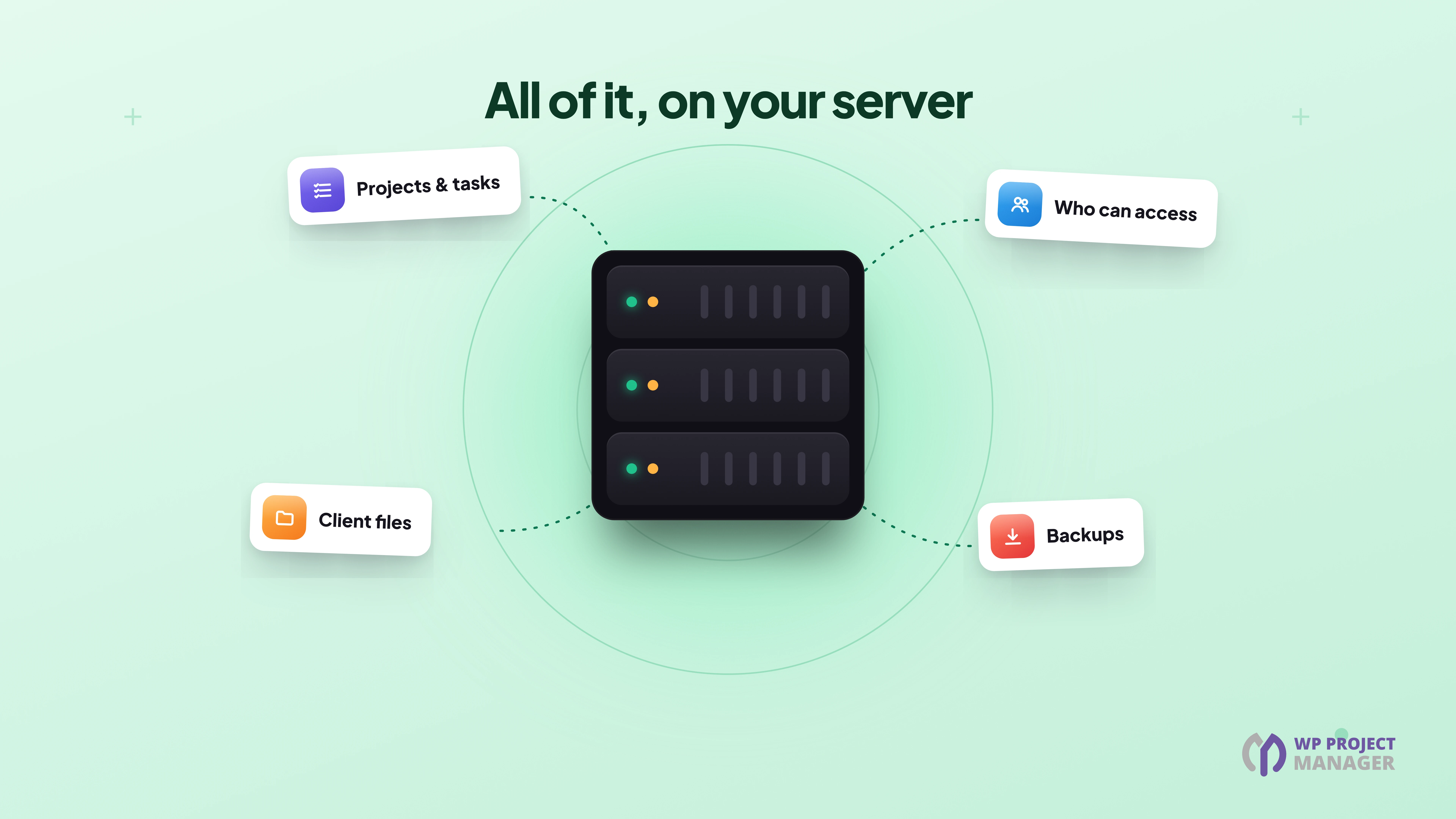
Self-hosting simply means your project management tool runs on hosting you control. For a WordPress agency, that's usually your own WordPress site. In practice, it covers four things.
A. Your Database Holds the Project Data
Projects, task lists, tasks, comments, and discussions are saved in your own WordPress database. No outside company stores a copy, so you always know where the information is and who can reach it.
B. Your Server Stores the Files
Briefs, contracts, and design files uploaded to a project go to your site's uploads folder on your hosting. They don't pass through a third-party file service unless you choose an integration that does.
C. You Decide Who Gets Access
You create the user accounts, choose their roles, and decide what each person can see. When someone leaves the team or a client contract ends, you remove access yourself in a few clicks.
D. You Control Backups and Deletion
You choose how often backups run, where they're stored, and how long you keep them. When a client asks you to delete their data, you can do it fully and confirm it yourself.
Compliance Rules Agencies Usually Face
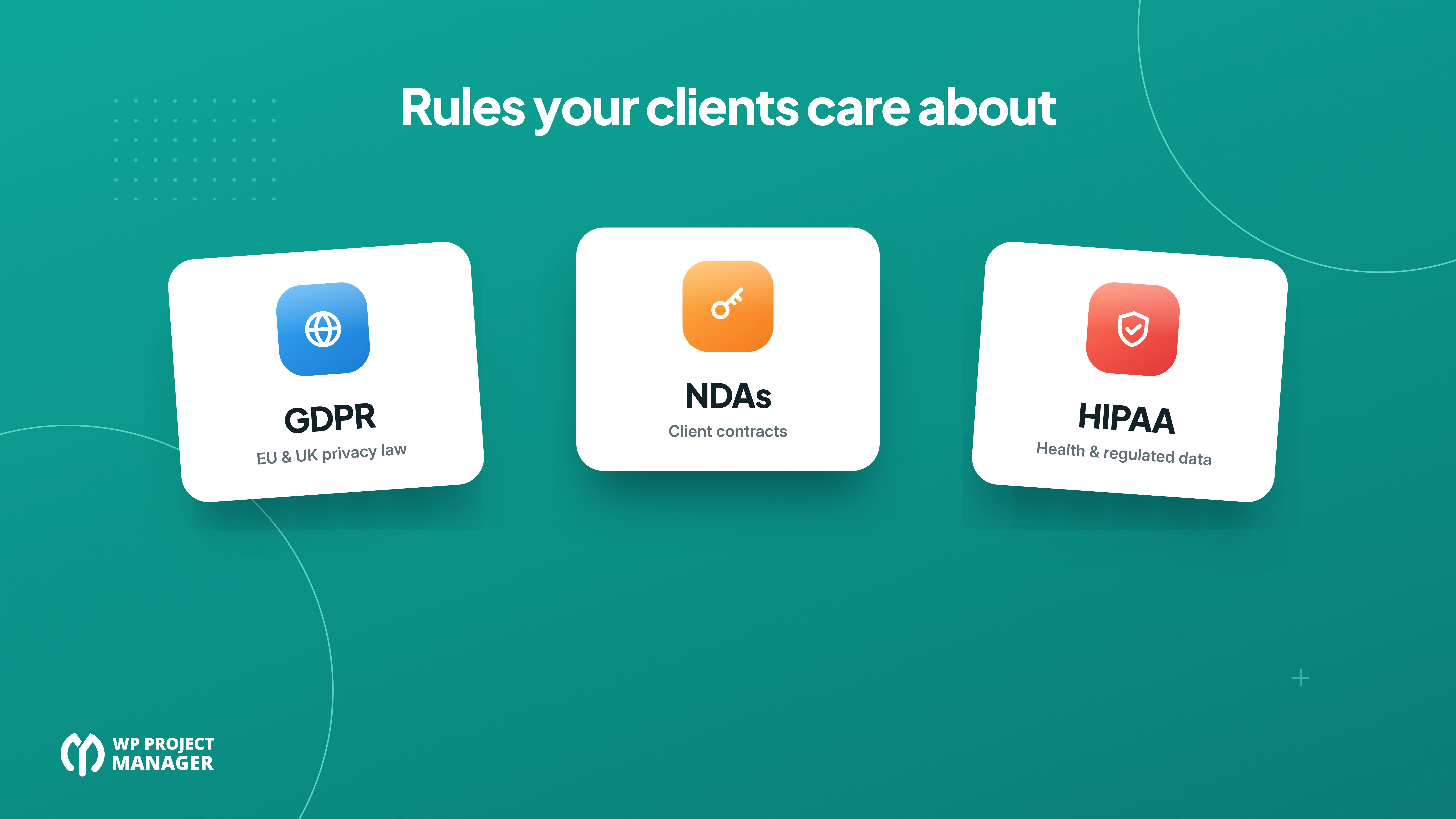
The rules you need to follow depend on your clients, their industry, and where their customers live. These four come up most often when clients ask where their data lives.
A. GDPR for EU and UK Clients
The GDPR covers personal data of people in the EU, and the UK has its own version. It expects you to know where data is stored, limit access, keep it secure, and delete it on request.
B. Client NDAs and Contracts
Many clients add clauses about where their files and information may be stored, who may see them, and how fast you must return or delete them. A self-hosted tool makes these promises easy to keep.
C. HIPAA and Other Regulated Clients
Health, finance, and legal clients often have stricter rules, such as HIPAA in the US. Keep their sensitive records out of everyday tools, use hosting that meets those rules, and share only what the project needs.
D. Your Own Security Policy
Even without a specific law, a written policy on access, passwords, backups, and data retention shows clients you take their information seriously. It also gives your team one clear set of rules to follow.
Keep in mind that self-hosting alone doesn't make you compliant. It gives you control over location and access, and the rest comes from your hosting, security habits, and contracts.
Cloud PM Tools vs Self-Hosted: Where Your Client Data Lives
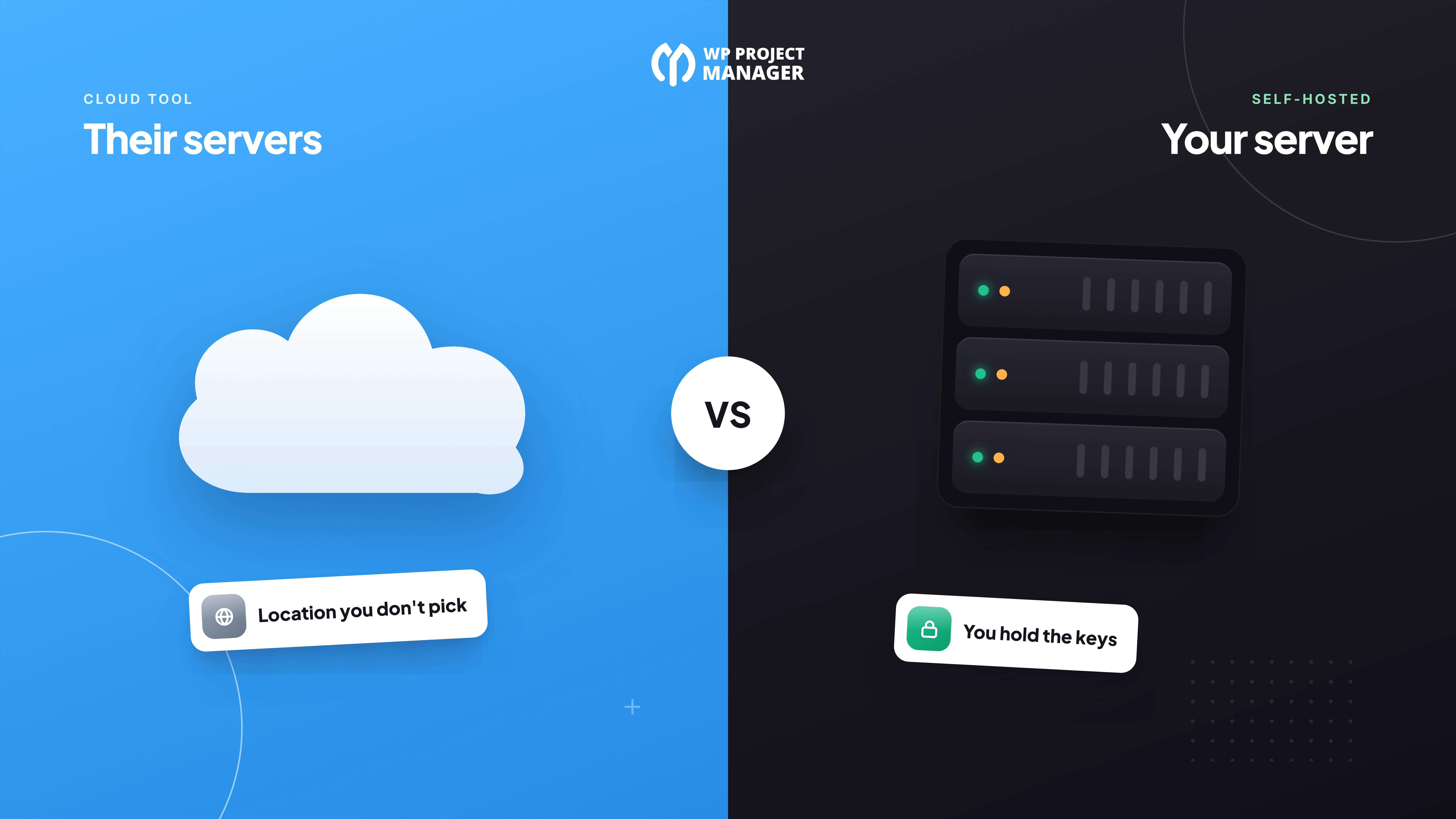
Cloud project management tools are quick to start with, but you trade away control over your client data. Here's how the two options compare on the points clients ask about most.
| Cloud PM tool | Self-hosted (WP Project Manager) | |
|---|---|---|
| Where data is stored | The vendor's servers and region | Your own hosting and region |
| Who controls access | The vendor and your account admins | Only you and the users you add |
| Client files | Stored by the vendor | Stored in your WordPress uploads folder |
| Backups | Vendor-managed, limited export | Your own backup plan and schedule |
| Data deletion | Request it and trust the vendor | Delete it yourself and confirm it |
| If the service shuts down | You may lose data or rush to export | Your data stays where it is |
| Pricing | Usually per user, per month | One plugin license, no per-user fees |
If your clients care about where their data lives, a self-hosted tool gives you the clearest answer.
Why WP Project Manager Fits a Self-Hosted Agency Setup
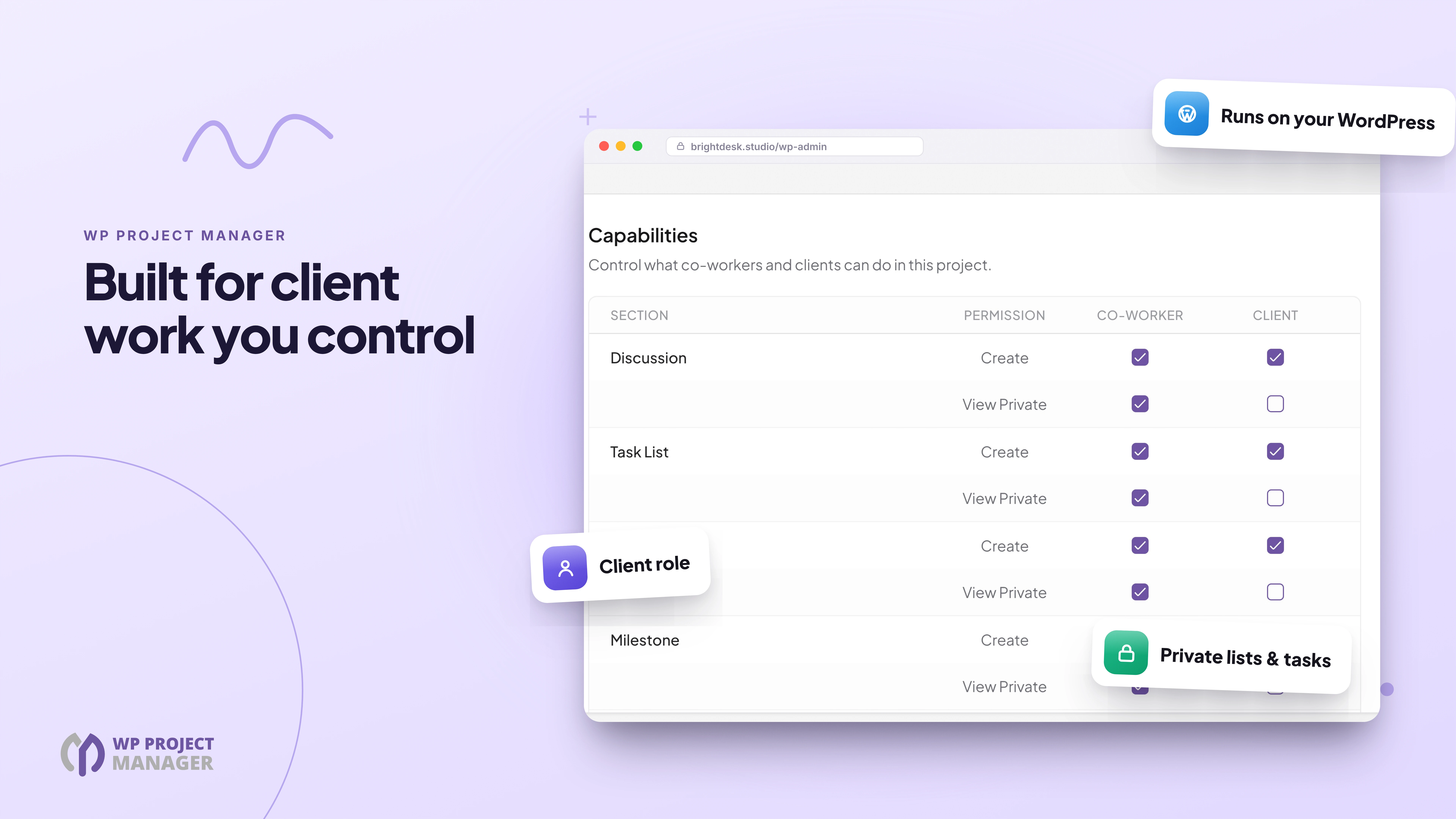
WP Project Manager is a project management plugin for WordPress, so it runs wherever your WordPress site runs. These features make it a strong fit for agencies with privacy-minded clients.
A. It Runs on Your Own WordPress Site
Install it on a WordPress site on your hosting, and every project, task, discussion, and file stays there. There's no separate cloud account to manage, and no outside vendor ever holds a copy of your client data.
B. A Dedicated Client Role
In Pro, you can add a client to a project with the Client role. Clients follow progress, join discussions, and share files without seeing your internal work or other clients' projects on the same site.
C. Private Lists, Tasks, and Milestones
Mark a task list, task, or milestone as private, and only your team sees it. Pro's project Capabilities settings let you decide exactly whether clients can view private items or create new ones.
D. Files Stay in the Project
Files attached to tasks and discussions are uploaded to your own server and collected in the project's Files tab, so client documents don't end up scattered across email threads and chat apps.
How to Keep Client Data on Your Own Server with WP Project Manager (Step by Step)
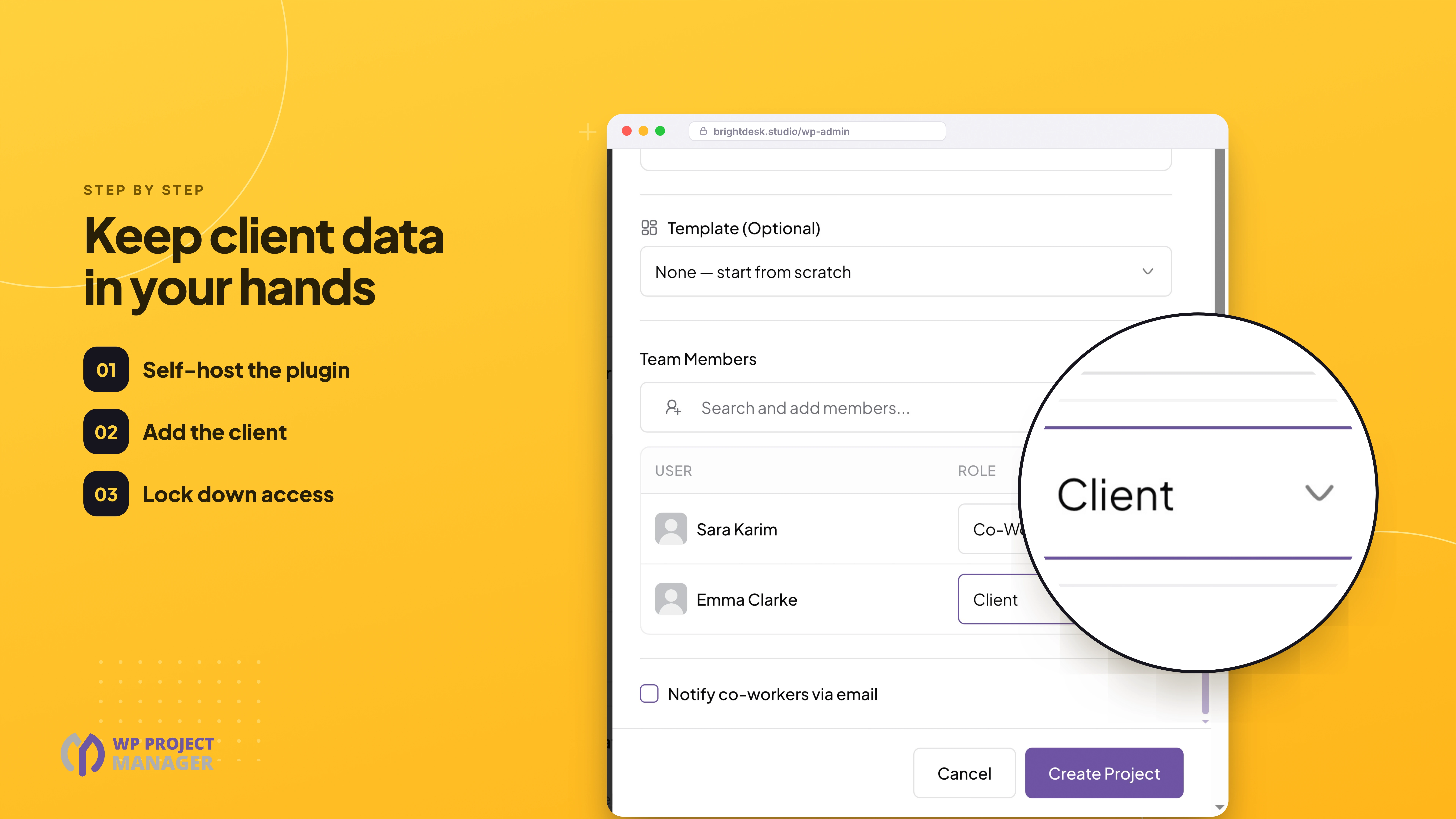
Now let's set it up. For this tutorial, we'll create a project for Harbor Dental, a demo client with a website and patient booking portal, and lock it down so client data stays on our own server.
Note: The Client role and project Capabilities are part of WP Project Manager Pro. Private task lists, file uploads, and Trello import work in the free plugin too.
Step 01: Install WP Project Manager on Your Own Hosting
Install the free WP Project Manager plugin on a WordPress site hosted by you, then add Pro. Choose a host whose server location matches your clients' needs, such as an EU data center for EU clients.
Tip: Many agencies use a separate WordPress install, like projects.youragency.com, just for client work. It keeps project data away from your public marketing site.
Step 02: Bring Your Projects Home from Trello
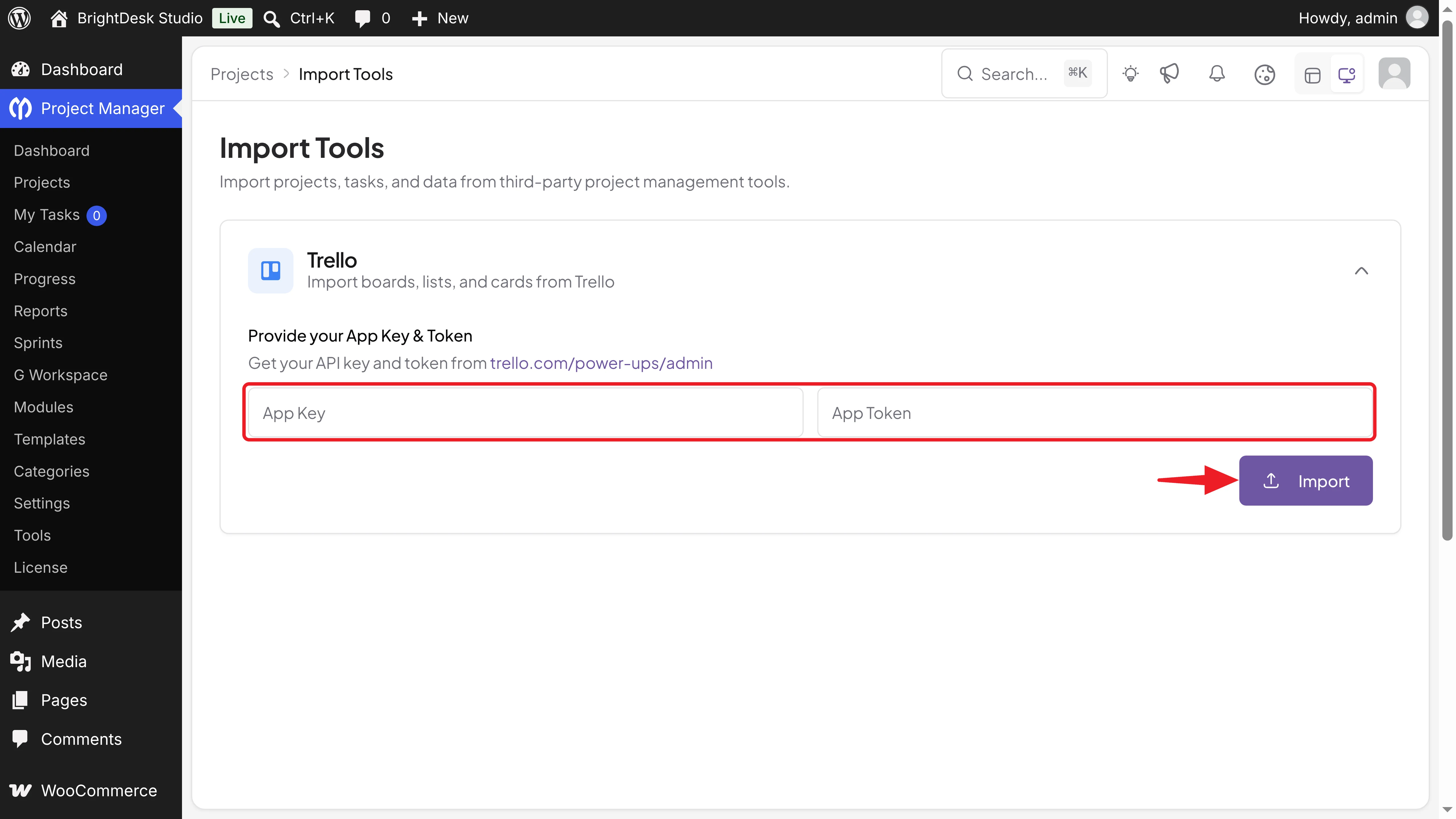
If your projects live in Trello today, go to Project Manager > Tools. Under Trello, enter your App Key and App Token, then click Import to copy your boards, lists, and cards into WP Project Manager.
Step 03: Create the Client Project and Add the Client
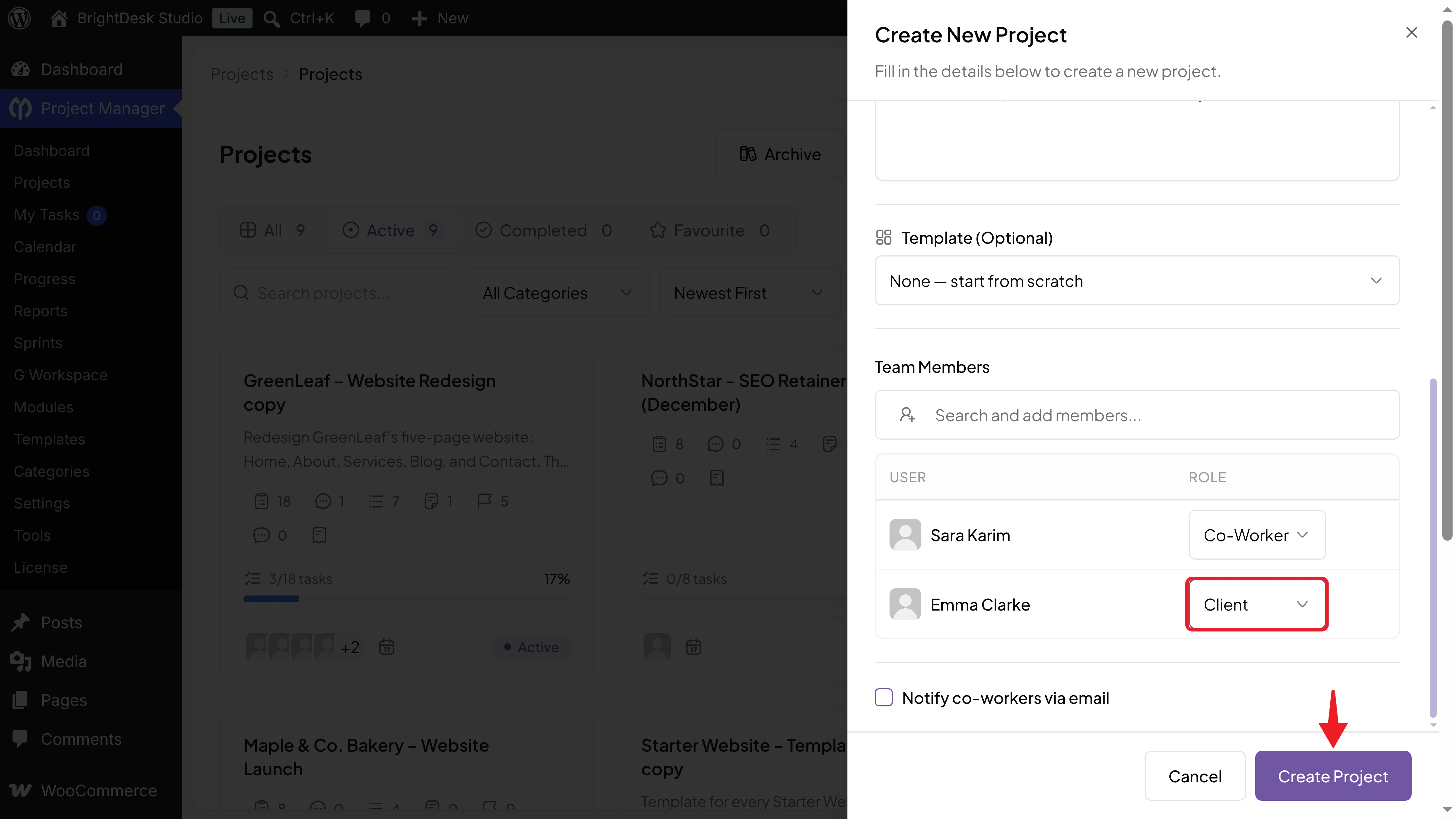
Go to Project Manager > Projects and click New Project. Type the project name and description, then search for your team members under Team Members. For the client's account, open the Role dropdown and select Client.
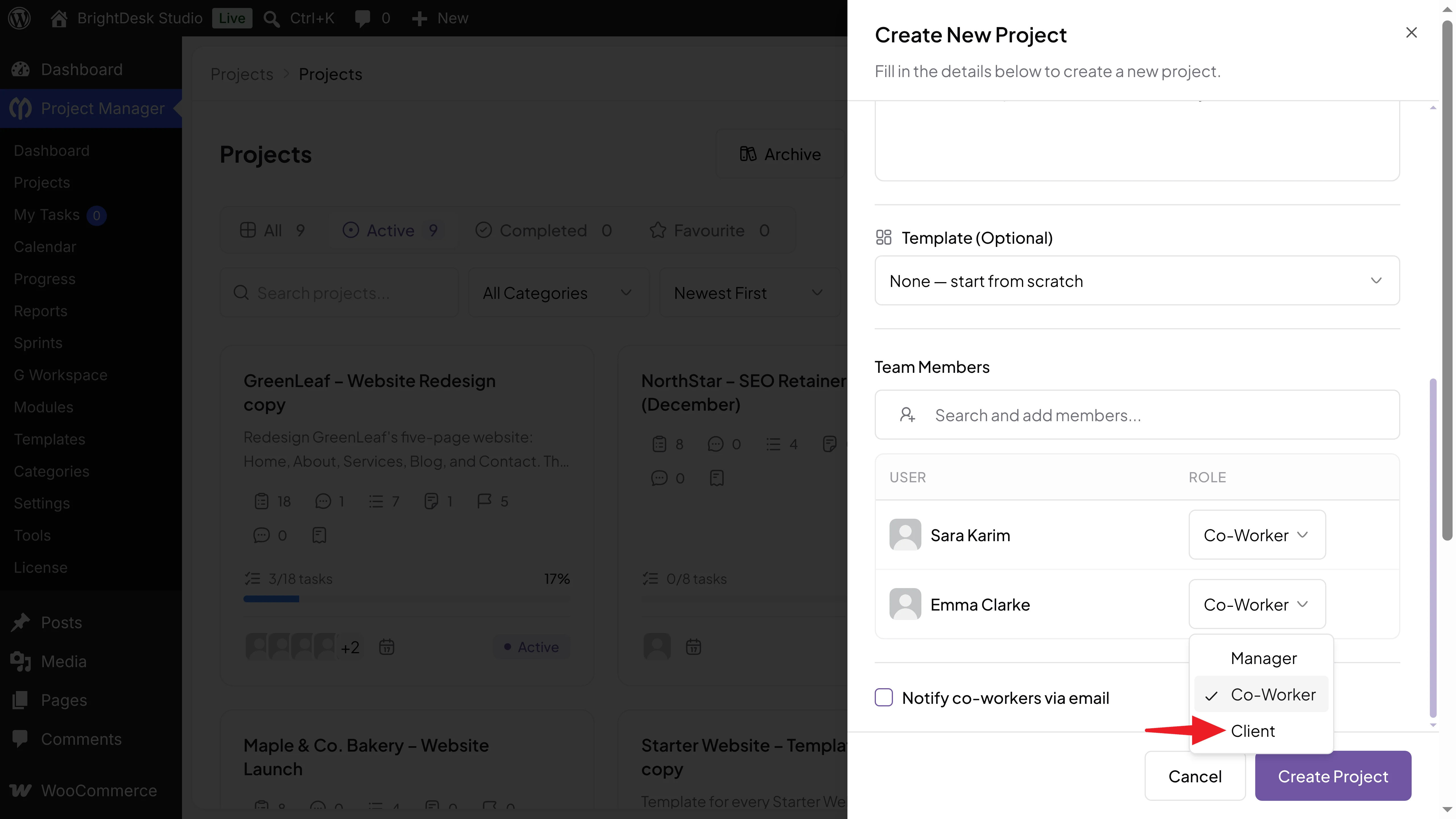
Here, Sara is a Co-Worker and Emma from Harbor Dental is a Client. Click Create Project to save it.
Step 04: Set What Clients Can See
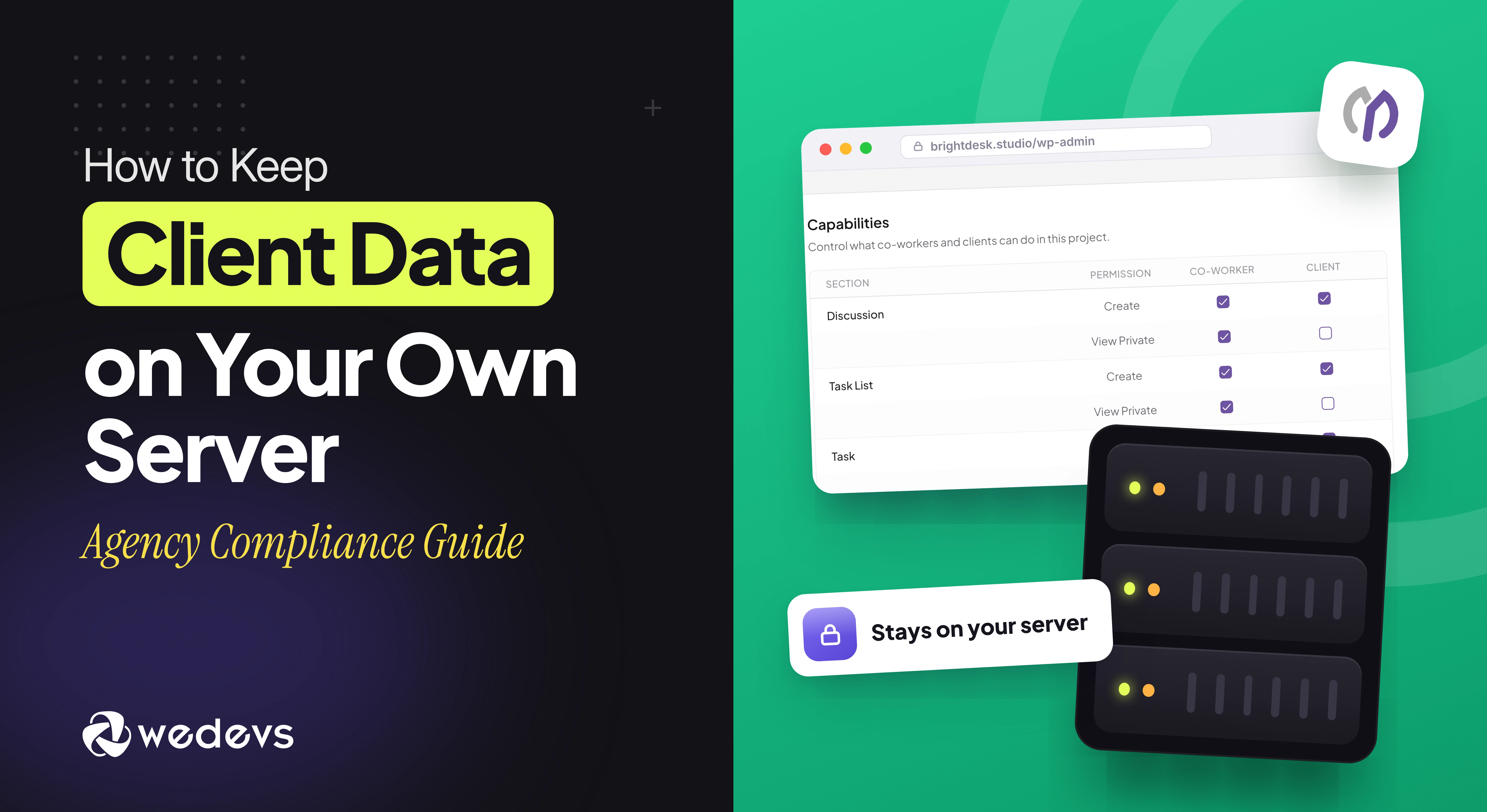
Open the project and go to Settings > Capabilities. This table controls what co-workers and clients can do in this project. In the Client column, keep View Private unchecked for discussions, task lists, tasks, milestones, and files. Then click Save Changes.
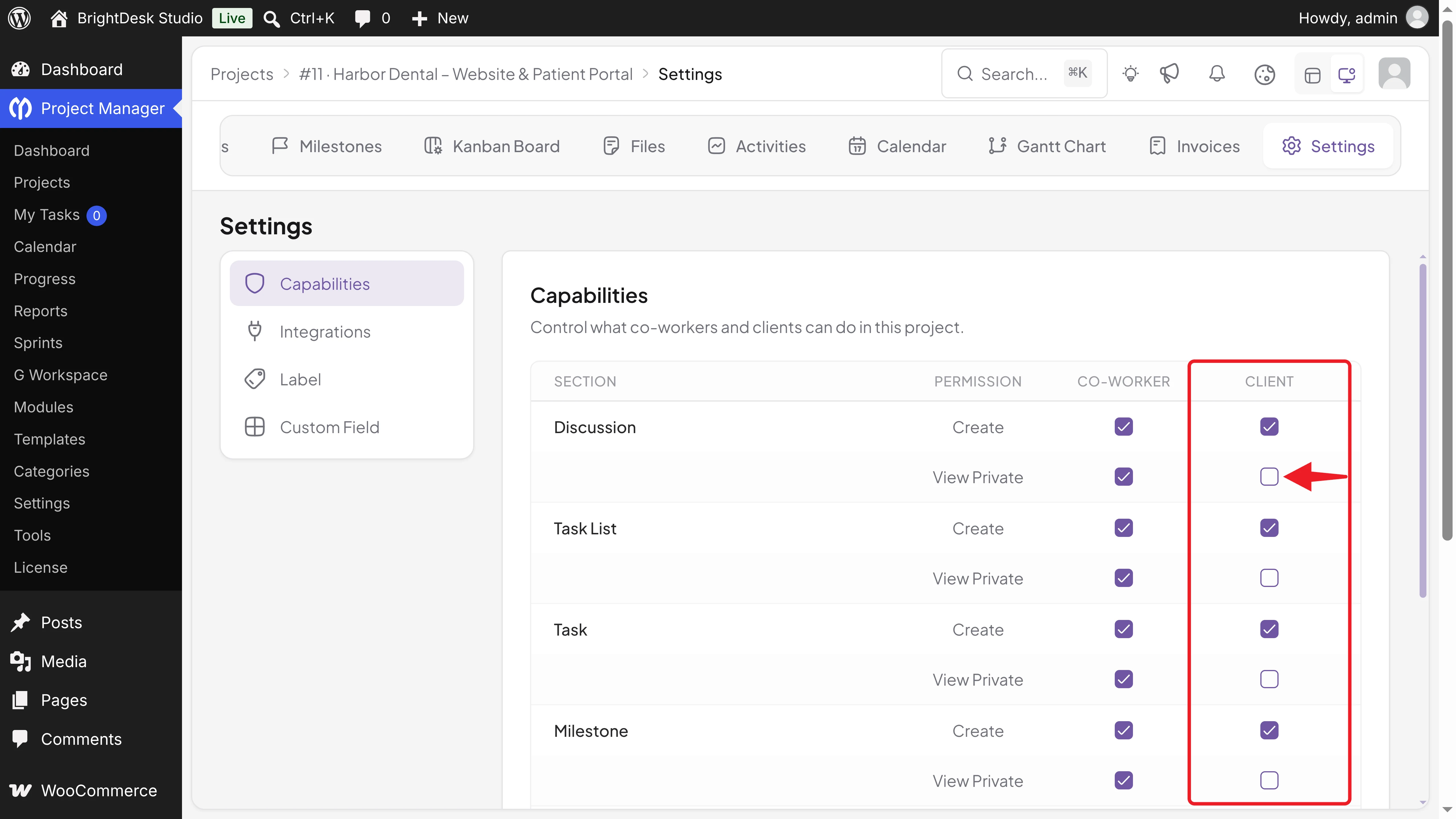
Now your client can follow the work you share, while your internal notes stay hidden from them.
Step 05: Keep Internal Work in a Private Task List
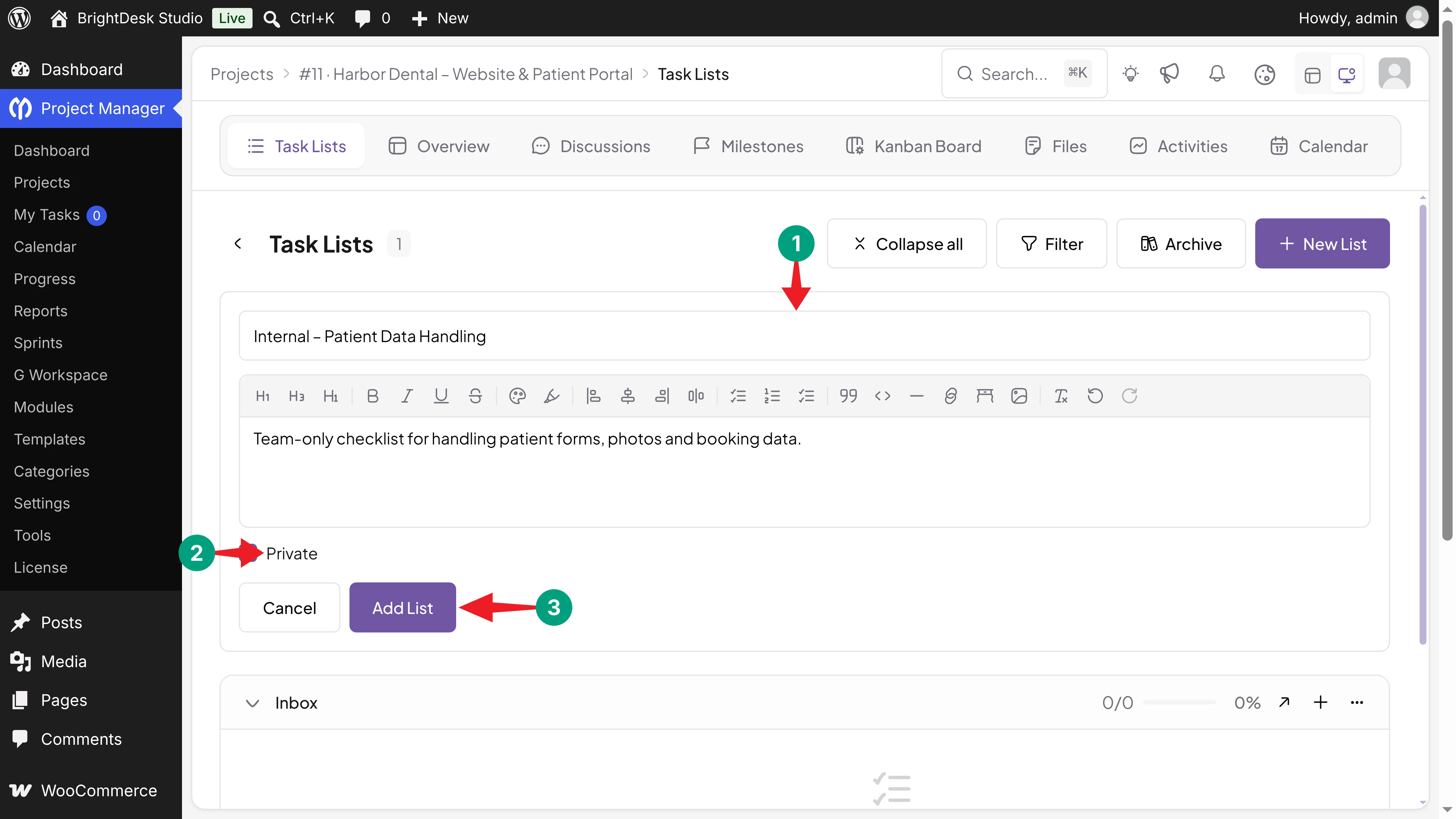
Go to the Task Lists tab and click New List. Type a name, such as "Internal – Patient Data Handling", check Private, and click Add List. Only your team can see this list and its tasks.
Step 06: Share Client Files Inside the Project
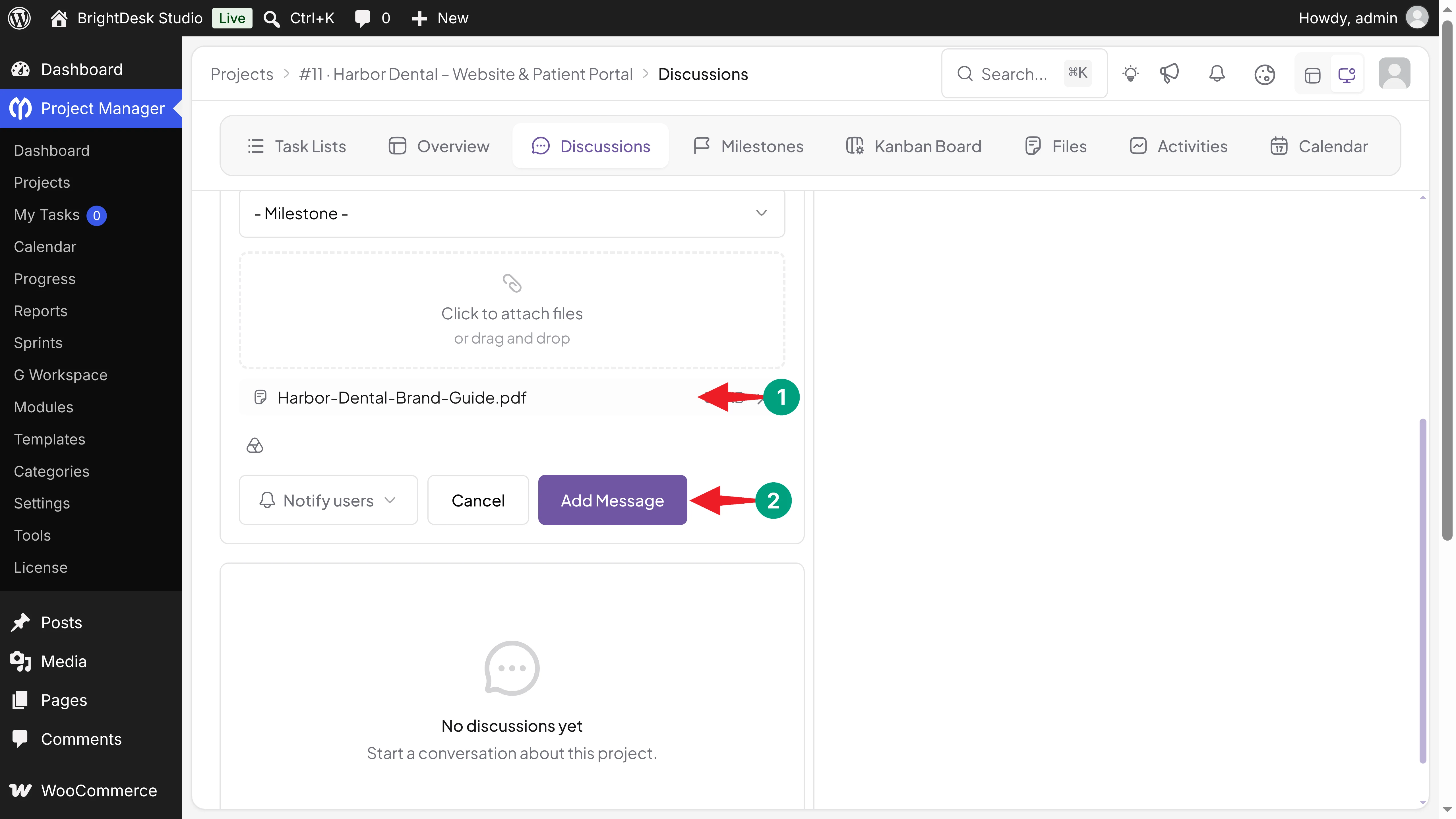
Instead of emailing files back and forth, attach them inside the project. Go to Discussions, click New, write your message, and click Click to attach files to upload the document. Then click Add Message.
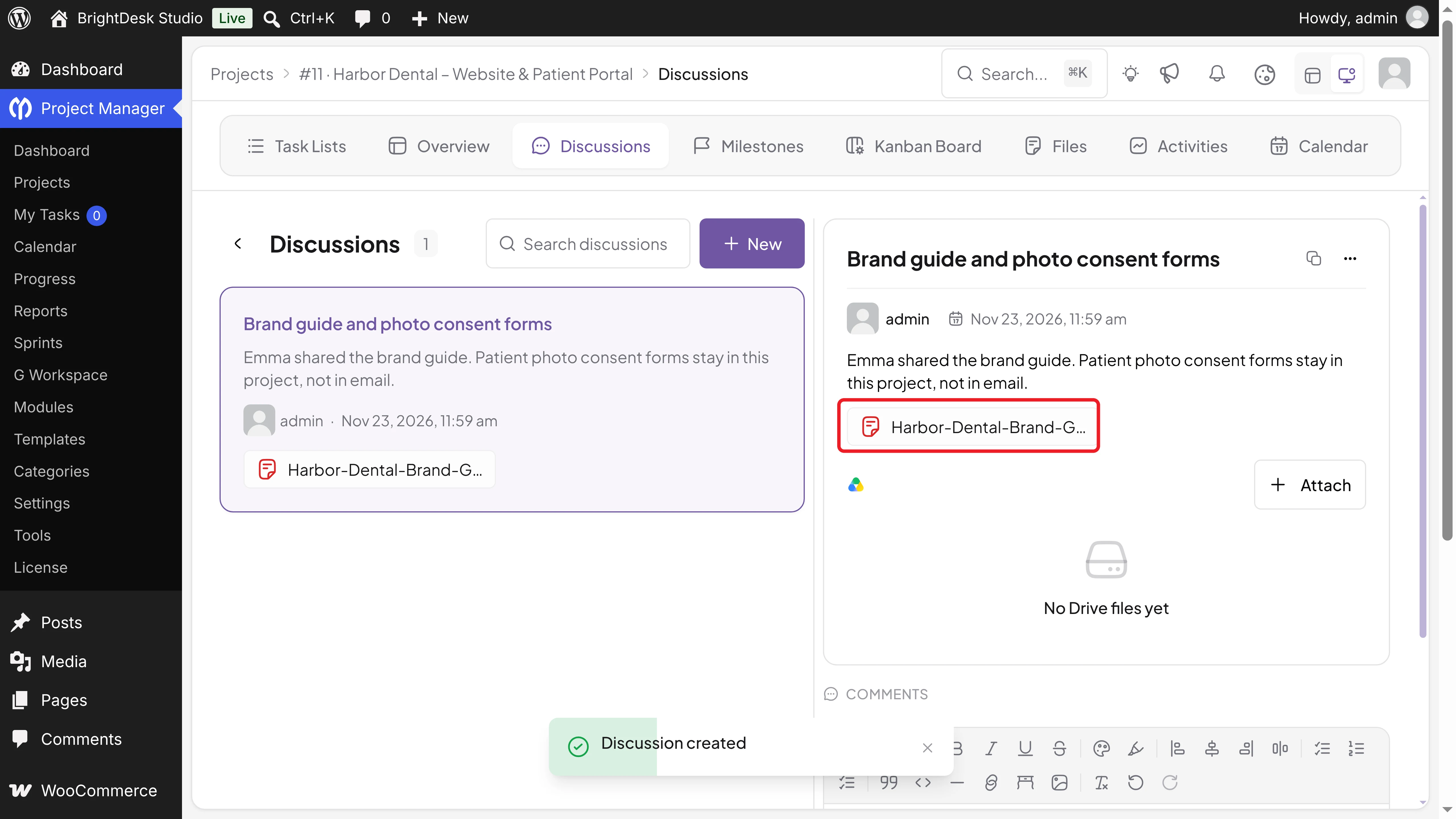
The file is now part of the discussion, so everyone in the project finds it in one place.
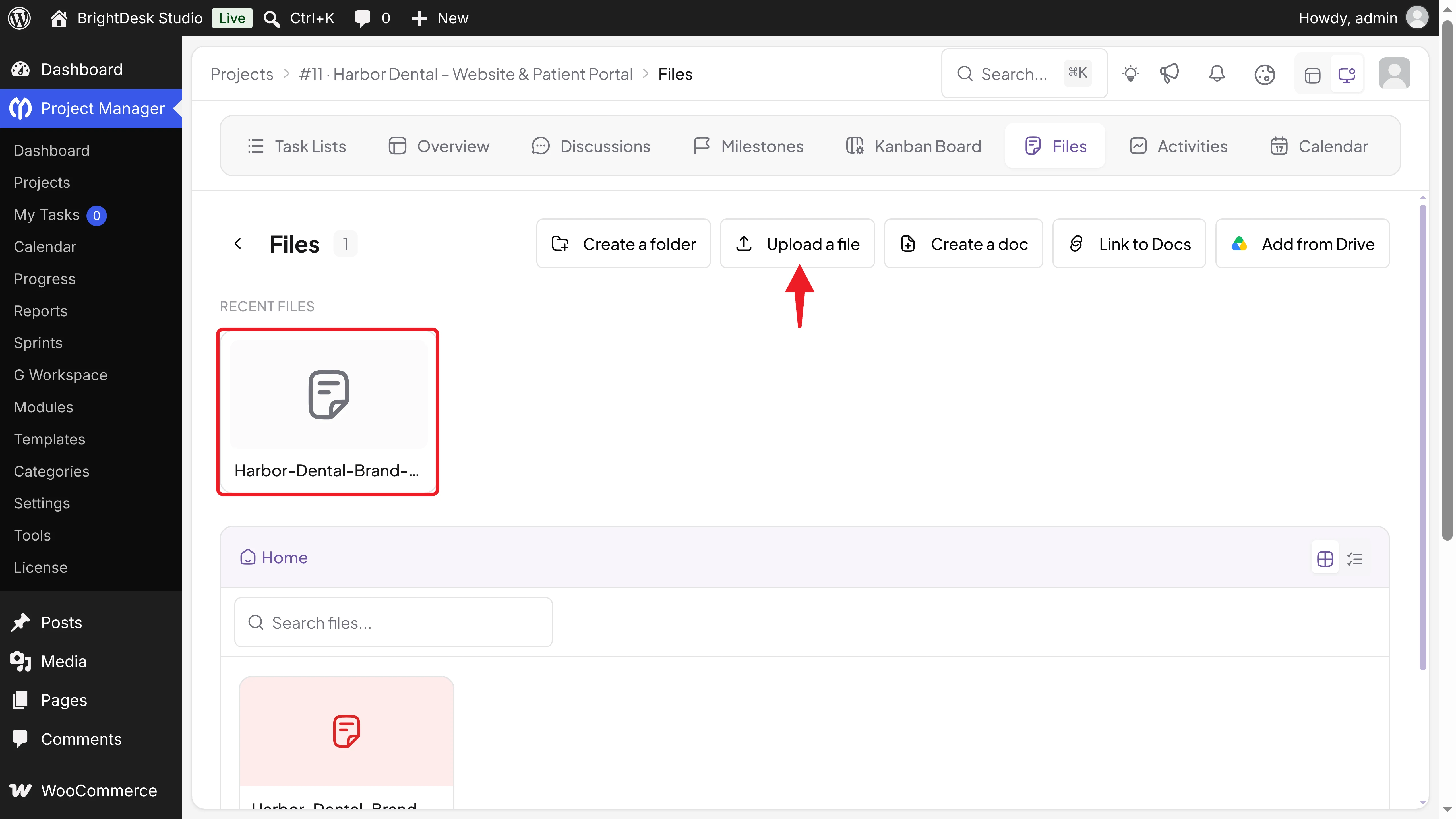
Every file shared in the project also appears in the Files tab. You can upload files, create folders, and write docs here, and all of them are stored on your own server.
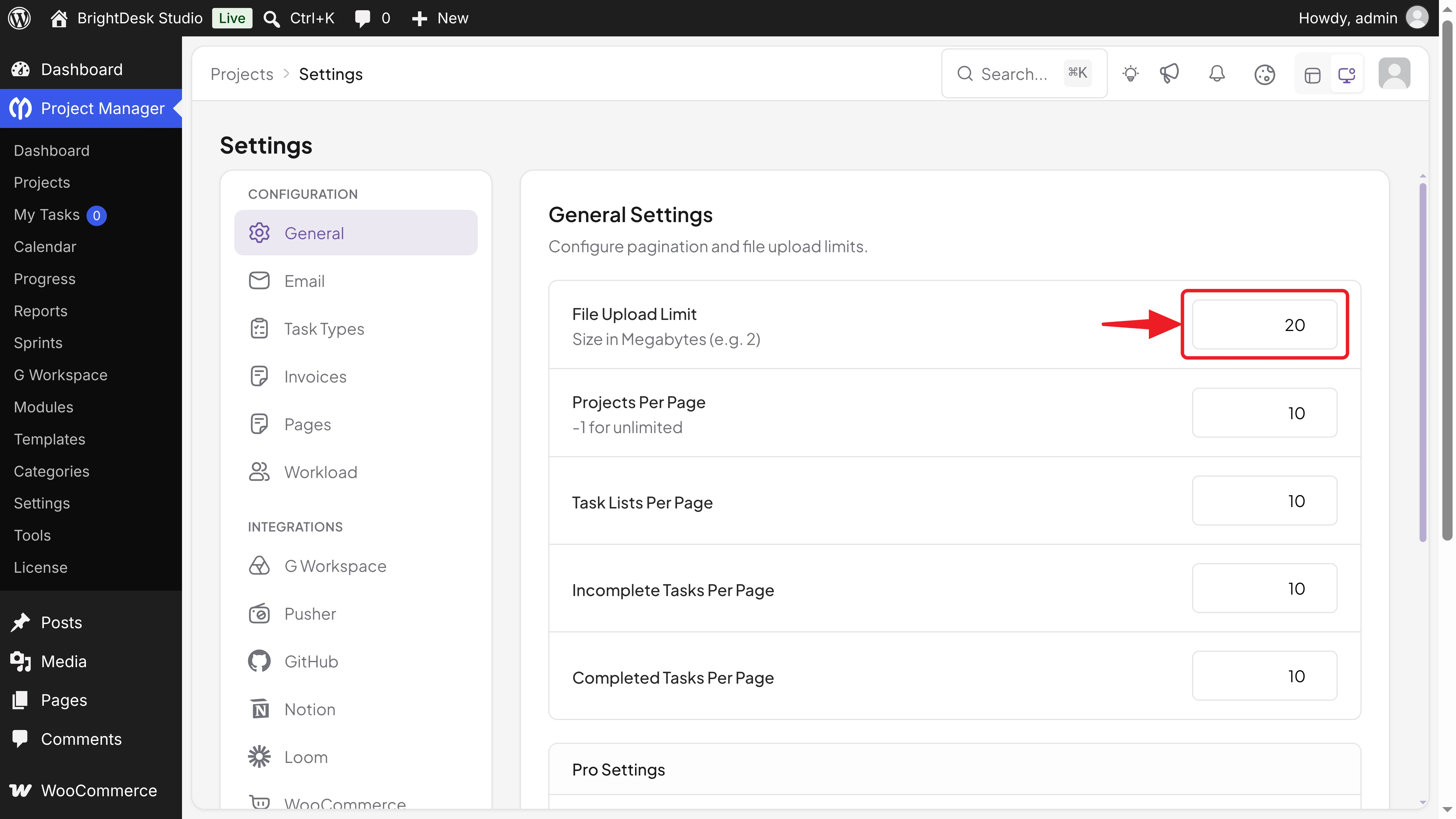
Tip: To control file sizes, go to Project Manager > Settings > General and set the File Upload Limit.
Note: If you attach files from Google Drive, those files stay in Google Drive. Use direct uploads for documents that must stay on your server. See how to attach Google Drive files to WP Project Manager tasks.
Step 07: Review Your AI Settings
WP Project Manager's AI features send your prompt to the AI provider you choose: OpenAI, Anthropic, or Google. Go to Project Manager > Settings > AI Settings to see or change the AI Provider and API Key.
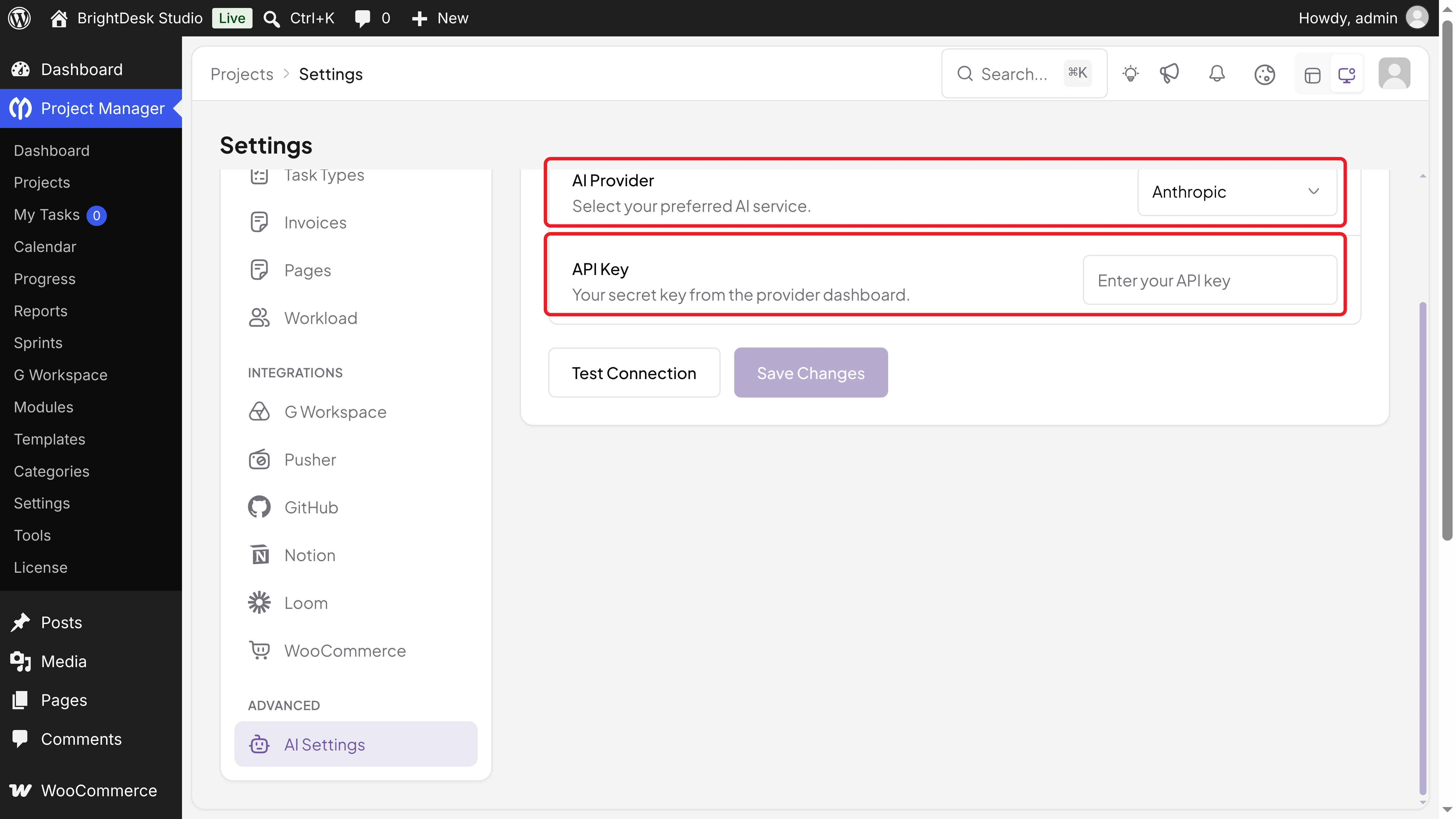
For regulated clients, keep personal data out of AI prompts, or don't add an API key at all. Your project data still stays on your server; only the text you send in a prompt goes to the provider.
Step 08: Archive or Delete the Project When Work Ends
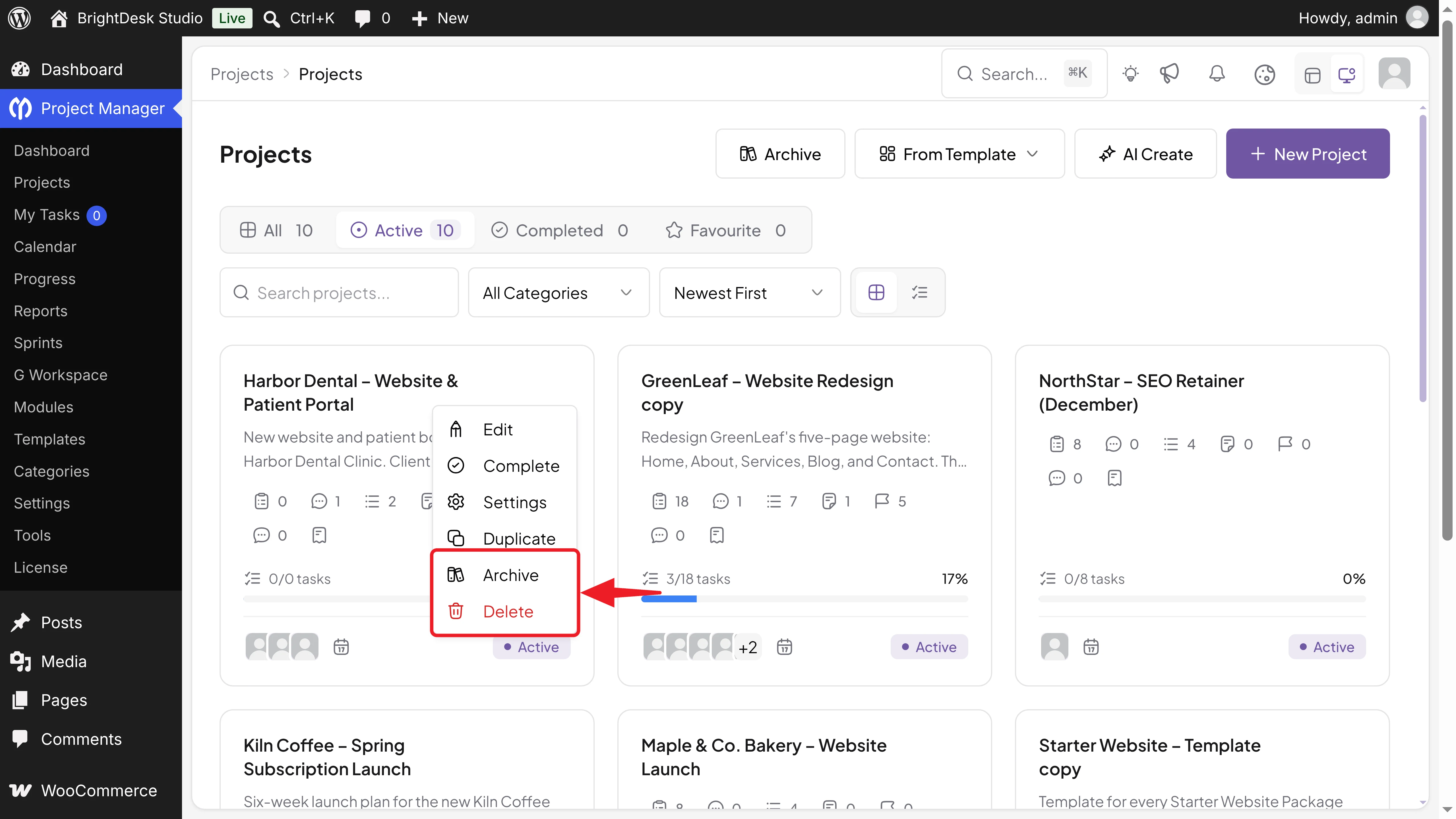
When a contract ends, go to Projects, click the Project actions (three dots) button on the project card, and choose Archive to keep it out of daily view, or Delete if the client asks you to remove their data.
Thus, your client's project, files, and conversations live on your own server from the first brief to the final handover.
Extra Steps to Make Your Server Compliance-Ready
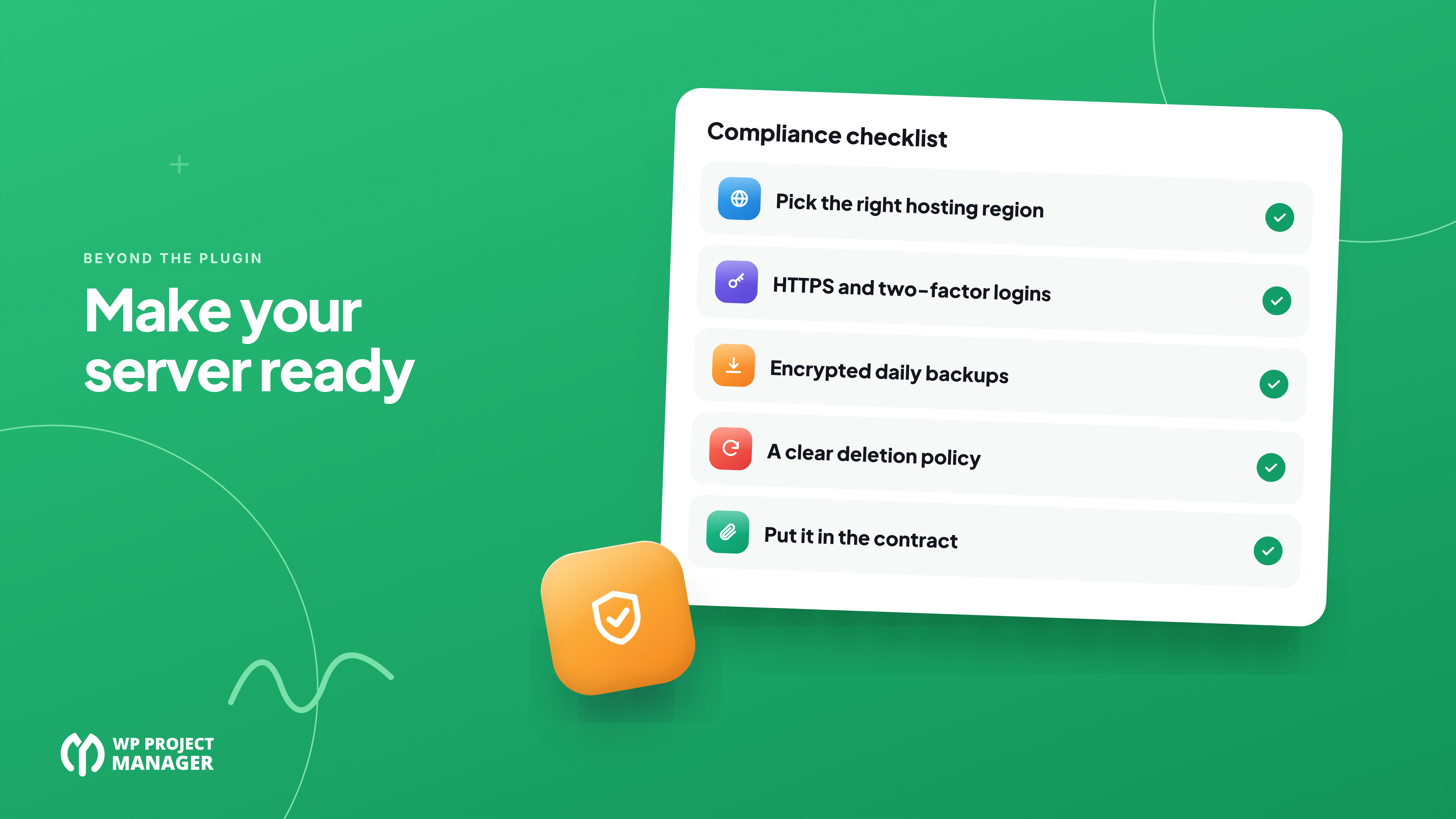
The plugin keeps data in your hands, but the server around it matters just as much. Add these five steps to round out your setup.
A. Pick the Right Hosting Region
Choose a data center in the region your clients expect, such as the EU for European clients. Ask your host where backups are stored too, since a backup in another country can break a contract.
B. Use HTTPS and Two-Factor Logins
Run the site on HTTPS only, require strong passwords, and turn on two-factor authentication for every account with project access. Most client data breaches start with a single weak or reused password.
C. Run Encrypted, Regular Backups
Back up the database and uploads folder daily, encrypt the backups, and store them somewhere you control. Test a restore every few months so you know the backups actually work when you need them.
D. Write a Data Retention and Deletion Policy
Decide how long you keep client projects after a contract ends and how you delete them. Archive first, then delete on schedule or on request, and keep a simple record of what was removed.
E. Put It in Your Client Contract
Describe where you store client data, who can access it, and how you delete it in your contract or data processing agreement. Clear terms answer most security questions before a client even asks them.
Manage Client Projects Securely from the Mobile App
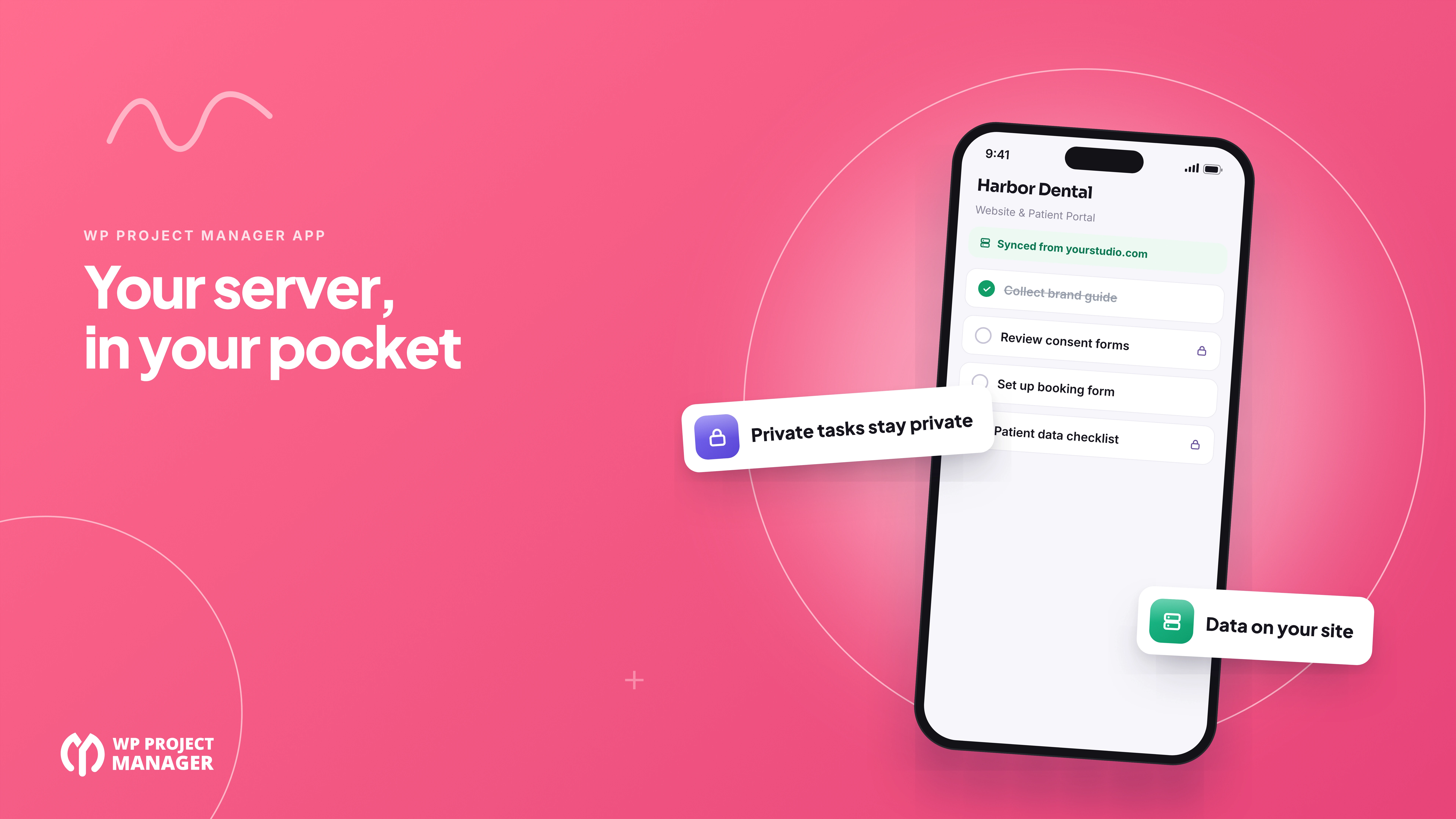
Self-hosting doesn't mean you're stuck at your desk. The free WP Project Manager mobile app connects straight to your own WordPress site, so you can check tasks, reply to discussions, and update projects from your phone.
Your projects and files keep living on your server while you work on the go, and the same roles and private settings apply. A client sees only what you've allowed, even when your team updates the project from the app. Learn more in our WP Project Manager mobile app guide.
Common Client Data Mistakes Agencies Make
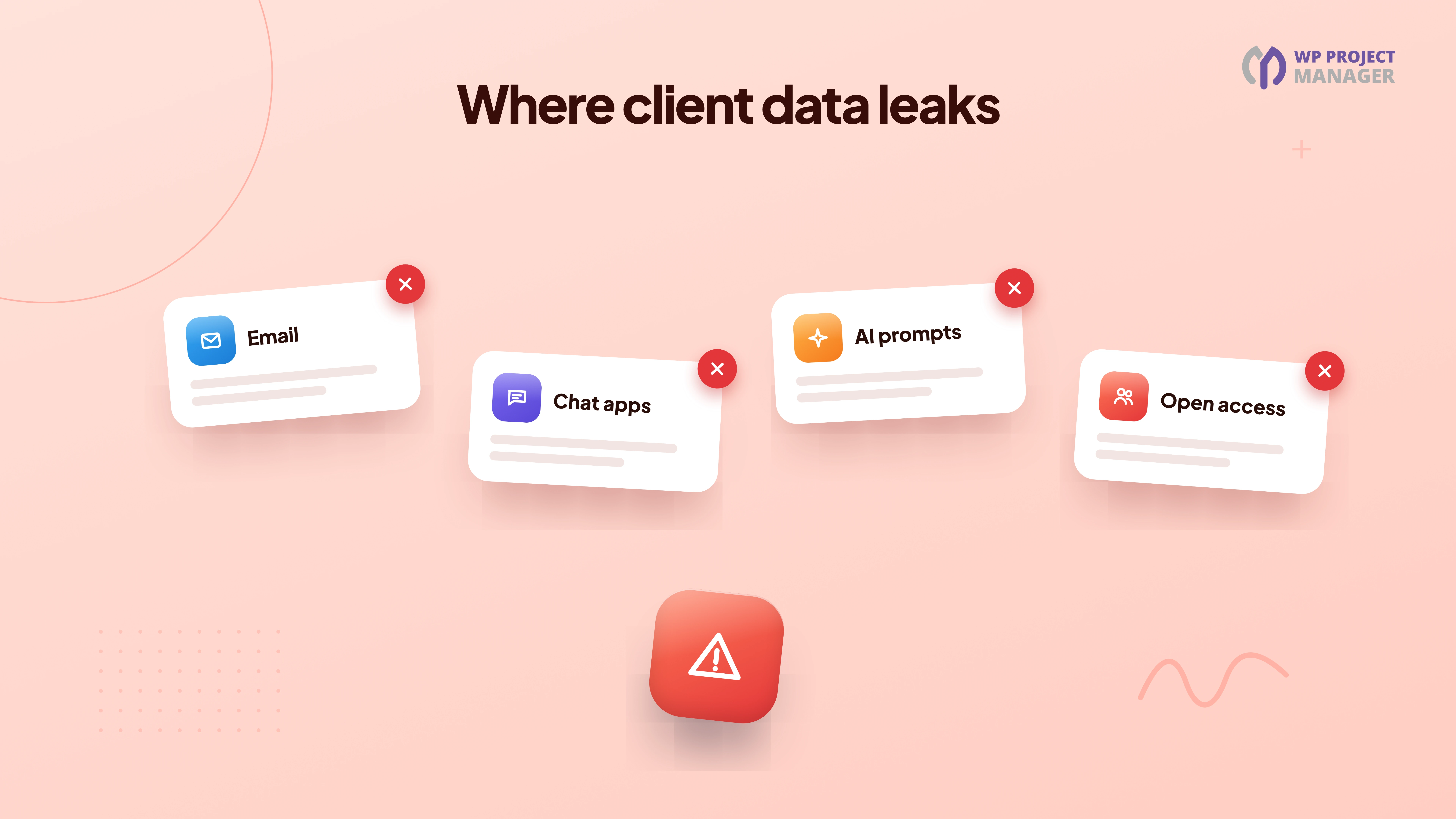
A self-hosted tool only helps if your team actually uses it for client data. Watch out for these four common slips.
A. Sharing Client Files by Email
Email attachments get forwarded, downloaded, and stored in many inboxes. Upload files to the project instead, and send people a link to the discussion or task so the file stays in one place.
B. Moving Conversations to Chat Apps
Quick chats with clients in outside messaging apps leave decisions and files on someone else's servers. Keep project conversations in Discussions or task comments, so the full record stays on your own site.
C. Pasting Client Data into AI Prompts
AI tools are handy for planning, but whatever you paste goes to the AI provider. Describe the project in general terms and leave out names, contact details, and other personal data in your prompts.
D. Giving Clients More Access Than Needed
Adding a client as a Co-Worker shows them all your internal work. Always use the Client role, check the Capabilities settings, and remove access as soon as the project is finished.
Check how to set up WP Project Manager for a WordPress agency.
FAQ on Keeping Client Data on Your Own Server
In this section, we have answered the questions agency owners and our users ask most often about self-hosting client data.
Does self-hosting make my agency GDPR compliant?
Not on its own. Self-hosting gives you control over where data lives and who can access it, but you also need secure hosting, clear policies, and the right contracts. Check your obligations with a legal expert.
Where does WP Project Manager store project data?
Projects, tasks, and discussions are saved in your WordPress database, and uploaded files go to your site's uploads folder. Both stay on the hosting you choose.
Can clients see private task lists and tasks?
Not by default. In Pro, go to the project's Settings > Capabilities and keep View Private unchecked in the Client column, so clients only see what you share.
Is WP Project Manager suitable for HIPAA clients?
It keeps data on your own server, which helps. HIPAA also requires compliant hosting, signed agreements, and strict security controls. Keep protected health information out of everyday project notes and talk to a compliance expert.
Do Google Drive attachments stay on my server?
No. Files attached from Google Drive stay in Google Drive. Upload files directly to the project when they must stay on your server.
Does the mobile app store my data somewhere else?
No. The app connects to your own WordPress site, so projects and files stay on your server while you work from your phone.
Final Thoughts: Your Clients, Your Server, Your Rules
When a client asks where their data lives, the best answer is a simple one: on our own server, protected by our own rules. Self-hosting your project management gives you that answer and makes GDPR requests, NDAs, and security reviews far easier to handle.
WP Project Manager brings that control to WordPress. Keep every project, file, and conversation on your hosting, give clients the Client role, keep internal work private, and take it all with you in the mobile app. Compare it with other options in our list of the best WordPress project management plugins.
If you have any questions, mention them in the comment box below. Thanks for being with us till the end.
Before moving away, have a few more minutes to explore what happens to your data when a SaaS tool shuts down.