Selling services with WooCommerce is easy. A customer picks a package, pays, and gets a confirmation email. The hard part starts after that, when someone on your team has to create a project, add the right people, and set up the tasks by hand for every single order.
WP Project Manager removes that gap. Its WooCommerce Order module watches your store and creates a project the moment a customer orders a service you sell. It can start a fresh project or copy a ready-made template, assign your team, and add the customer as a client.
In this blog post, we'll show you how the WP Project Manager WooCommerce integration works and how to set it up step by step. We'll use a small web studio that sells an SEO audit and a website package, and follow one real order from checkout to a working project. Let's get started!
How Does WP Project Manager Work with WooCommerce?
The integration connects your WooCommerce products to projects in WP Project Manager. You create simple rules, such as "when someone orders the SEO Audit, create a new project". After that, the plugin follows those rules on its own.
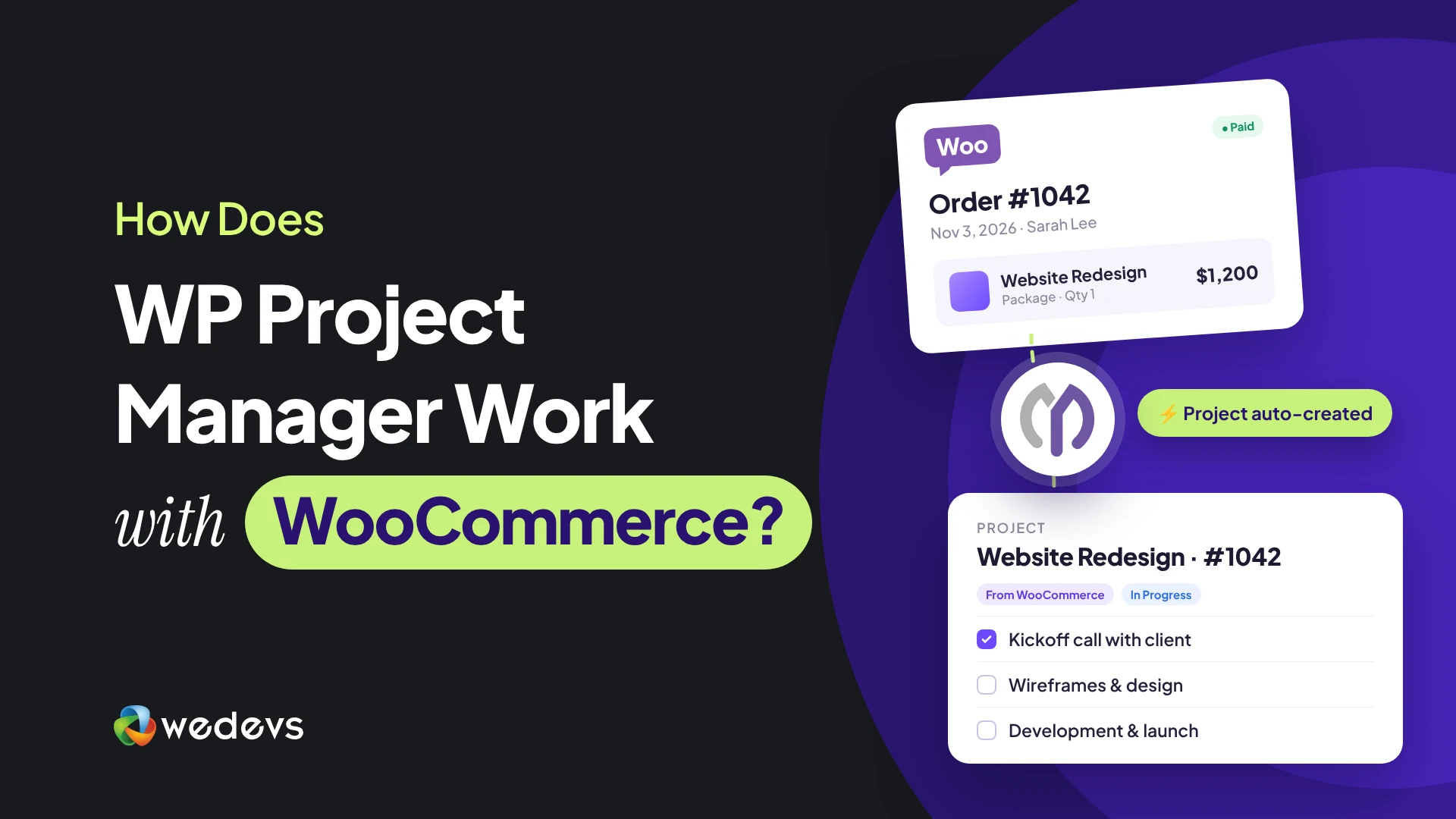
Each rule has three parts:
- Order Products: The WooCommerce products that trigger the rule.
- Project: What to do when someone orders them. Create New starts an empty project. Duplicate copies an existing project, such as a template.
- Assignee Users or Duplicate From: Who joins a new project, or which project to copy.
The rules run when an order's status changes for the first time, which usually means it moves from Pending payment to Processing. So the project is ready as soon as the order is confirmed, without anyone opening the dashboard.
Why Connect WooCommerce with WP Project Manager?
If you sell services, every order is the start of a job. Connecting the two plugins turns that job into organized work right away. Here's what you gain.
a. No More Manual Project Setup
Your team doesn't need to watch the orders page and copy details into a new project. The project appears on its own, named after the order and the product, so nothing gets missed on a busy day.
b. The Same Delivery Process for Every Customer
With a template project, every customer who buys a package gets the same task lists, the same steps, and the same owners. Your quality stays consistent, even when orders pile up.
c. The Right People Are Assigned Instantly
You decide who joins each project and in which role. Your project manager and specialists are added the moment the order comes in, so work can start the same day.
d. Customers Can Follow Their Own Project
When a registered customer orders, they're added to the new project as a Client. With a front-end project page, they can log in and see progress without emailing you for updates.
e. It Grows with Your Store
Ten orders or a hundred, the setup stays the same. You can map one product or many, and add a separate rule for each service you sell.
What You Need Before You Start
Get these few things ready before you follow along. None of them requires coding.
- A WordPress website where you have administrator access.
- WooCommerce installed, with at least one product you sell.
- WP Project Manager (free), installed and activated.
- WP Project Manager Pro with the Business plan, installed and activated.
- A template project, if you want to copy a ready-made task structure for each order.
Note: You need WP Project Manager Pro with the Business plan because the WooCommerce Order module isn't part of the free plugin, and the Personal and Professional plans don't include it either.
This tutorial uses WP Project Manager 4.1.2, Project Manager Pro 4.1.2, and WooCommerce 11.2. Once these plugins are ready on your site, start following the tutorial explained below.
How to Set Up the WP Project Manager WooCommerce Integration (Step-by-Step)
We'll use one example throughout the tutorial:
| Item | Example |
|---|---|
| Store | BrightDesk Studio, a WordPress web studio |
| Product 1 | SEO Audit ($299), which creates a new project |
| Product 2 | Starter Website Package ($1,499), which copies a template project |
| Template project | Starter Website – Template, with 4 task lists and 12 tasks |
| Team | Hasan Mahmud (Manager) and Rafi Ahmed (Co-Worker) |
| Customer | Daniel Brooks from NorthPeak Outdoors |
Use your own products, team members, and template. What matters is how the rules connect them.
Step 01: Create Your Service Products in WooCommerce
Navigate to Products > Add new product from your WordPress dashboard. Enter the product name and Regular price, and check Virtual in the Product data box, since a service doesn't need shipping. Then click Publish.
We've added three services: SEO Audit, Starter Website Package, and Website Care Plan.
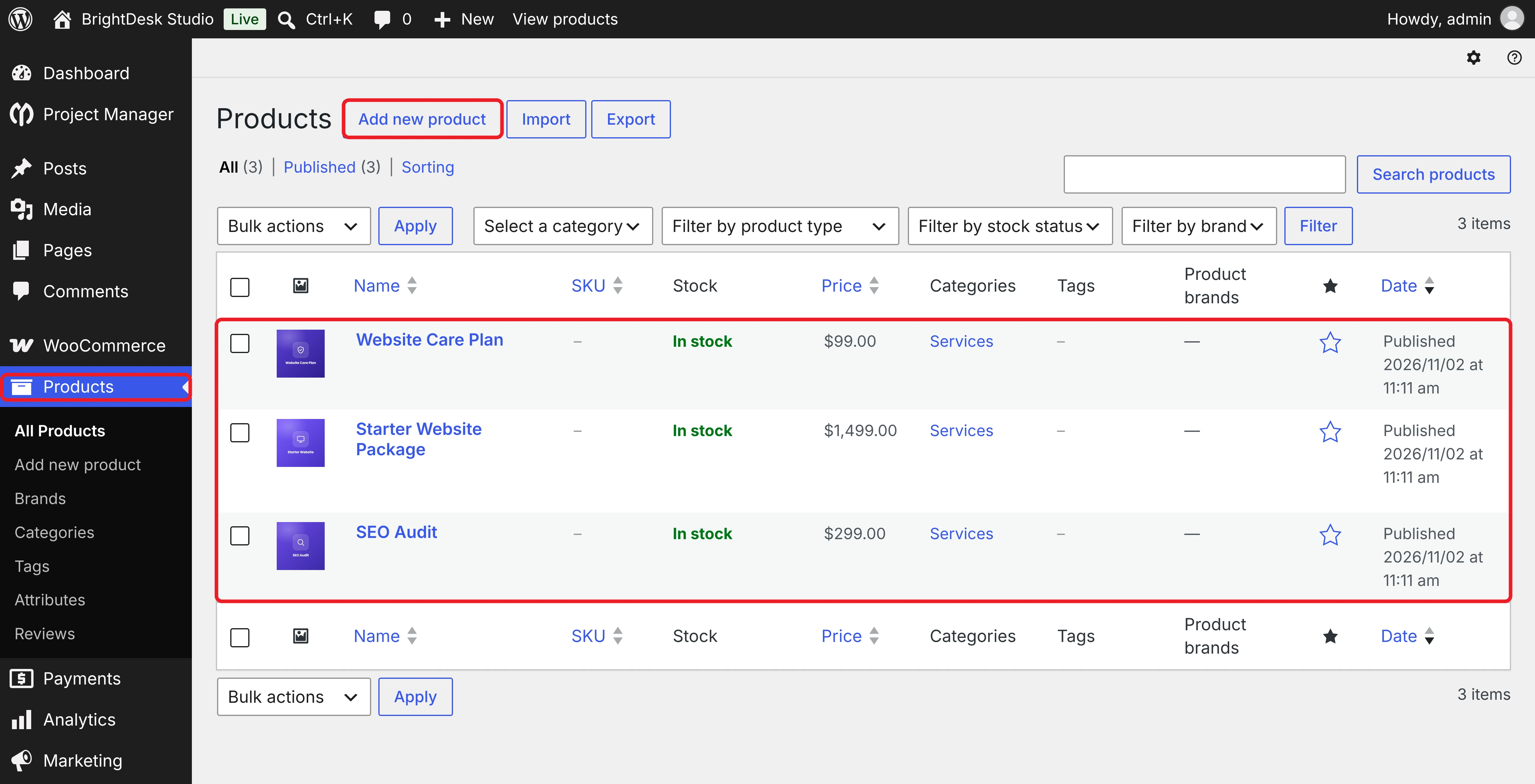
We won't create a rule for the Website Care Plan. That way, you'll see that products without a rule don't create projects.
Tip: For a variable product, the rule uses the main (parent) product. So every variation of a mapped product creates a project.
Step 02: Enable the WooCommerce Order Module
Go to Project Manager > Modules. Find the WooCommerce Order card and toggle on its switch.
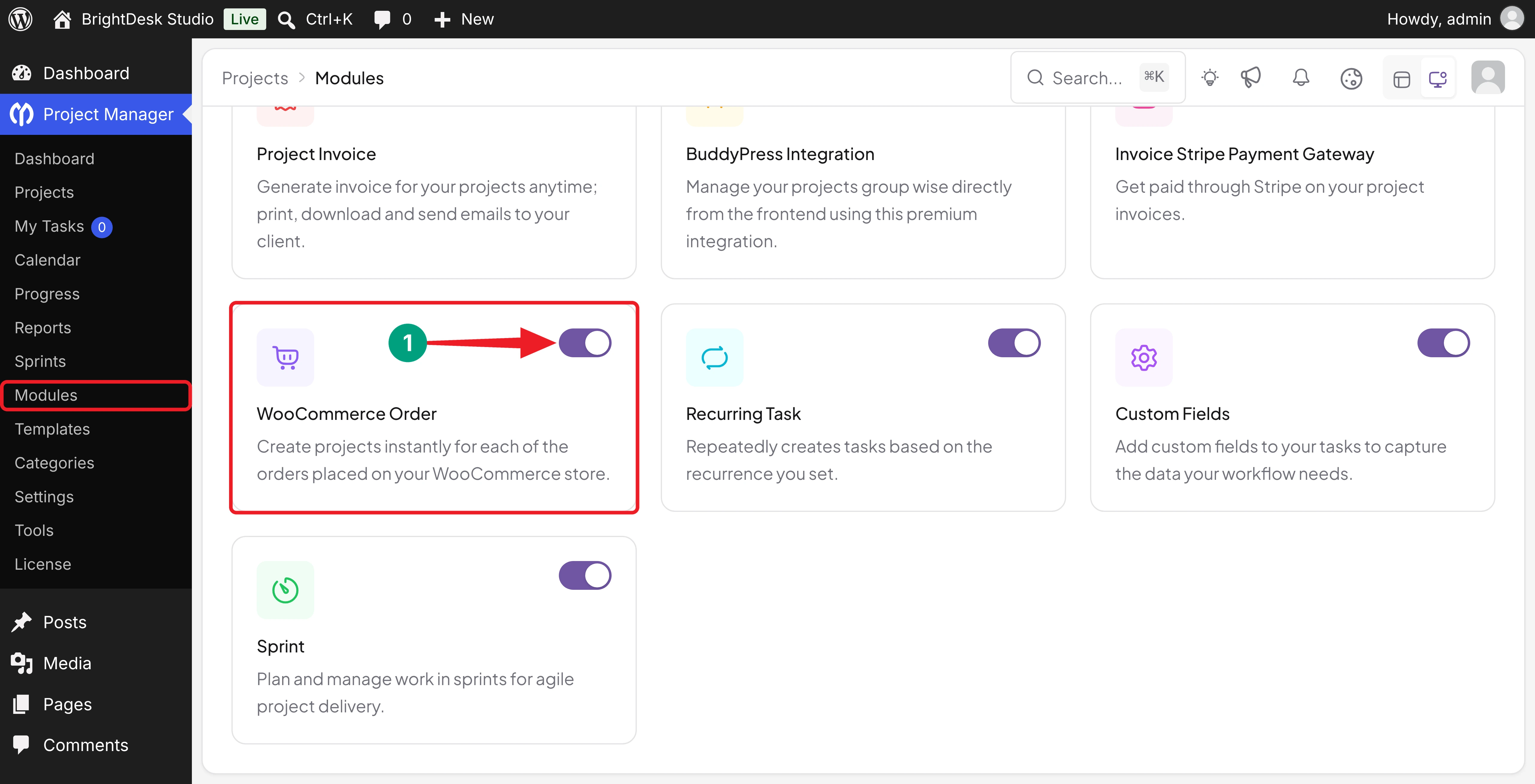
This adds a WooCommerce page to the Project Manager settings. If you can't turn the module on, make sure WooCommerce is active and your Business license is activated under Project Manager > License.
Step 03: Build a Template Project for Repeat Services
This step is only for products you want to copy from a template. Skip it if every order should start from an empty project.
Go to Project Manager > Projects and click New Project. Name it clearly as a template, such as Starter Website – Template, and add your team members.
Add the Task Lists and Tasks
Open the project and add the lists and tasks your team follows for this service. We've added four lists, each with three tasks:
- 01. Kickoff and Content: Questionnaire, brand assets, and staging site.
- 02. Design: Homepage layout, inner-page template, and client approval.
- 03. Build: Five pages, contact form, and device checks.
- 04. Launch: Launch checklist, going live, and handover guide.
Assign the Default Owners
Assign each task to the person who usually does it. When the template is copied, every task keeps its assignees.
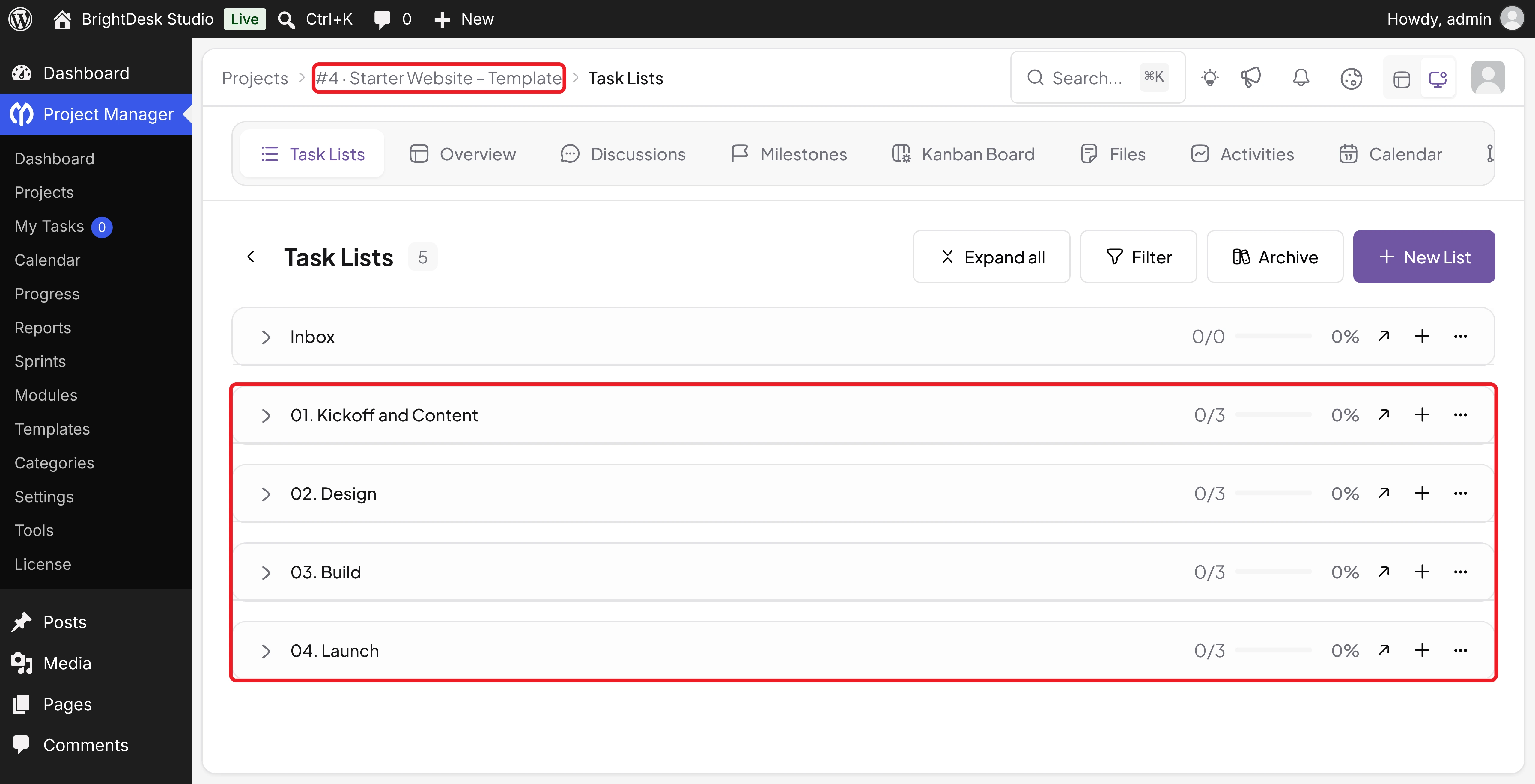
Very Important: Keep the template Active and don't add a real client to it. A copy takes the template's status and members, so an archived template creates archived projects.
Step 04: Open the WooCommerce Integration Settings
Navigate to Project Manager > Settings and click WooCommerce under Integrations. You'll land on the WooCommerce Integration page.
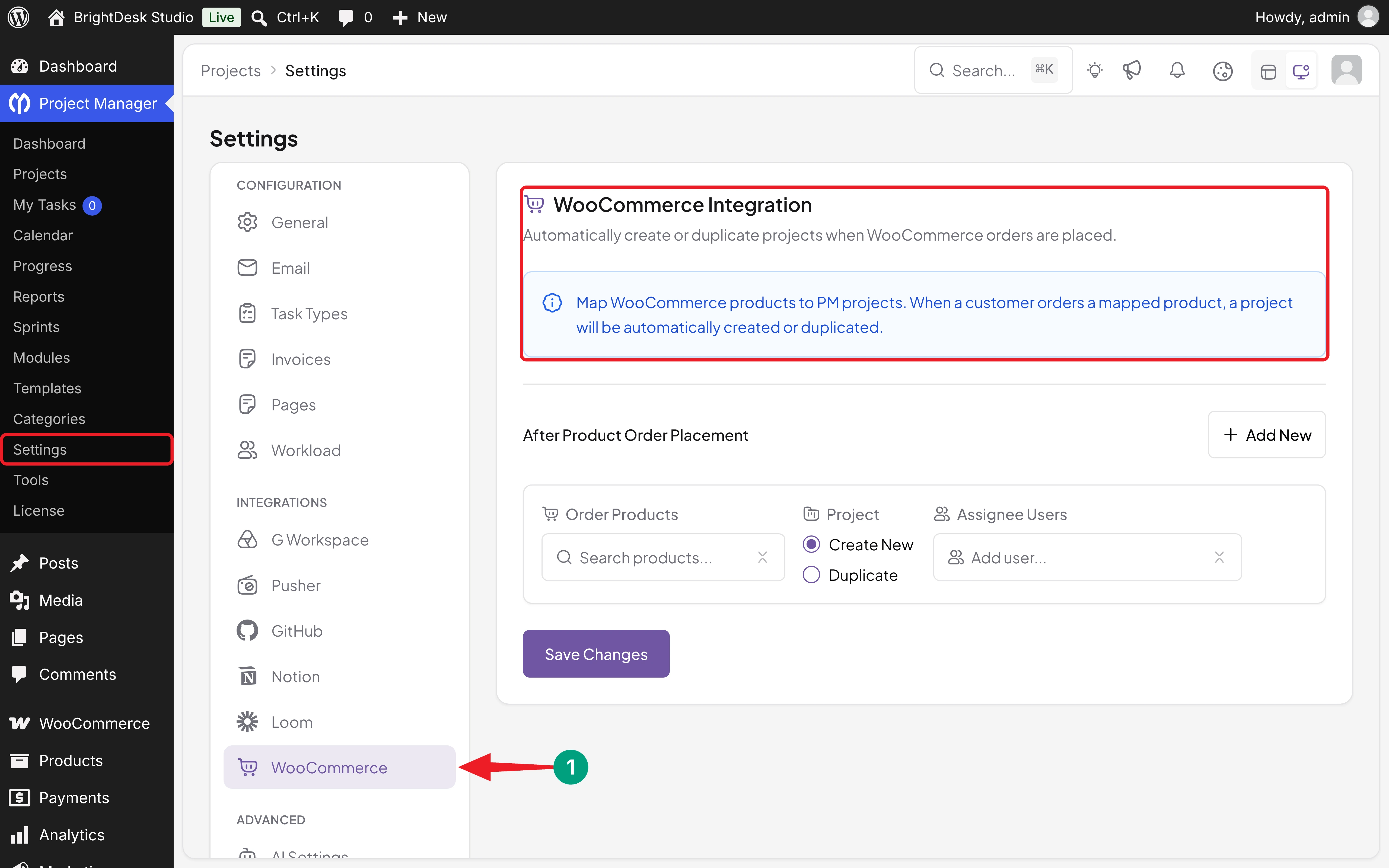
Under After Product Order Placement, you'll find one empty rule. Each rule connects one or more products to one action.
Step 05: Create a Rule That Creates a New Project
Let's set up the first rule for the SEO Audit.
Choose the Order Products
Click Search products... under Order Products, type the product name, and select SEO Audit. You can add more than one product to the same rule.
Select Create New
Under Project, keep Create New selected. Each order of this product will start a new, empty project.
Add the Assignee Users
Click Add user... under Assignee Users and select your team members. We've added Hasan Mahmud and Rafi Ahmed. New users join as Co-Worker, so we've changed Hasan's role to Manager from the dropdown.
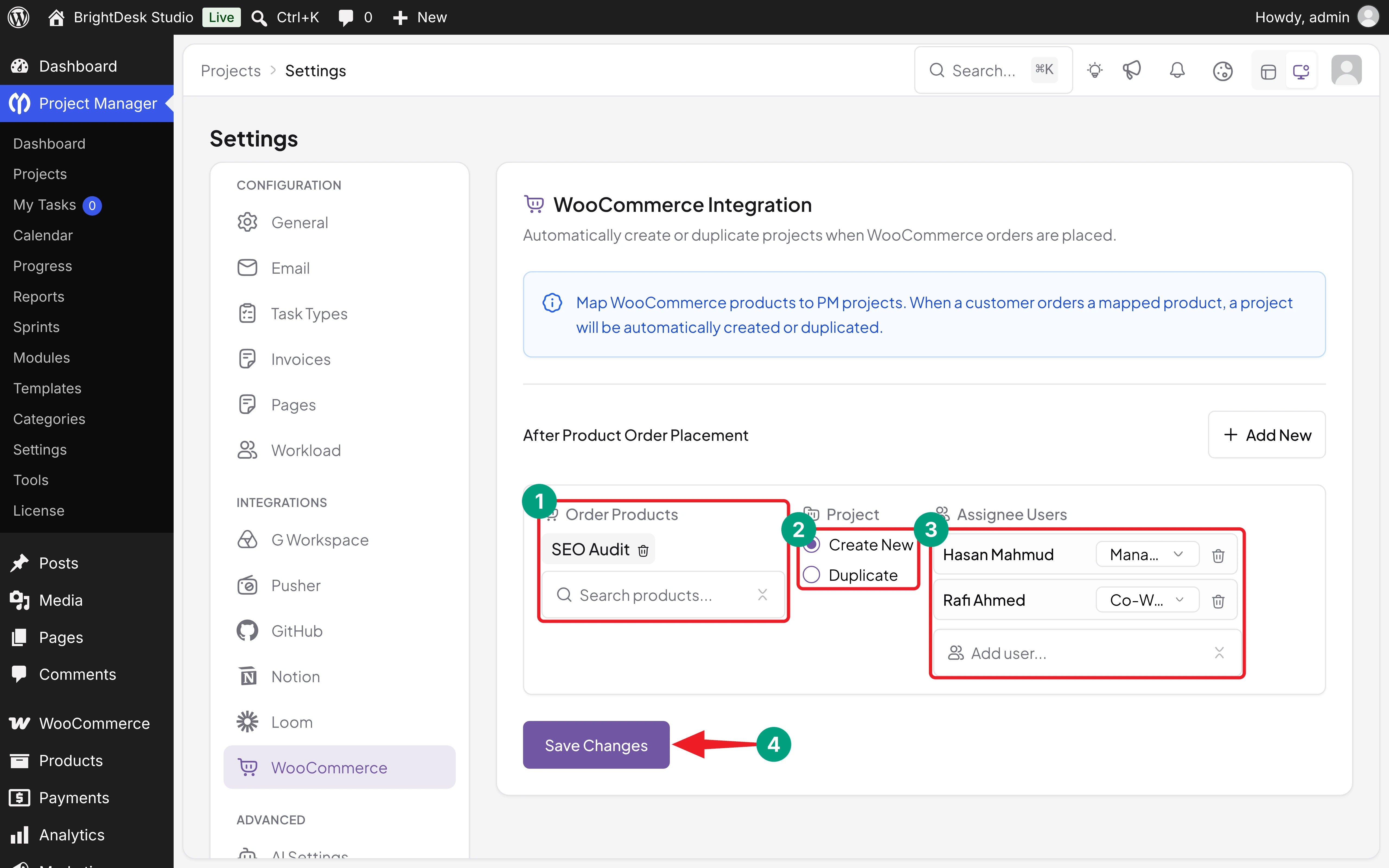
Note: You don't need to add the customer here. When a registered customer places the order, WP Project Manager adds them to the new project as a Client automatically.
Step 06: Create a Rule That Duplicates a Template Project
Now let's add a second rule for the Starter Website Package. Click Add New to add an empty rule below the first one.
Select Starter Website Package under Order Products, and choose Duplicate under Project. The third column changes to Duplicate From. Click Search project... and select Starter Website – Template.
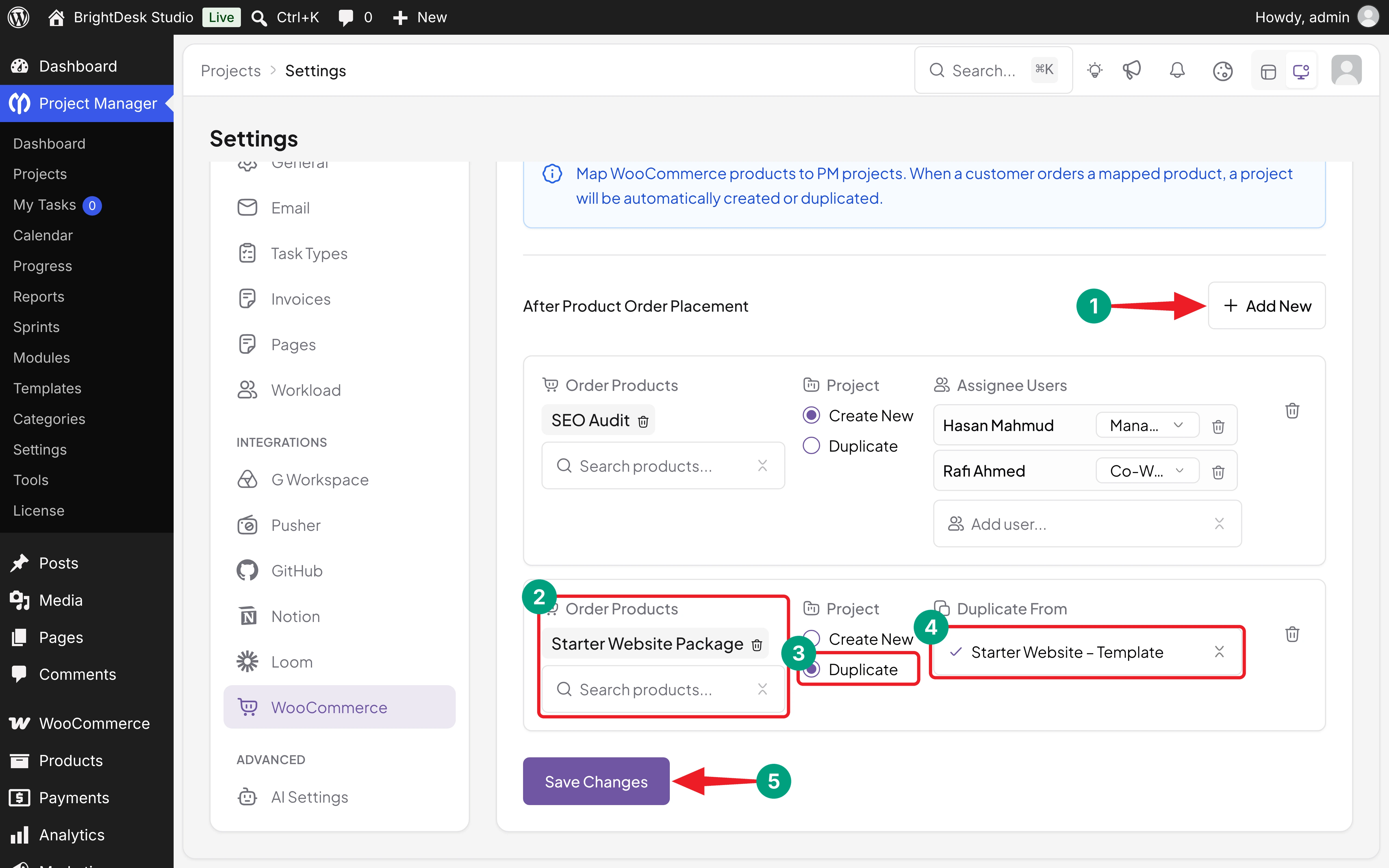
A Duplicate rule has no Assignee Users field. The copy gets its members, task lists, tasks, assignees, milestones, and category from the template.
Step 07: Save the Integration Rules
Click Save Changes. You'll see a WooCommerce settings saved message.
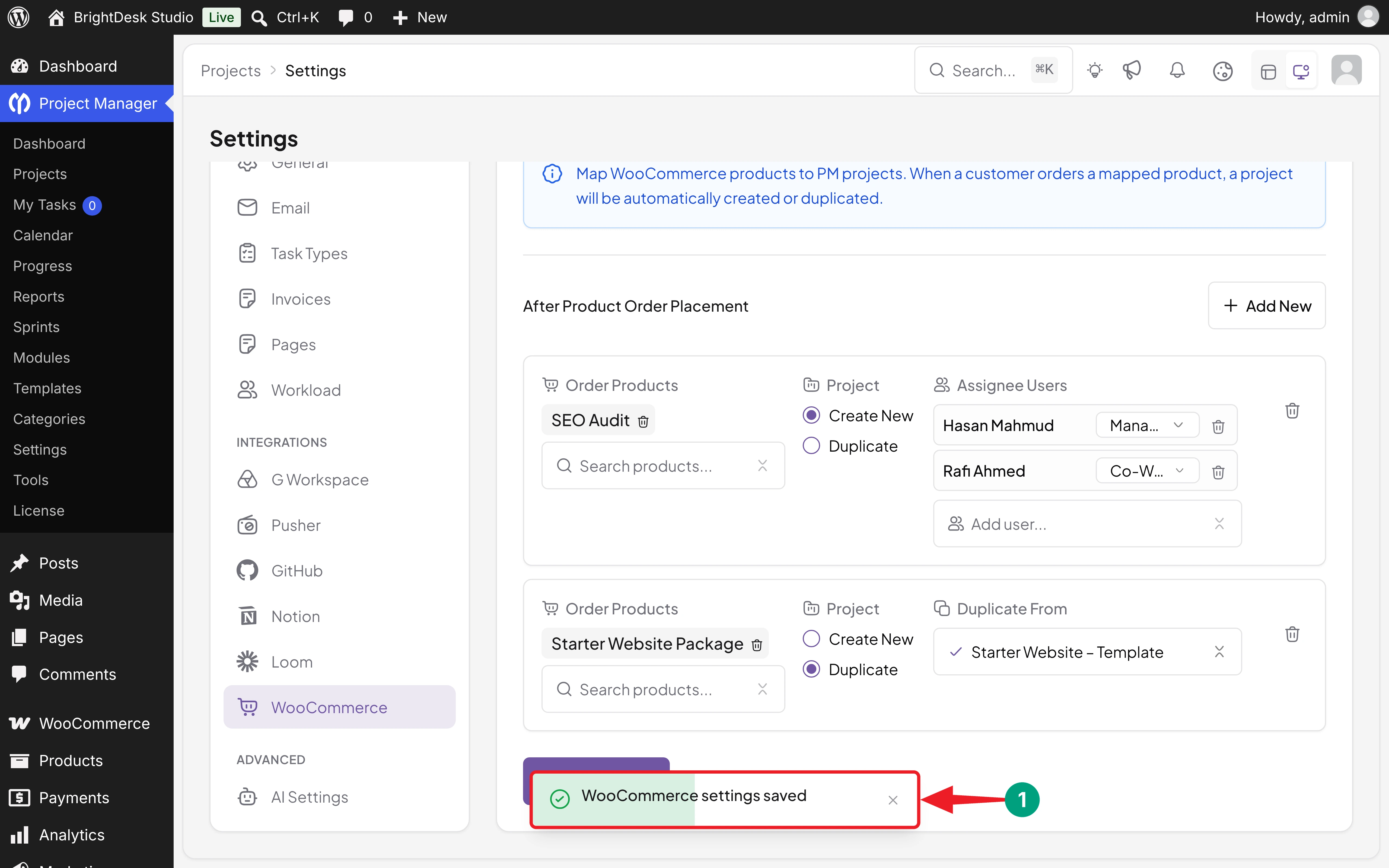
If a rule is incomplete, the plugin tells you what's missing:
- Rule #1: Please select at least one product. Add a product to that rule.
- Rule #2: Please select a project to duplicate. Choose a project under Duplicate From.
To delete a rule, click the trash icon on its right. It appears when you have more than one rule.
Step 08: Place a Test Order
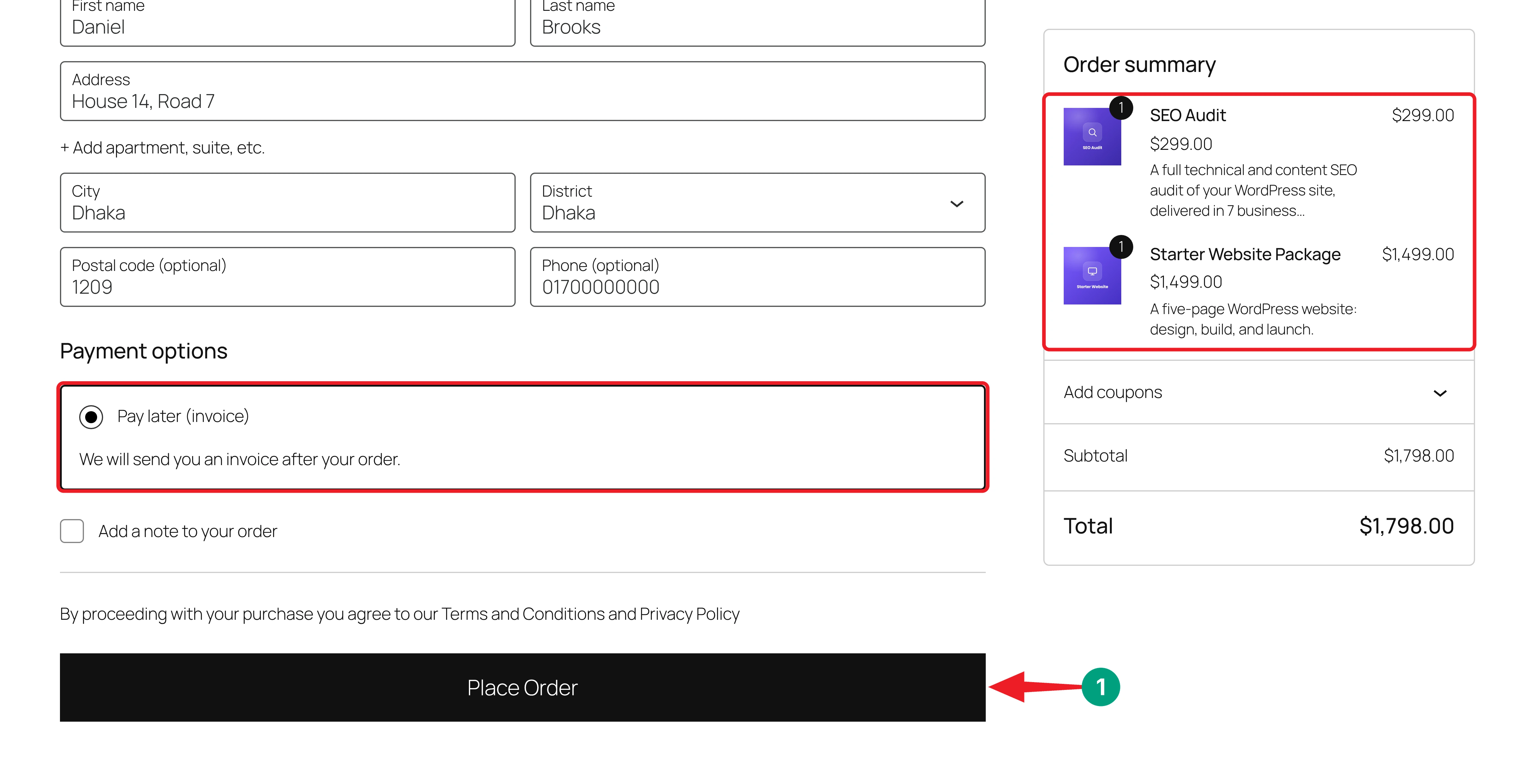
Now let's see it in action. Log in as a test customer on your store, add both services to the cart, and go to checkout. Our customer is Daniel Brooks.
Choose a payment method and click Place Order. For this demo, we renamed WooCommerce's Cash on delivery method to Pay later (invoice), so the order moves straight to Processing.
The Order received page confirms the order.
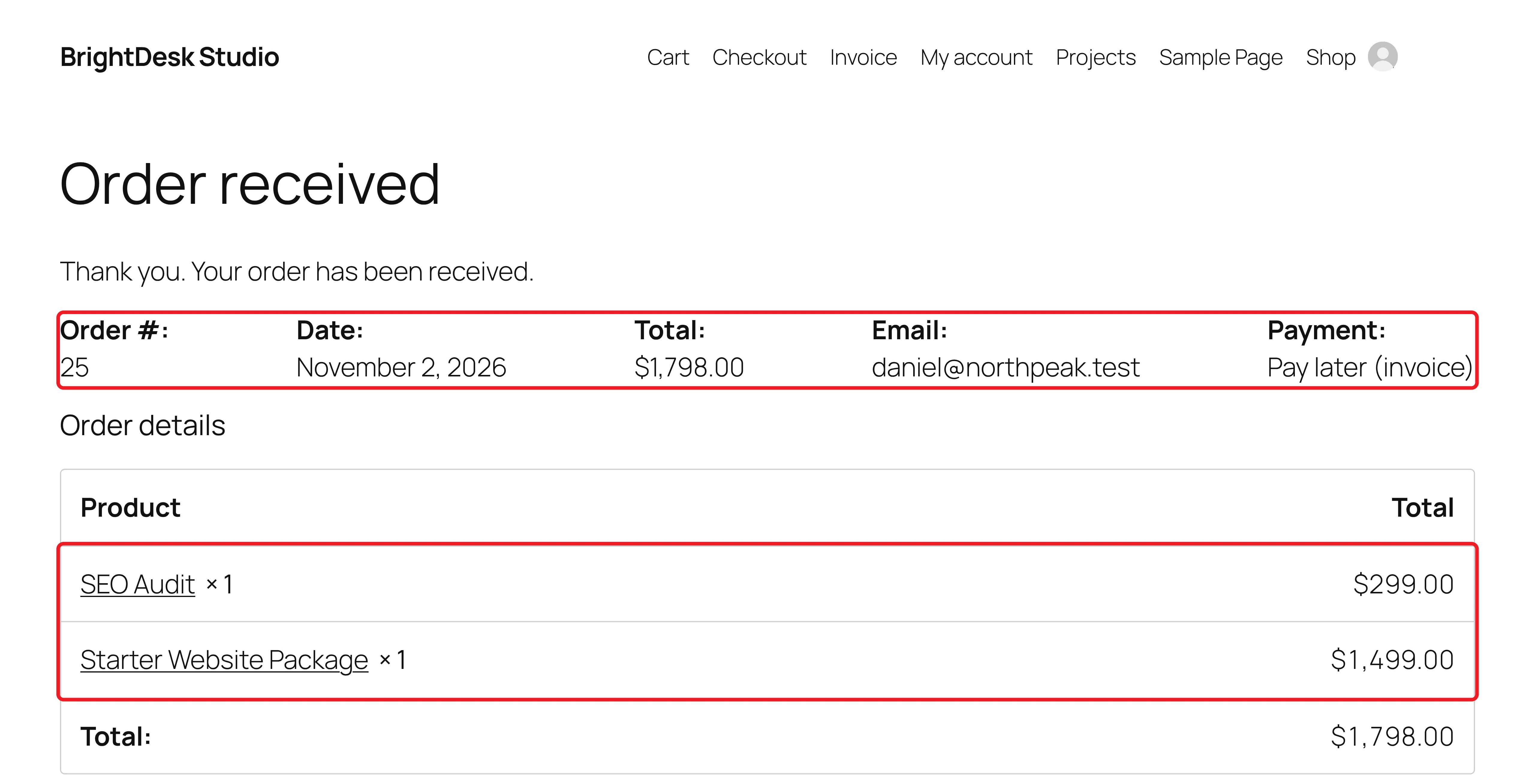
With an online payment method, the project appears as soon as the payment moves the order out of Pending payment.
Step 09: Check the New Projects
Go to WooCommerce > Orders. You'll see the new order, #25 Daniel Brooks, with the Processing status.
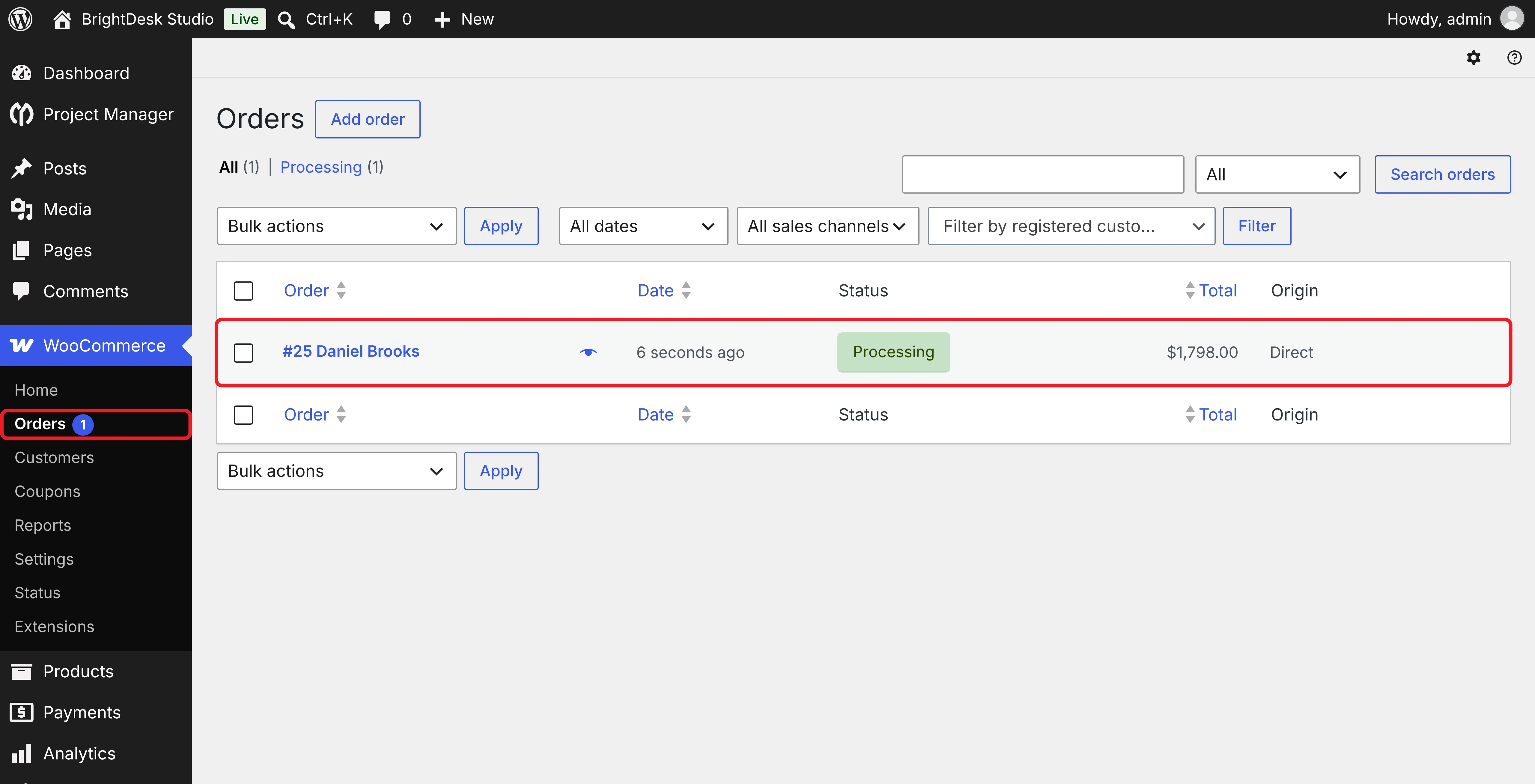
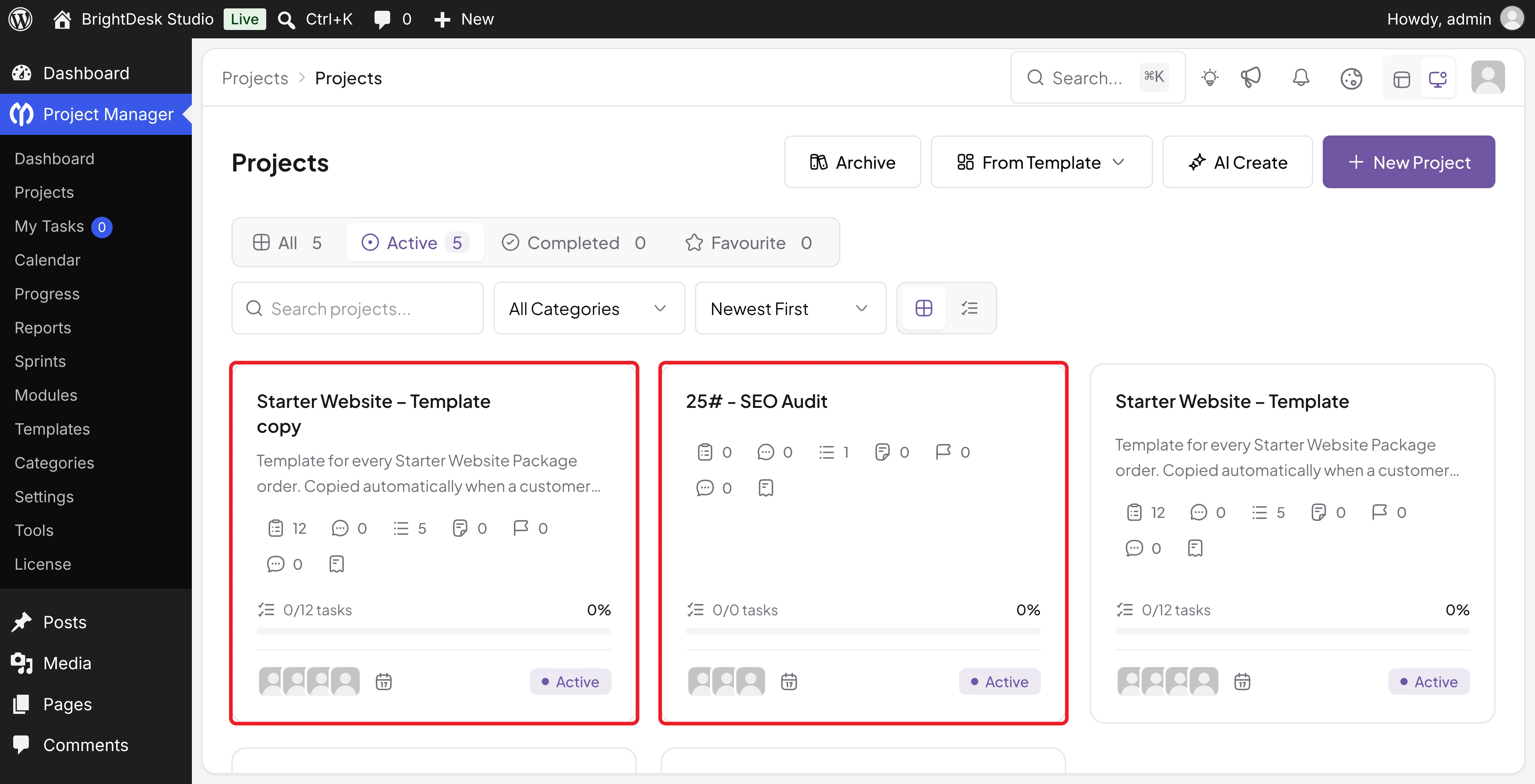
Now go to Project Manager > Projects. Two new projects are already waiting:
- 25# - SEO Audit: Created by the first rule. The name starts with the order number.
- Starter Website – Template copy: Copied from the template by the second rule.
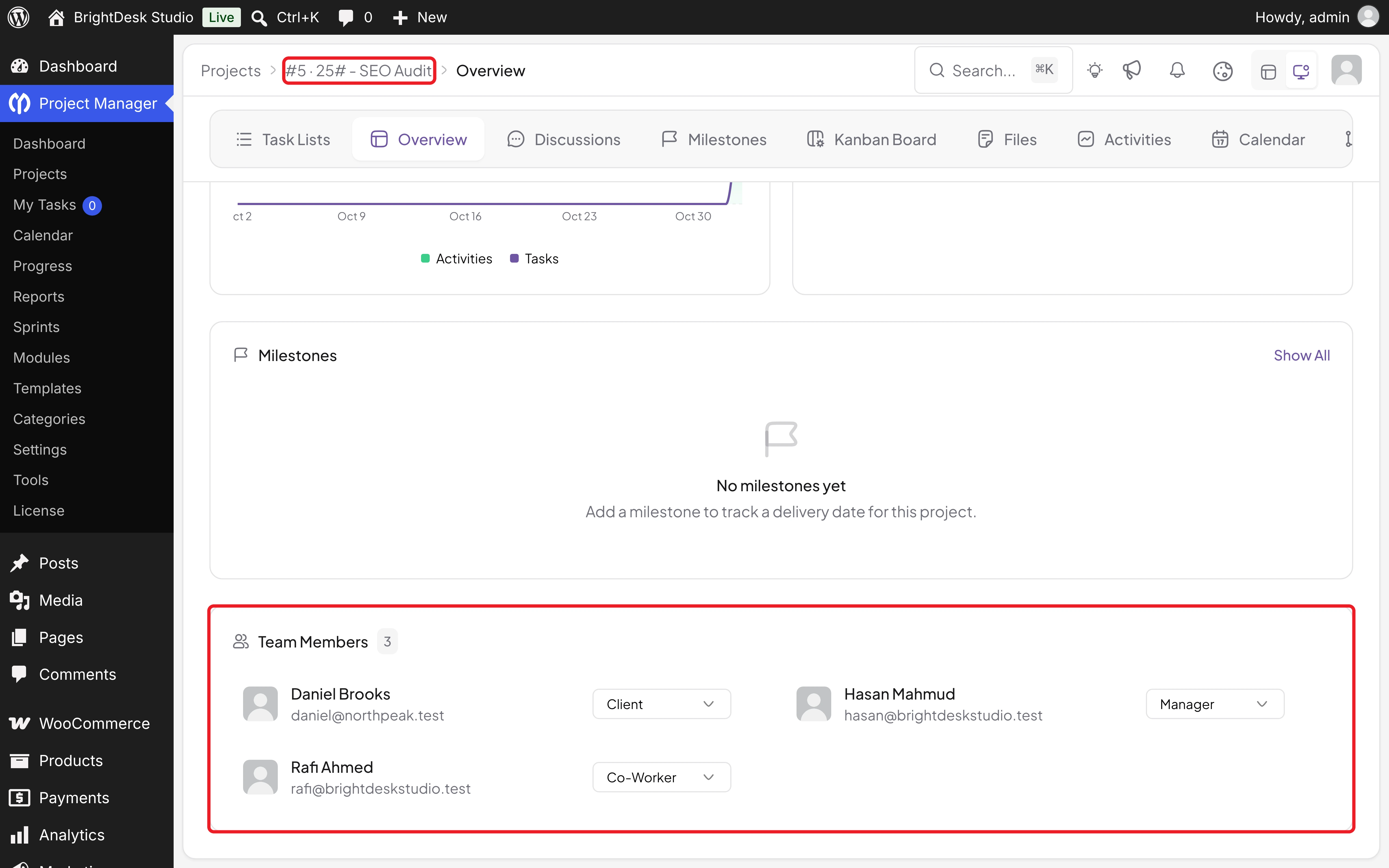
Open 25# - SEO Audit and scroll to Team Members on the Overview tab. Daniel is the Client, Hasan is the Manager, and Rafi is a Co-Worker.
A new project starts empty, with only the Inbox list. Add the tasks your team needs, or use a Duplicate rule if the work always follows the same steps.
Next, open Starter Website – Template copy. The Task Lists tab has all four lists from the template, with 12 tasks and their owners.
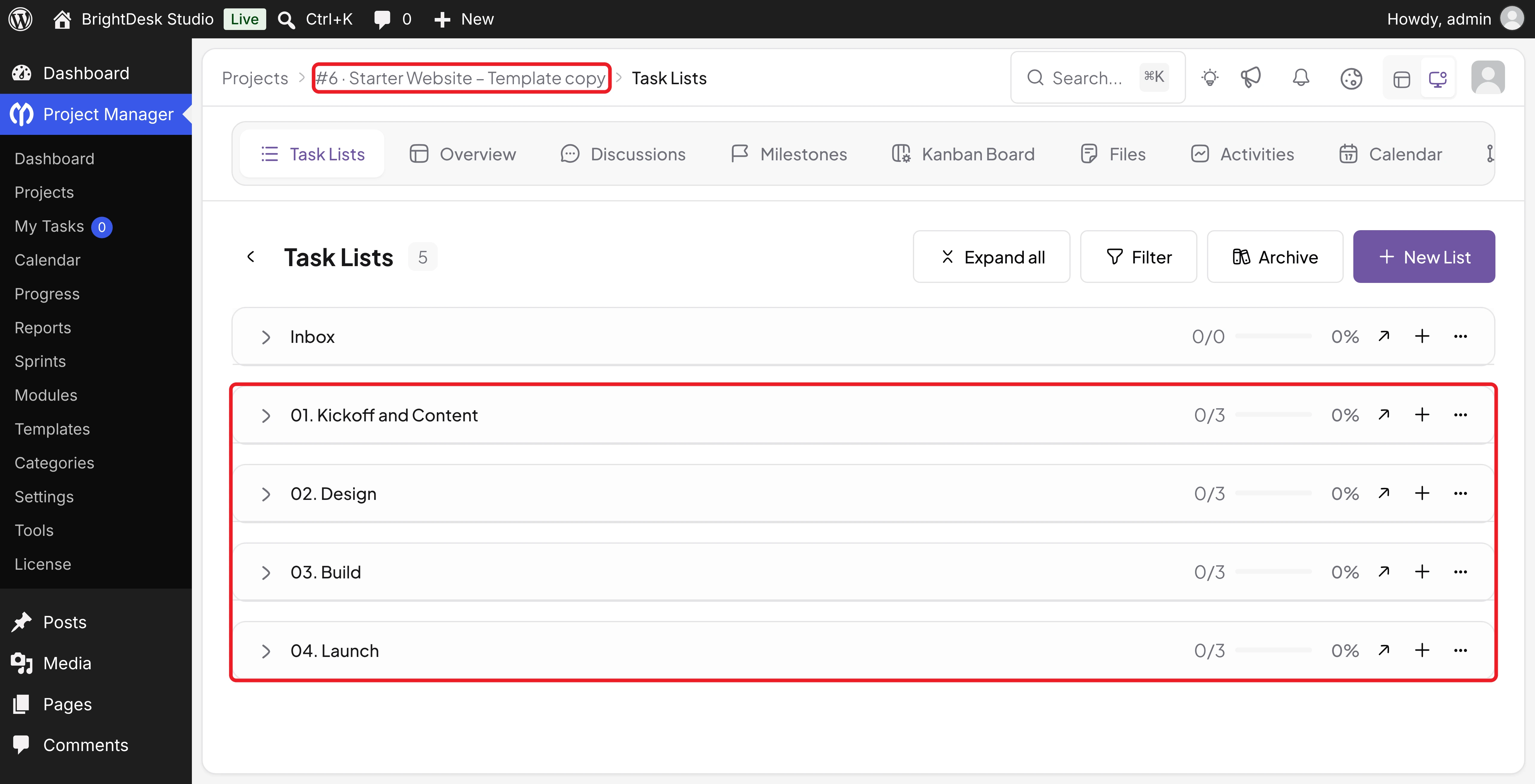
Tip: A copied project is named after the template, not the order. Rename it right away, for example NorthPeak Outdoors – Starter Website, so your team knows whose project it is.
Step 10: Let Customers Follow Their Project
WooCommerce customers can't open the WordPress dashboard, so they need a front-end page to see their projects.
Create a page with the [pm] shortcode, then go to Project Manager > Settings > Pages and select that page under Project Page. Click Save Changes.
When Daniel logs in and opens that page, he sees 25# - SEO Audit in his project list.
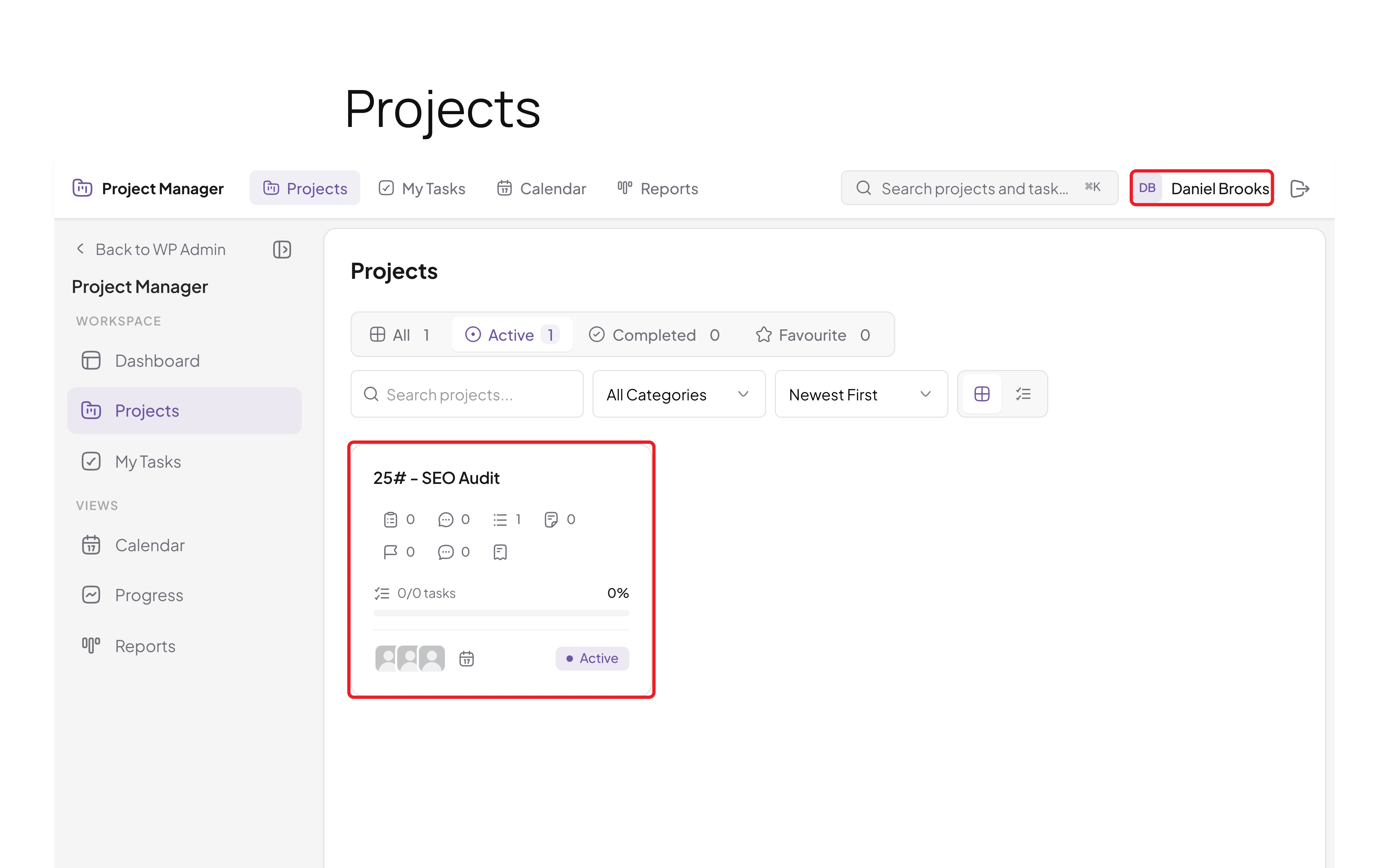
Daniel doesn't see the copied website project yet, because a Duplicate rule doesn't add the customer. Add him as a Client under Team Members on that project's Overview tab.
Note: Before you share access, check what clients can do under each project's Settings > Capabilities.
Thus, you can set up the WP Project Manager WooCommerce integration and turn every service order into a ready-to-work project.
What Happens When a Customer Places an Order?
We tested different order situations in version 4.1.2. Here's what you can expect:
| Situation | What Happens |
|---|---|
| The order status changes for the first time | A project is created for each mapped product in the order |
| The same order changes status again | Nothing new. Each order and product gets only one project |
| The customer buys 3 of the same service | Still one project for that product |
| The order has a product without a rule | That product is ignored |
| A registered customer triggers a Create New rule | The customer joins the project as Client |
| A guest customer triggers a Create New rule | The project is created without a client |
| A Duplicate rule runs | Members come from the template, and the customer isn't added |
| A Create New rule names the project | Order number + product name, such as "25# - SEO Audit" |
| A Duplicate rule names the project | Template name + "copy". The next copy gets "copy copy" |
| The order is cancelled or the payment fails | A project is still created, so archive or delete it |
Check the first few orders after you go live, and adjust your rules if a project doesn't look the way you expect.
Create New vs Duplicate: Which One Should You Use?
Both actions save you time, but they suit different kinds of services.
| Create New | Duplicate | |
|---|---|---|
| What you get | An empty project with an Inbox list | A full copy of your template project |
| Project name | Includes the order number, such as "25# - SEO Audit" | Template name + "copy" |
| Team | Assignee Users from the rule, plus the customer as Client | The template's members |
| Tasks | None. Your team adds them | All lists and tasks, with their owners |
| Best for | Custom work, such as audits and consultations | Packaged services with fixed steps |
Many stores use both. A custom service starts empty, while a fixed package copies its template.
Best Practices for Running Projects from WooCommerce Orders
A few habits keep your automated projects clean and useful:
- Let customers create an account at checkout: Turn on During checkout under Account creation in WooCommerce > Settings > Accounts & Privacy. Registered customers are added to new projects as clients, and guests aren't.
- Name templates clearly: Add "Template" to the name and keep templates Active, so nobody works in them by mistake.
- Rename copied projects right away: Add the customer's name or order number so your project list stays easy to scan.
- Map only the products that need a project: Physical goods and simple downloads usually don't need one.
- Review client permissions: Check Settings > Capabilities on each project before customers log in.
- Test before you go live: Place a test order, check the projects, then archive or delete the test projects.
- Watch for cancelled and failed orders: They still create projects, so clean them up regularly.
Troubleshooting Common WooCommerce Integration Problems
| Problem | Possible Cause | What to Check |
|---|---|---|
| WooCommerce is missing from the settings | The module is off, or WooCommerce isn't active | Activate WooCommerce and turn on WooCommerce Order in Project Manager > Modules |
| No project appears after an order | The product isn't in a rule, or the order is still Pending payment | Check the rule's Order Products and the order status |
| "Please select at least one product." when saving | A rule has no product | Add a product or remove the empty rule |
| "Please select a project to duplicate." when saving | A Duplicate rule has no source project | Choose a project under Duplicate From |
| The customer isn't in the project | They checked out as a guest, or the rule uses Duplicate | Turn on account creation at checkout, or add the client on the Overview tab |
| Copied projects are archived | The template project is archived | Move the template back to Active |
| Project names end with "copy copy" | Each copy of a template adds "copy" to the name | Rename copies with the customer's name |
| Projects appear for cancelled orders | Any first status change runs the rules | Archive or delete those projects |
| The customer can't see the project on the site | No front-end Project Page is set | Select the page under Project Manager > Settings > Pages |
FAQ on the WP Project Manager WooCommerce Integration
In this section, we have answered some frequently asked questions about using WP Project Manager with WooCommerce.
Can I connect WooCommerce with the free version of WP Project Manager?
No. The WooCommerce Order module comes with WP Project Manager Pro in the Business plan. You also need WooCommerce installed and active.
Can one rule cover several products?
Yes. Add as many products as you need under Order Products. Each mapped product in an order gets its own project.
Will a customer who buys three of the same service get three projects?
No. The plugin creates one project per product in each order, whatever the quantity.
Is the customer added to the project automatically?
Yes, with a Create New rule, as long as the customer has an account. A Duplicate rule doesn't add the customer, so add them as a Client yourself.
Does it work with variable products?
Yes. Rules use the main product, so an order for any of its variations creates a project.
Can I use a project template for every order of a package?
Absolutely. Choose Duplicate and select your template under Duplicate From. Every order gets a full copy of its task lists and tasks.
Final Thoughts!
Congratulations! You now know how the WP Project Manager WooCommerce integration works. Instead of creating projects by hand after each sale, your store hands every service order straight to your team, with the right people and tasks in place.
Start with your best-selling service. Build a clean template, map the product, and place a test order before you go live. Once that works, add rules for your other services and give your customers a front-end page to follow their projects. Explore the WooCommerce Order module to see how it fits your store.
Learn how to set up WP Project Manager for a WordPress agency.
If you have any questions, mention them in the comment box below. Thanks for being with us till the end.